



Explained
HIPAA Technical Safeguards Explained for IT Teams
HIPAA technical safeguards are the 5 standards in 45 CFR 164.312. What each one requires, required vs addressable, and the device settings that meet it.
An APNS certificate is what lets your MDM platform send commands to iPhones, iPads, and Macs — here's how to create, renew, and protect it.
You're mid-setup on your MDM platform, or a management command just stopped working, and something called an APNS certificate is blocking you. No context, no obvious next step.
An APNS certificate is the credential Apple requires before any MDM platform can send a single command to an iPhone, iPad, or Mac. Without it, your MDM console and your devices cannot communicate at all. One certificate covers all three Apple device types.
When it expires, the cutoff is immediate — no grace period. The majority of your MDM capabilities go offline on expiry day, including remote lock, remote wipe, app pushes, and new device enrollment. From the console, devices just stop responding.
This article covers what the APNS certificate is and why it sits at the foundation of Apple device management, how to create one from scratch, how to renew it (which is simpler than creation), and what to do when things go wrong.
An APNS certificate is what allows your MDM platform to send commands to iPhones, iPads, and Macs — it expires every year and must be renewed with the same Apple ID used to create it.
Without an active certificate, you lose remote lock, remote wipe, app pushing, and new device enrollment immediately — no grace period.
First-time setup requires a CSR file from your MDM platform, the Apple Push Certificates Portal (identity.apple.com/pushcert), and a Business Apple ID. Renewal skips the CSR step entirely.
Always use an organization-owned email address (e.g., [email protected]) for the Apple ID — never a personal or role-specific account.
Set your renewal reminder at 30 days before expiry, not 7 — by the time the 7-day alert arrives, you are already in triage mode.
If you ever lose access to the Apple ID used to create the certificate, you must create a brand-new certificate with a new Apple ID before the old one expires.
If you already know what APNS is and just need the setup steps, skip ahead to How to Create an APNS Certificate.
APNS stands for Apple Push Notification Service — Apple's system for delivering real-time signals from a server to Apple devices. In an MDM context, that signal is not a push notification in the consumer sense. It is a "wake up and check in" message. The MDM platform does not push commands directly to a device; it sends an APNS signal that tells the device to contact the MDM server and collect its instructions.
The APNS certificate is what proves to Apple that your MDM platform is authorized to send those signals to your devices. Without it, Apple's servers reject the connection entirely. Platforms like Trio MDM use this APNS connection to enable apple device management — pushing configuration profiles, locking or wiping devices, and managing app installations across iPhone, iPad, and Mac fleets.
One apple apns certificate covers all three device types. You do not need separate certificates for iPhone, iPad, and Mac — a single certificate handles all of them, which matters if you are managing a mixed Apple fleet.
A note on terminology: some guides and searches refer to an "apns ssl certificate." That phrase is used loosely across different audiences. The specific certificate IT admins need for MDM is the push certificate issued through the Apple Push Certificates Portal at identity.apple.com/pushcert (practitioners call this "the portal"). It is not a TLS/SSL website certificate — those are different things entirely.
If you found this page after reading about Apple deprecating APNs certificates: that deprecation applies to iOS app developers using certificate-based authentication for app push notifications. It does NOT affect MDM. Your MDM APNS certificate is a separate credential on a separate authentication path and is not impacted by that change.
Answering the question of what is an APN certificate in the plainest terms: it is an annual credential that authorizes your MDM platform to communicate with Apple's push infrastructure. Without it, your managed Apple devices are unreachable from the console.
This section covers first-time setup. If your certificate already exists and you need to renew it, jump to How to Renew Your APNS Certificate.
Knowing how to get an APNS certificate requires understanding that setup involves three stops: your MDM platform, the Apple Push Certificates Portal, and back to your MDM platform. Each stop handles a different part of the process, and the files change at each handoff — a .csr file goes into the portal, a .pem file comes out. Experienced admins sometimes call this "the CSR dance" — multiple stops, specific file types at each one. The steps below eliminate the guesswork.
Before you start, make sure you have everything in the list below.
Before you start, confirm you have access to both your MDM platform and Apple Business Manager. In some organizations these are managed by different teams — finding out you need someone else's credentials mid-process will stall you.
Which APNS task do you actually need to do right now?
Setting up Apple MDM for the first time and have never created an APNS certificate — Go to "Step-by-Step: Creating the Certificate" below.
Have an existing certificate expiring in the next 30 days — Go to "Renewing Before It Expires" in the Renewal section.
Certificate has already expired (status shows "Expired" in red) — Go to "If It's Already Expired" in the Renewal section.
Certificate is still active but you lost access to the Apple ID used to create it — Go to "If You Lost Access to the Apple ID" in the Renewal section.
Not sure? Check your MDM platform's APNS status panel first. In Trio MDM: Fleet → MDM Setup → Apple. If it shows "Connected" with an expiration date more than 30 days away, you don't need to do anything right now.
Knowing how to create an APNS certificate in iOS MDM deployments is only step one — you need to understand where it sits in the setup order. The hierarchy is fixed: APNS must be active before DEP (automated device enrollment) or VPP (app distribution) can function. There is no workaround for this sequence.
Setting up DEP without an active APNS connection is one of the most common reasons automated enrollment appears broken even after DEP is fully configured — APNS is the prerequisite that DEP doesn't remind you about. Once APNS is connected, you can move on to setting up apple dep for automated device enrollment.
Knowing how to generate an APNS certificate starts at your MDM platform, not at the Apple portal. Here is the full sequence.
trio-mdm.csr file. If you're using a different platform, look for an "APNs" or "Apple Push Notification" section in your MDM's device management setup..csr format) to the portal..pem file. Save it somewhere accessible before closing the browser..pem file to complete the connection. The status should change to "Connected.".pem file and not the original .csr — uploading the wrong file is the most common cause of the "gray badge stays gray" issue.The two-stop process exists because Apple requires the certificate to belong to your organization, not your MDM vendor. That is a protection, not bureaucratic overhead — it means your certificate and your device relationships don't disappear if you ever switch MDM platforms. The CSR is your MDM platform's way of specifying what belongs in the certificate. Your ios MDM APNS certificate is owned by your organization, not by Trio MDM or any other vendor. This design is documented in Apple's device management documentation for anyone who wants the full protocol reference.
Understanding how to get your apple APNS certificate also means understanding what the .pem file actually is — it is Apple's signed authorization, tying your organization's Apple ID to your MDM vendor's infrastructure. Keep it available until the upload is confirmed.
Here's how the three main apn certification scenarios compare — first-time setup, renewal before expiry, and renewal after expiry are not the same process, and conflating them costs time.
APNS certificate renewal is simpler than setup if you act before the expiry date — no CSR file required. The steps below cover all three renewal scenarios, from the ideal case (planned, before expiry) to the worst case (lost Apple ID access).
Knowing how to renew an APNS certificate before expiry is the version you want to be in. The steps are shorter than creation because Apple already has your CSR on file from the original setup.
.pem certificate file..pem file to replace the existing certificate.Trio MDM sends proactive renewal alerts at 30, 15, and 7 days before expiry — the 30-day alert is the one to act on. By the time the 7-day notification arrives, you're already managing urgency rather than planning.
If your renewal window falls inside an IT change freeze period, note this early — a certificate renewal is low-risk, but emergency approvals during freezes add lead time you may not have.
To renew APNS certificate through Apple's portal, you'll need the same Business Apple ID that was used at setup. If you also manage apps through the App Store, your apple vpp token setup depends on APNS staying active — let either one lapse and app management stops.
The process to renew your apple APNS certificate after expiry uses the same steps above, but the urgency is higher — device management is already offline. Your MDM platform will show the status as "Expired" in red.
The majority of features that go offline at expiry includes remote lock, remote wipe, app pushes, and new device enrollment. About 30% of features remain functional, but that group does not include the core capabilities most teams need for security incidents.
After uploading the new PEM, if the "Expired" status doesn't clear, check that you downloaded a fresh certificate from the Apple portal and are not re-uploading an old file. A stale file from a previous download will not update the status.
This is the highest-severity failure mode. This is one of the most common crises in small IT teams — the person who set up the MDM leaves, and their personal Apple ID goes with them.
Knowing how to update an APNS certificate when the original Apple ID is lost requires creating a brand-new certificate: generate a new CSR from your MDM platform, use a different Apple ID at the portal, and upload the resulting PEM before the old certificate expires. Acting before expiry minimizes disruption.
This is an Apple architectural requirement, not a platform limitation. The certificate is tied to the Apple ID that created it, and the fix is identical regardless of which MDM platform you use — which is exactly why protecting that Apple ID matters so much from day one.
The Apple Push Certificates Portal gives minimal feedback when something goes wrong. The errors below are the ones practitioners hit most often, with the cause and fix for each.
Error: "Certificate already in use"
What it means: A certificate with the same UID already exists in the Apple portal — typically from a duplicate upload or a failed retry.
Fix: Go to identity.apple.com/pushcert, delete the conflicting certificate, then create and upload a new one. If deleting the old certificate doesn't resolve it, confirm you are signed into the correct Apple ID — the conflict may be on a different account.
Error: Status badge stays gray / "Not Connected" after upload
What it means: The wrong file was uploaded (.csr instead of .pem), the file was renamed or corrupted, or the upload timed out.
Fix: Re-download the .pem from the Apple portal and upload it again. Do not rename the file before uploading.
Error: "Unsupported file" at the Apple portal
What it means: You uploaded a file that is not in .pem format — most commonly the .csr file, or a renamed certificate.
Fix: Return to your MDM platform to download a fresh .csr, upload that to the Apple portal, then download the resulting .pem and upload it to your MDM. Confirm file extensions before each step.
Error: Portal window doesn't open
What it means: Browser pop-ups are blocked.
Fix: Allow pop-ups for identity.apple.com in your browser settings, then retry. Safari, Chrome, and Edge all work — the pop-up permission is the only common blocker.
The portal doesn't explain these errors with any useful context — knowing the cause in advance saves significant troubleshooting time. If you're managing a mixed fleet beyond Apple devices, a unified endpoint management platform handles these certificate dependencies alongside Windows, Android, and Linux in a single console.
The mechanics of creating and renewing the certificate are straightforward. What trips up small IT teams is the organizational habits around it — who owns the Apple ID, where that information lives, and when renewal actually happens.
Yes, annual renewal is a constraint Apple requires — everything above is designed to make it a 15-minute calendar event rather than a crisis. For any 2024/2025 changes to certificate requirements or renewal portal behavior, check Apple's device management changelog before your next renewal cycle.
Managing your APNS certificate manually — tracking the expiry date, knowing when to renew, having the right files ready — is manageable for one person. The problem is what happens when that one person gets busy, misses the window, or leaves the organization.
Trio MDM addresses this in four concrete ways.
Proactive renewal alerts at 30, 15, and 7 days. Trio MDM sends automated notifications before the certificate expires. The 30-day alert is the one that matters — it gives small IT teams a full month to handle renewal without urgency, well before the 7-day triage window.
Built-in setup wizard. Trio MDM walks through the full APNS connection process — generating the CSR, guiding the Apple portal steps, and confirming the upload — inside the platform. The status panel shows the Apple ID, certificate UID, and expiration date in one place, so verification after renewal is a single glance.
Immediate status visibility. The status panel makes clear exactly what the certificate covers — iPhone, iPad, and Mac — and makes it straightforward to confirm after renewal that the expiration date updated correctly and the connection is live.
Enforced setup order. Because Trio MDM requires an active APNS certificate before DEP and VPP can be configured, the platform prevents the common mistake of skipping the certificate step and then wondering why automated enrollment isn't working. The dependency chain is built into the setup flow.
Trio MDM offers a 14-day free trial. If you want to see how the APNS setup wizard and renewal alerts work in a live environment, you can start your free trial or book a demo.
Every organization today needs a solution to automate time-consuming tasks and strengthen security. Without the right tools, manual processes drain resources and leave gaps in protection. trio.so is designed to solve this problem, automating key tasks, boosting security, and ensuring compliance with ease.
Every organization today needs a solution to automate time-consuming tasks and strengthen security. Without the right tools, manual processes drain resources and leave gaps in protection. trio.so is designed to solve this problem, automating key tasks, boosting security, and ensuring compliance with ease.





Related
The related industry news, interviews, technologies, and resources.
HIPAA technical safeguards are the 5 standards in 45 CFR 164.312. What each one requires, required vs addressable, and the device settings that meet it.

Shadow AI breaches average $4.63M. Here is how to detect shadow AI using DNS logs, OAuth audits, and your endpoint inventory, step by step.
Declarative device management is Apple's answer to MDM polling delays and unreliable compliance data — here's how it works and how to start using it.
Device location history works differently on Android, iPhone, and MDM platforms. Here's what each one actually stores and how to access it.
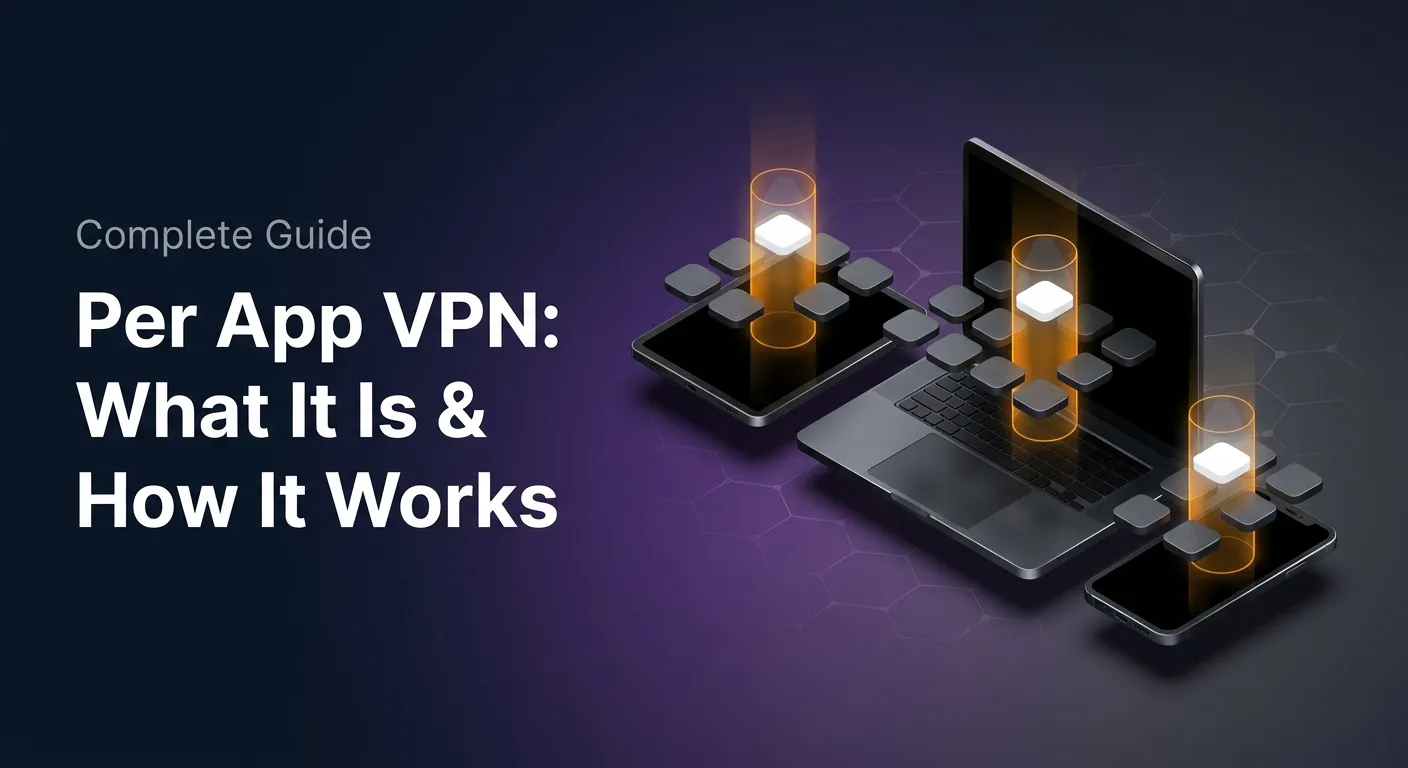
Unlike full-device VPN, per-app VPN tunnels only the apps you choose — and without MDM enforcement, users can bypass it entirely on unmanaged devices.
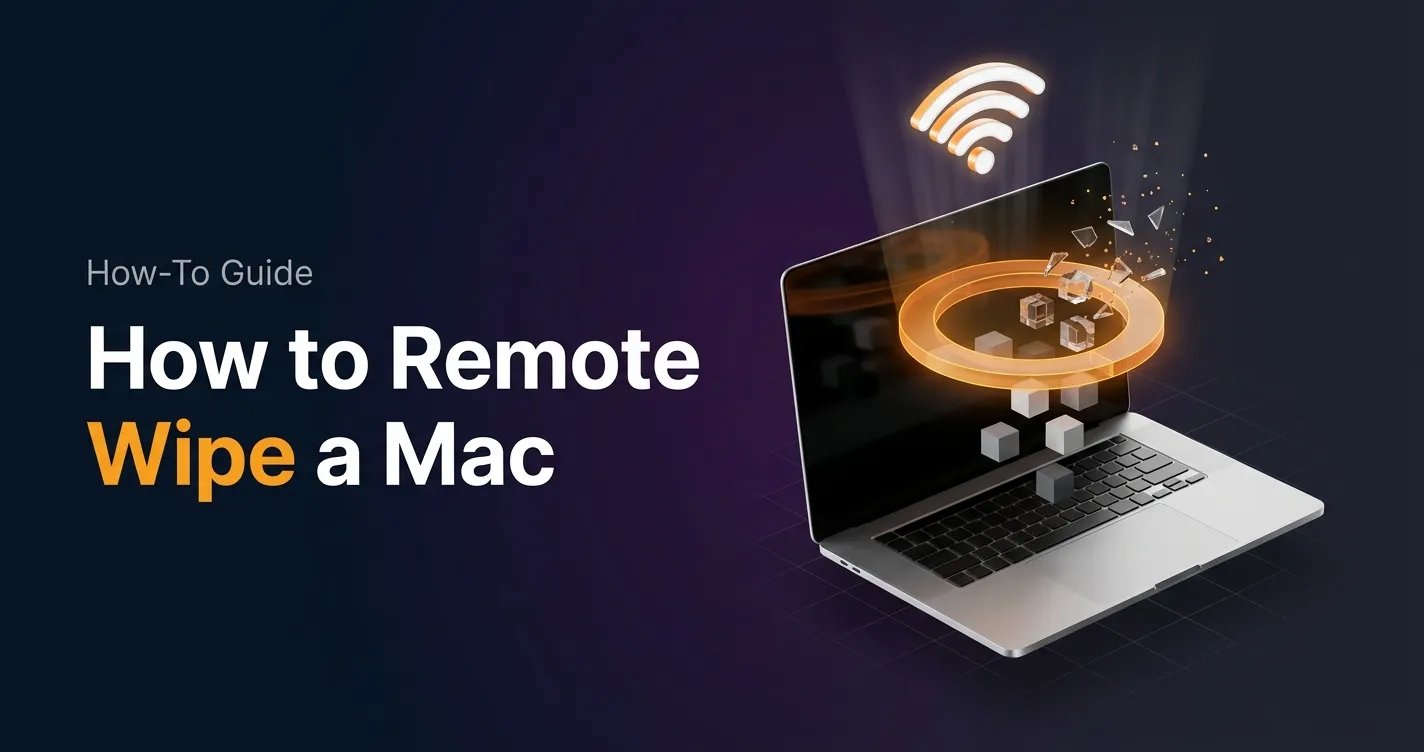
A remote wipe on a Mac is only possible if the right tools are in place first — here is how MDM, Find My, and native macOS each handle device erasure.
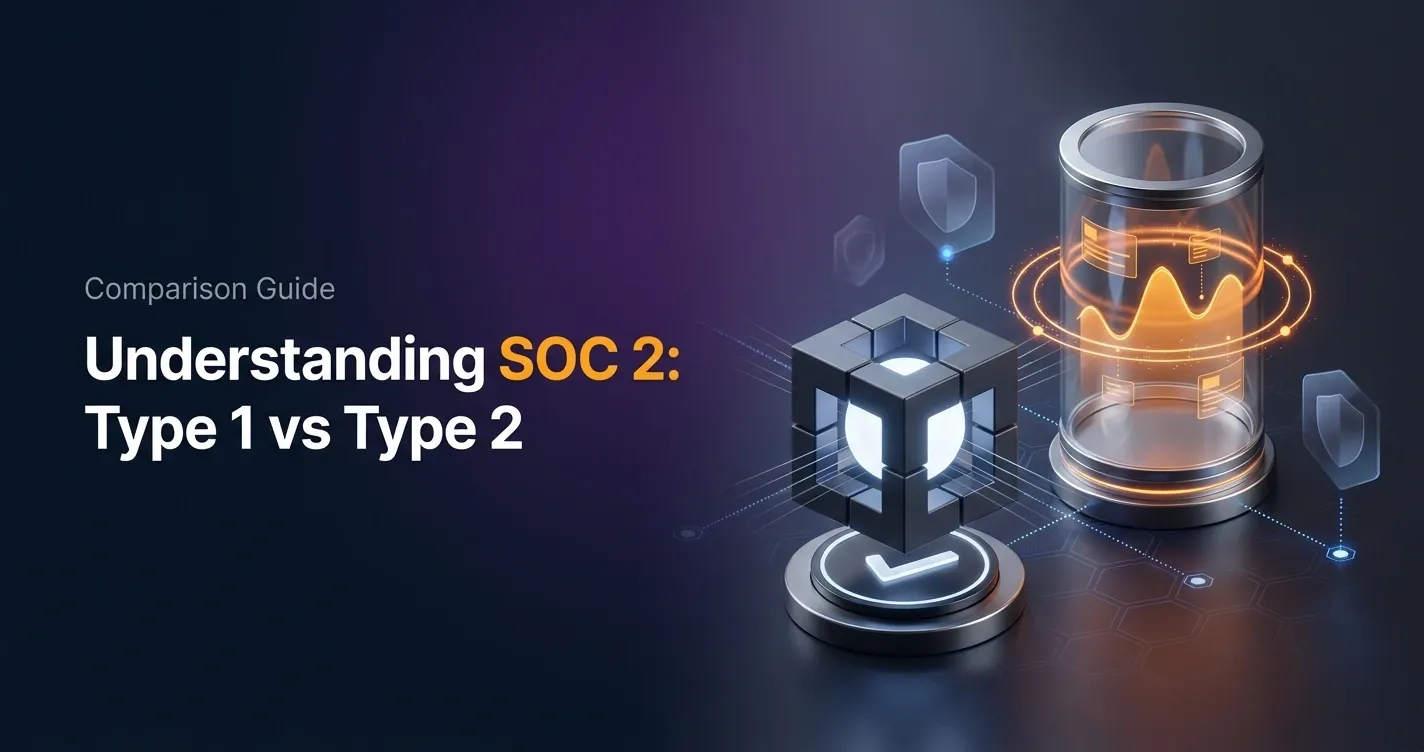
Compare SOC 2 Type 1 and Type 2 audits. Discover key differences, audit scope, duration, and how to choose for compliance needs.
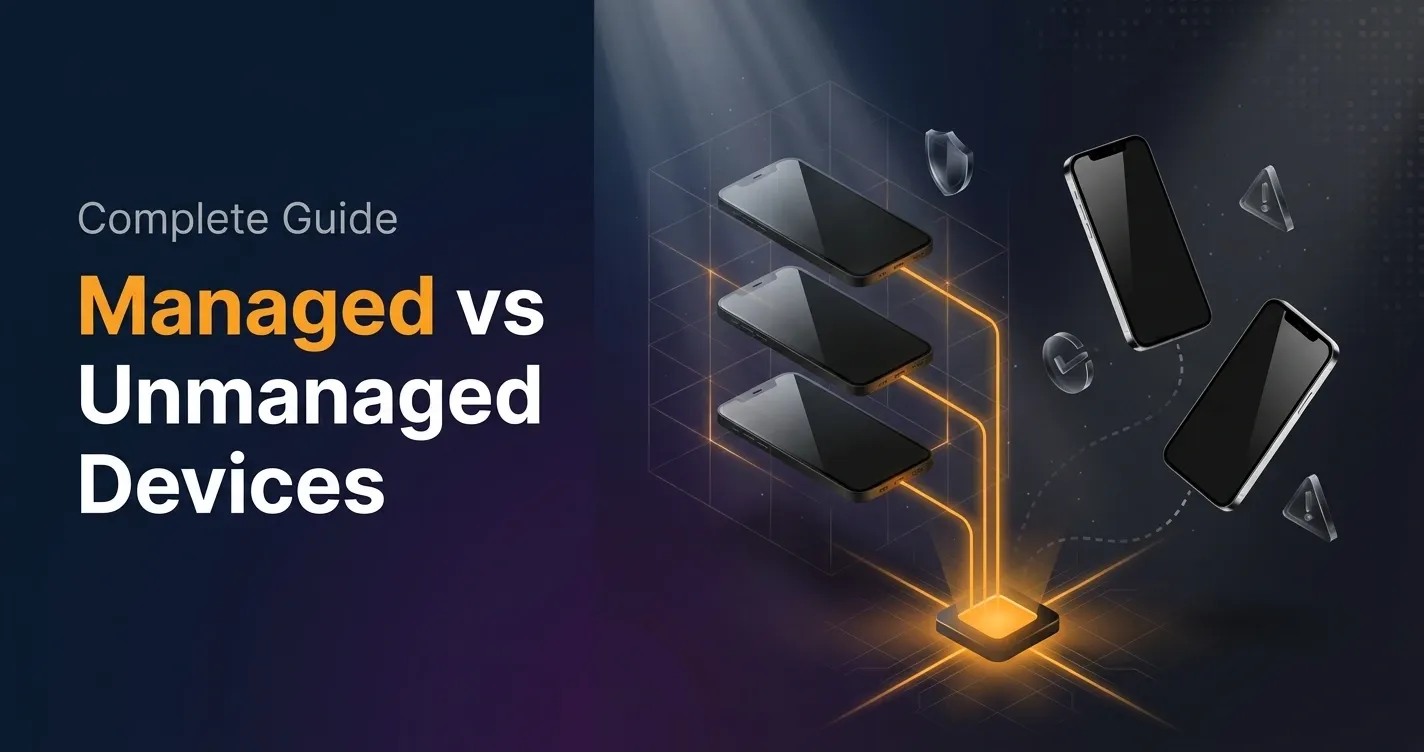
Compare managed and unmanaged devices - definitions, security differences, control levels, and how to choose the right approach for IT.