




School
Chromebook Management for Schools: A Practical Guide
Schools managing Chromebook fleets need systems for enrollment, repairs, and access control — this guide covers the methods that actually hold up at scale.
A practical guide to launching a 1:1 device program in K-12, covering CIPA compliance, device selection, AUE planning, and what most rollouts get wrong.


Content writer, trio.so
Eighty-eight percent of U.S. public schools now report having a 1:1 computing program, up from 43% of elementary schools in 2020. Knowing how to start a 1:1 device program is no longer a fringe question for a handful of pioneering districts. It's a standard operational challenge, and the gap between programs that last and programs that collapse almost always comes down to what was planned before a single device shipped.
Starting a 1:1 program requires making six interconnected decisions before distribution day: infrastructure, device selection, funding structure, policy design, management tooling, and a financial plan that can absorb the first refresh cycle. These decisions interact with each other. Get the sequence wrong, and you'll spend months undoing preventable problems.
The three most common failure modes, drawn directly from practitioner experience: launching without a funded refresh plan (ESSER-funded programs without a budget exit strategy are the first to face forced rollbacks), no damage policy until the first wave of broken devices arrives, and treating device management as a one-time setup task rather than an ongoing program.
This guide walks through the planning steps in sequence, including the AUE factor most planning guides skip, how to structure your policies before distribution day, what IT staffing math tells you about rollout design, and what device management looks like at district scale.
88% of U.S. public schools now run 1:1 programs, but programs launched without a funded refresh plan are the first to get cut.
Start with infrastructure: you need 1 Mbps per student and solid Wi-Fi coverage before devices ship.
Chromebooks dominate K-12 — check the Auto Update Expiration date before you buy, not after.
Build your spare pool at 10-15% over enrollment to absorb repair and loaner load.
Acceptable Use Policy, damage fee structure, and CIPA certification must be done before devices leave the building.
If Google Admin Console is your only management tool, you have gaps — plan for supplementary tooling.
A 1:1 program without admin backing and a five-year financial plan is a program on borrowed time.
A 1:1 program (what educators and administrators call one to one devices in schools) assigns one district-issued device to each student for instructional use. The device may stay at school, travel home on school days, or go home on weekends and over the summer. That last decision is a policy choice, not a default, and it shapes every other planning decision that follows.
Before COVID, 1:1 was common at the high school level but far from universal in lower grades. Schools were partially closed for an average of 23 weeks during the pandemic, and the share of principals assigning take-home devices jumped from 23% to 45% nearly overnight. The practice never fully reversed.
As of 2024-25, 88% of U.S. public schools report a 1:1 computing program. CoSN's 2026 survey of 607 district leaders describes implementation as "near universal" at all grade levels. 89% of 1:1 schools make laptops available; 27% make tablets available. The laptop category in K-12 is overwhelmingly Chromebook. Of schools with 1:1 programs, 46% allow devices home on school days and weekends, while 37% do not allow devices to go home at all.
The definition matters because it drives the full scope of your policy, management, and budget plan. A program where devices stay at school is operationally simpler than a take-home program, but the planning requirements are real either way.
Launching a 1:1 device program is not a single event; it's a sequence of decisions, and the order matters. Skipping or reordering steps is where most programs run into trouble: districts that buy devices before auditing their network, or build a damage policy after the first breakage dispute, spend months undoing preventable problems. Here are the seven steps, in the sequence they need to happen, covering the full scope of 1 to 1 technology in schools at district scale.
The standard bandwidth benchmark for K-12 is 1 Mbps per student. 74% of districts now meet it; up from just 8% in 2015. If your district is in the remaining 26%, the device program comes second. More than a quarter of schools still lack the infrastructure needed for effective device use at scale. Buying devices before your network is ready guarantees a bad launch.
Before you finalize a purchase order, audit four things: bandwidth per student under simultaneous load, Wi-Fi coverage by room (Wi-Fi 6 or 6E is the current recommendation for device-dense classroom environments), network security segmentation between student and staff traffic, and whether your bandwidth holds during assessment windows when every device hits the network at once.
Off-campus hotspots are now eligible for E-Rate Category 1 funding beginning FY 2025. If home connectivity is part of your program design, this is a new funding pathway you can access. School bus Wi-Fi became Category 1 eligible in FY 2024.
ESSER funds ended Fall 2024, with no new federal allocations anticipated. Any program starting today cannot count on ESSER. Programs that treated ESSER as a runway rather than a bridge are the ones facing forced rollbacks now.
The single biggest reason 1:1 programs get cut is that the original purchase was funded by a grant that didn't include a line item for the replacement cycle four years later. 50% of districts replace internet-only student laptops in four years or less. Budget for the refresh before you approve the first purchase.
E-Rate remains the primary federal funding mechanism for connectivity costs, covering 20-85% of eligible expenses depending on poverty level and classification. The Category Two per-student multiplier is now $201.57 (up from $167), and the funding floor for smaller schools is $30,175. Title I, Title IV-A, and state-level competitive grants are the primary paths for device funding itself.
Practical sustainability options for post-ESSER programs: treat devices as an annual operational expense rather than a capital purchase, plan for device resale at year 4-5 while the hardware still has market value, consider refurbished devices for older grade cohorts (which can save up to 40% on purchase costs), and build a minimum five-year financial plan (covering device aging, maintenance, replacement, and bandwidth growth) before launch. 52% of districts already worry about long-term viability due to budget constraints. Start with a plan that gets you to year five, not just year one.
The primary choice is Chromebook vs. Windows laptop vs. tablet (primarily iPad in school contexts). 89% of 1:1 schools use laptops; the laptop category in K-12 is dominated by Chromebooks. The majority of 1:1 Chromebooks in schools today run on Google Admin Console, which matters for your management planning as much as the device itself.
Evaluation criteria: AUE date, total cost of ownership beyond unit price, repairability and spare parts availability, and whether your district runs on Google Workspace or Microsoft 365. For Chromebooks specifically, Google extended ChromeOS Auto Update Expiration to 10 years from the platform release date for newly released models in 2024 — up from 8 years for 2020+ models. A device purchased today on a qualifying platform may not require replacement until 2034. Not all models qualify for the full 10 years, so check the AUE date on Google's official Auto Update Policy page before committing to a bulk purchase. AUE date — not purchase date — is the correct planning anchor.
Standardize on one device model from one vendor for the entire refresh cycle. Mixed-model fleets multiply IT complexity: different spare parts, different AUE dates, different repair procedures, different policy exceptions. Practitioners who have managed mixed fleets describe the compounding labor cost as wiping out any perceived savings from buying across vendors. This is a labor-saving mandate, not a preference.
The case for 1:1 is strongest in grades 5-12, where device-dependent curriculum is most embedded. For K-4, shared cart models may reduce damage load and management burden without meaningfully limiting instruction. A phased deployment by grade band also gives the program time to build a sustainable operating budget before scaling to the full district.
Three policy components are required before a single device leaves the building: an Acceptable Use Policy (AUP), a device care and damage policy, and CIPA certification if you're receiving E-Rate funding.
Your AUP must cover prohibited uses, device care expectations, whether devices go home, AI tool use policies, social media restrictions, and cyberbullying procedures. One disclosure must be explicit: school-issued devices remain school property and stay filtered and managed wherever they connect. 77% of districts ban social media on school-issued devices; 58% have complete personal device bans during the school day.
If your AUP doesn't address AI tool use before launch, you'll be updating it under pressure within the first semester. Districts that skipped this have consistently found themselves revising policy mid-year under pressure.
CIPA certification requires three things: an internet safety policy adopted via public hearing, a technology protection measure (content filter), and education of minors on appropriate online behavior including cyberbullying. Schools receiving E-Rate must certify CIPA compliance; it's a certification on the E-Rate application, not a separate registration process.
One legal issue to flag before your AUP is finalized: once devices are embedded in curriculum delivery, revoking device access as a disciplinary measure may be legally impermissible in some states. Design your discipline policy around this reality before you hand out the first device, not after a dispute forces the issue. Have district legal counsel review this before you publish the policy.
On damage policy design: community data shows a range of $20-$50 per student per year for third-party insurance programs. No-deductible unlimited-claims programs tend to increase device damage rates by removing behavioral accountability. Some non-zero financial responsibility, even a flat $20-$30 fee, appears to reduce damage in practice. Note that IDEA protections may constrain financial liability for disability-related damage, which is another reason to get legal review before finalizing damage terms. Parent-funded damage programs also face political attrition over time: districts that depend on ongoing parent participation find fees get reduced or dropped under pressure. Build a district-funded damage reserve from the start, and treat parent contributions as a supplement rather than the primary source.
Run an in-person assembly covering damage policies before devices leave the building. Do not rely on a policy document alone. The assembly is the policy.
The widely cited practitioner benchmark in K-12 IT communities is 800 devices per IT support technician as the recommended maximum. Real-world ratios in 1:1 districts frequently run 1,200-1,500 devices per tech. A district of 1,200 students with one IT director and two technicians is operating near the edge of the recommended ratio before take-home device repair volume is added.
Knowing this math before you launch is what lets you design a staged rollout instead of a district-wide crisis. Stage your rollout by grade band or building rather than going district-wide simultaneously. Each stage gives your team time to absorb repair and support volume before the next wave.
Budget your spare pool at 10-15% over enrollment, not enrollment exactly. 60% of districts manage up to 10 broken devices per week. A spare pool sized to enrollment plus 10-15% is the operational minimum, not a conservative option. If you launch district-wide before your team can absorb the repair volume, the backlog compounds: devices sit unrepaired, loaners run out, and students end up without devices exactly when curriculum needs them most.
Budget charger inventory as a line item. Chargers are the highest-consumed consumable in take-home programs. A workable model: have students leave a personal item (such as a student ID) to borrow a spare charger. Define your repair triage process before launch; who handles intake, what the turnaround SLA is, and when you repair versus swap.
Enrollment and management are two distinct steps that programs often collapse into one. Enrolling a device into Google Admin Console gives you policy control. It does not give you physical device location, charge state, custody chain, or damage history.
Google Admin Console handles ChromeOS policy enforcement, app deployment, remote wipe, and centralized fleet visibility well. What it does not do: track physical device location, report custody chain, or manage non-Chromebook devices. Set up your OU hierarchy (by building and grade level) before you deploy. A structure like Students > Building > Grade, with most policies applied at the building level, is the practitioner recommendation. Getting this right pre-deployment matters because restructuring OUs after devices are in students' hands is disruptive. The Admin Console policy model is also counterintuitive for anyone coming from Active Directory — device policies and user policies are not always applied where you'd expect them.
Troubleshooting note: If your Admin Console policies aren't applying as expected, check whether you've applied a device policy at the user OU level. This inversion is a common configuration error in Google Admin Console and is easy to miss.
Content filtering for CIPA compliance often requires a dedicated layer beyond what Google Admin Console provides natively. Many districts add a dedicated content filtering solution to meet the Technology Protection Measure standard required for E-Rate recipients.
MDM enrollment does not equal physical asset accountability. Linking a device to a student in a database, tracking damage history, and generating reports for board presentations requires a dedicated asset tracking system or an MDM platform with reporting depth. Run end-of-year reconciliation in May, while students are still on campus. Knowing which devices are unaccounted for while students are physically accessible is the difference between collecting them and chasing them all summer.
Even after a Chromebook hits its AUE date, it still passes the startup self-check, but existing Admin Console policies may stop working as intended. This is documented behavior from Google's own guidance, and it's the reason AUE planning belongs in your refresh cycle, not your reactive budget.
For schools managing iPads, Android tablets, or Windows devices alongside a Chromebook fleet, dedicated school device management across mixed platforms is where a supplementary MDM fills the gaps that Google Admin Console doesn't cover by design.
CIPA requires education of minors on appropriate online behavior, including cyberbullying awareness. For E-Rate recipients, this is a legal requirement, not an optional program add-on.
98% of educators consider digital citizenship essential. Only 36% report adequate training and resources to teach it. The gap is real and documented, and it's not an IT problem to solve. The IT team deploys the filter; curriculum leaders design the digital citizenship program. Two separate tracks are needed: device operation training (IT-supported) and curriculum integration training (curriculum-director-supported). 90%+ of teachers consider up-to-date technology training important, and nearly a third are not satisfied with the support they currently receive.
The most common reason digital citizenship training doesn't happen is that no department owns it. IT assumes curriculum will handle it; curriculum assumes IT has it covered because they manage the filter. Name the owner before launch, not after the first incident.
Digital citizenship is an ongoing program (safe online behavior, cyberbullying recognition and reporting, responsible AI tool use, privacy literacy) not a one-time assembly. One-time training events fail consistently. Build it as a recurring curriculum component, and make sure the responsibility is assigned to a specific role before devices are distributed.
Running a 1 to 1 laptop program means your FERPA exposure multiplies with every device you send home. Between July 2023 and December 2024, 82% of K-12 organizations experienced cyber incidents, including more than 9,300 confirmed data breaches. The December 2024 PowerSchool breach affected 62 million students — a reminder that FERPA liability doesn't require your own systems to be breached. If a student logs into a third-party app on their school device and that vendor experiences a breach, your district may have FERPA notification obligations even if no district-controlled system was directly involved.
FERPA protects student personally identifiable information and requires written consent before disclosure outside defined exceptions. Any EdTech tool students log into on a district device is in scope. As of 2025, 121+ state laws supplement FERPA — California's SOPIPA restricts EdTech vendors from using student data for advertising; Illinois SOPPA requires operator breach notification within 30 days and school notification to parents within 60 days. Districts in regulated states need to evaluate software against multiple frameworks simultaneously, not just federal FERPA.
Cybersecurity is the #1 priority for ed tech leaders in CoSN's 2026 survey, with 65% reporting insufficient staffing and unmet budget needs. These numbers reflect the current state for schools that haven't yet implemented layered management and filtering. For BYOD in schools contexts, where students use personal devices alongside district-issued ones, the compliance and management questions are different and require a separate policy design approach.
The Chicago Public Schools accountability failure (up to 77,000 missing or untracked devices) illustrates what happens when device governance breaks down at scale. Device governance is not just a security question; it's a district liability question. The more devices you send home, the more your governance infrastructure needs to keep pace.
Knowing how to start a 1:1 device program is one thing; knowing how to demonstrate its value to a school board is another. Combine usage data (daily login rates, LMS engagement) with academic outcomes data. Setting measurable targets before launch gives you a baseline to report against. A target like "80% of students log in daily within 60 days of distribution" is the kind of concrete metric a board can track.
One honest nuance worth naming: a study of 25 South Carolina schools found a statistically significant drop in Math EOC scores in Year 1 post-implementation (mean score dropped from 76.4 to 66.5). Year 1 dips are documented and real. The program's value is measured at Year 2-3, when pedagogical integration matures, not at the first standardized test cycle after rollout. A 2024 study published in the Journal of Information Policy found that 1:1 programs improve student achievement and motivation when sustained and implemented well. That "sustained" qualifier is the key. Present the board with a two-to-three-year timeline for outcomes measurement, not a Year 1 snapshot.
For schools running tablet-specific programs, iPads in schools covers deployment and measurement considerations specific to iPad fleets.
Three signals to adjust your take-home policy: damage rate above 10% of fleet per semester, loaner pool consistently depleted, or IT repair backlog exceeding a two-week SLA. Three signals to adjust grade scope: K-4 damage rates significantly higher than 5-12, sustained repair volume outpacing IT staff capacity, or budget pressure making full-fleet refresh unsustainable.
Some districts are considering reverting 6-12 to cart-based models due to budget constraints (CoSN 2026). A scaled-back, sustainable program delivers more value over time than an ambitious program that collapses at the first refresh cycle. Scaling back is a sustainability decision, not a failure.
Should K-4 students take devices home?
Your district has reliable home internet coverage, a funded damage reserve, and IT capacity within the recommended ratio leads to: Yes — with a limited take-home program and a mandatory device fee.
Home internet access is inconsistent (only 24% of districts confirm all students have home access) or your IT team is at the recommended capacity ceiling leads to: No — keep K-4 devices at school and use a cart model for home-based learning on shared devices.
You're launching your first 1:1 program leads to: Start with grades 6-12 for take-home; keep K-5 in-school only for year one.
Not sure? Start in-school only across all grades for the first semester. Measure damage rates and IT load, then decide. This gives you real data rather than estimates.
Most K-12 districts run mixed fleets. A Chromebook program for students often sits alongside iPads in special education classrooms, Android tablets in libraries, or Windows devices for teachers and administrative staff. Google Admin Console handles Chromebooks well, but it doesn't extend to these other platforms. That's the gap a dedicated MDM education platform fills.
Trio MDM manages Android, iOS, iPadOS, macOS, Windows, and Linux devices from a single console; the platforms that fall outside Google Admin Console's native scope. For a district managing multiple device types across multiple buildings, that centralized visibility matters.
On enrollment: Trio supports QR code enrollment for iOS and iPadOS devices and bulk deployment workflows for Windows and Android using PowerShell-based scripts that can integrate into existing deployment processes. At school scale, enrolling 50 iPads individually isn't workable. Bulk enrollment handles it.
Device Groups are the primary organizational layer. You can assign different app sets, restrictions, and security profiles to different groups; elementary iPads, teacher MacBooks, Windows devices for administrative staff, Android tablets in the library, and Linux machines in computer labs can each carry their own policies without requiring separate management infrastructure.
If a device goes home and doesn't come back, Trio MDM can remotely lock or wipe it. The centralized device list shows online/offline status, last seen time, enrollment date, assigned user, and serial number across all supported platforms; filterable and exportable for board reporting without manually compiling spreadsheets.
For curriculum apps, Trio MDM pushes software silently across managed devices. No manual installs, no App Store prompts for students, no dependency on individual user action to get apps onto district-managed hardware.
Trio MDM is priced per device on an annual contract, with no minimum device requirement to start. Volume pricing is negotiable for larger fleets. A 14-day free trial is available. Start your free trial to see how Trio MDM manages every device in your K-12 fleet, or book a demo to walk through the setup for a mixed K-12 device environment.
Every organization today needs a solution to automate time-consuming tasks and strengthen security. Without the right tools, manual processes drain resources and leave gaps in protection. trio.so is designed to solve this problem, automating key tasks, boosting security, and ensuring compliance with ease.
Every organization today needs a solution to automate time-consuming tasks and strengthen security. Without the right tools, manual processes drain resources and leave gaps in protection. trio.so is designed to solve this problem, automating key tasks, boosting security, and ensuring compliance with ease.





Related
The related industry news, interviews, technologies, and resources.
Schools managing Chromebook fleets need systems for enrollment, repairs, and access control — this guide covers the methods that actually hold up at scale.
Are iPads in schools effective? Discover how they boost learning, streamline teaching, and stay secure with MDM.
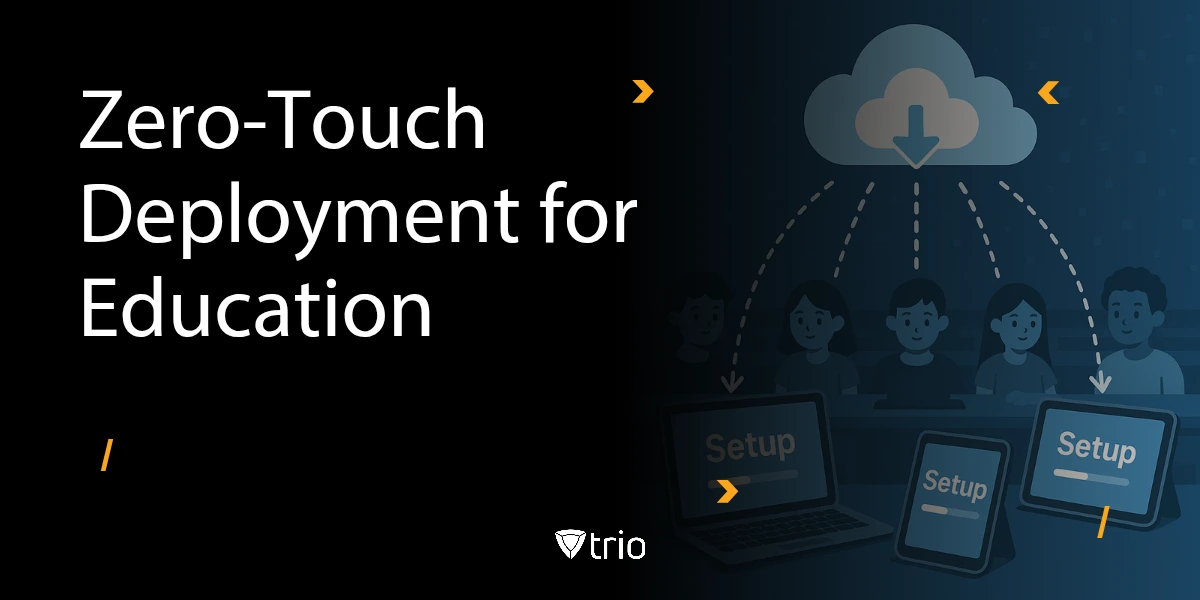
Ditch manual device setup. Learn how zero-touch deployment automates enrollment and security policies for all school-owned and BYOD devices.
Discover how student management software revolutionizes education by streamlining administrative tasks, improving communication, and enhancing learning.
Improve classroom communication with the right apps. Trio MDM helps schools manage devices and ensure secure, effective learning environments.
What a school staff management system should do, the compliance requirements it must meet, and the IT gaps it often leaves open.
Struggling with school network management? Learn how to manage all computers on a school network with automation, security, and performance tips.
We'll discuss remote code execution vulnerability and its risks. Learn how to protect your systems from this critical cybersecurity threat.