


How-Tos
How to Run a PowerShell Script on Multiple Computers
To run powershell script on multiple computers reliably, you need to know which method breaks on offline machines, workgroups, and Mac endpoints.
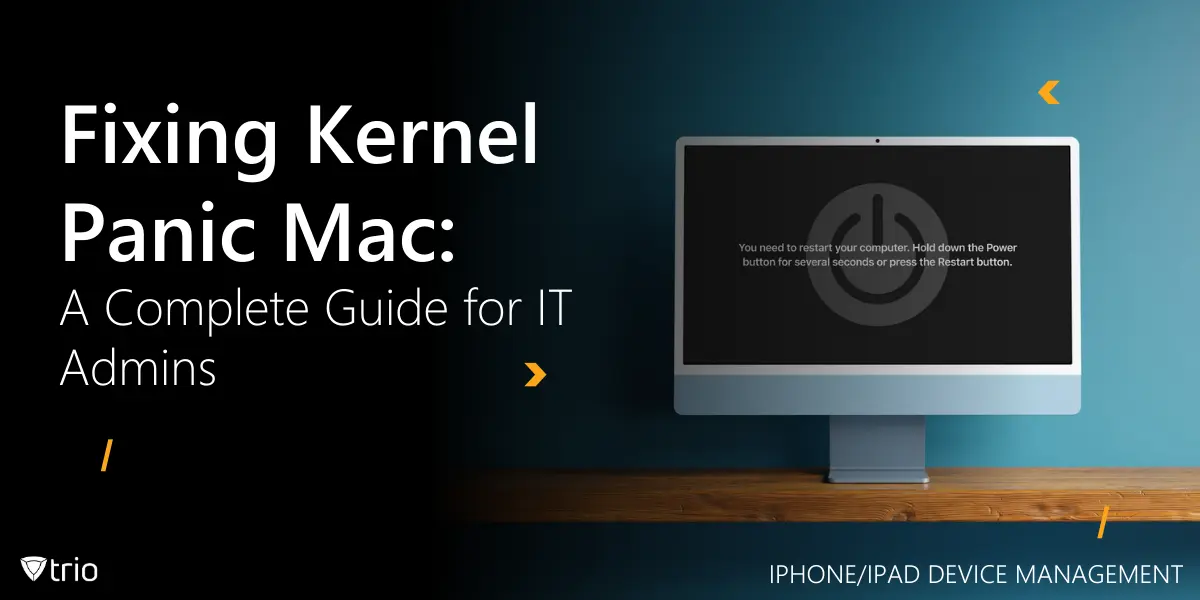
Learn how to fix a kernel panic Mac with expert tips for IT admins. Includes remote diagnosis using RMM tools and steps to prevent future panics.
For IT administrators managing macOS fleets, few issues are as disruptive as a kernel panic. This sudden system crash forces Macs to reboot unexpectedly, halting productivity and risking data loss. Troubleshooting individual machines one by one doesn’t scale, and that’s where a robust MDM software shines. By combining traditional fixes with automated workflows and fleet-wide visibility, you can diagnose, resolve, and prevent kernel panics faster and more consistently.
A kernel panic occurs when macOS’s core kernel detects an unrecoverable error—memory corruption, a bad driver, or faulty hardware—and triggers an emergency restart to safeguard data integrity. This is analogous to the "Blue Screen of Death" on Windows systems. On a single Mac this is painful; across hundreds of devices, it can grind your entire organization to a halt. An MDM solution transforms reactive troubleshooting into proactive device management by:
| Cause | Traditional Pain Point | MDM Solution |
|---|---|---|
| Hardware Failures | Defective RAM, overheating CPUs, failing SSDs | Device Health Monitoring tracks CPU temperature, memory pressure, SMART stats; flags at-risk machines for proactive replacement |
| Software Conflicts | Incompatible kernel extensions or outdated apps causing crashes | Kext Whitelisting and Self-Healing Playbooks block or roll back bad extensions automatically |
| Insufficient Storage | Low disk space leading to resource exhaustion | Disk Utilization Alerts trigger automated cleanup scripts when free space dips below a defined threshold |
| Peripheral Issues | Faulty USB-C docks, external GPUs, or drives causing instability | USB Device Control policies restrict unapproved peripherals; generate alerts on new device connections |
| Firmware & EFI Bugs | Outdated firmware leading to rare but serious panics | Remote Imaging pushes latest EFI updates or full macOS reimages without local technician intervention |

When troubleshooting a kernel panic on Mac, it's crucial to take a systematic approach. By following these steps, IT administrators can isolate the root cause, apply the appropriate fix, and ensure the issue doesn’t recur. Below is a comprehensive guide to help you resolve kernel panics efficiently and effectively.
Ensure that macOS and all installed applications are up to date. Apple frequently releases updates that fix known bugs and improve system stability. How to Update:
Analyzing crash reports can provide insights into what caused the kernel panic. How to Access Crash Reports:
Safe Mode loads only essential system components, which can help isolate problematic software. How to Boot into Safe Mode:
Third-party kernel extensions can cause conflicts leading to kernel panics. How to Remove Kexts:
Note: Be cautious when removing kexts, as deleting essential system extensions can cause further issues.
Apple Diagnostics can identify hardware issues that may be causing kernel panics. How to Run Apple Diagnostics:
Resetting the Non-Volatile Random-Access Memory (NVRAM) and System Management Controller (SMC) can resolve various system issues. How to Reset NVRAM:
How to Reset SMC:
Low disk space can lead to system instability. How to Check and Free Disk Space:
Faulty peripherals can cause kernel panics. How to Test Peripherals:
If all else fails, reinstalling macOS can resolve persistent issues. How to Reinstall macOS:
For IT professionals managing fleets of macOS devices, manually diagnosing each machine isn’t feasible. This is where Remote Monitoring and Management (RMM) tools become essential.
Manual Pain: Visiting each Mac to run Software Update. MDM Action:
Manual Pain: Hunting through Console for panic logs. MDM Action:
Manual Pain: On-site reboot + key-holding. MDM Action:
Manual Pain: Unloading kexts one by one via Terminal. MDM Action:
Manual Pain: Waiting for users to report slowdowns or crashes. MDM Action:
Manual Pain: Manually deleting cache/temp files. MDM Action:
Manual Pain: Guiding users through Recovery Mode and reinstalls. MDM Action:
Beyond fixes, a modern MDM empowers you to prevent panics before they happen:
Managing Mac devices at scale doesn't need to be a nightmare. With Trio’s powerful MDM solution, IT admins can:
Ready to take control of your macOS fleet? 👉 Start your 14-day free trial of Trio today or book a free demo with our team and see how easy MDM can be
A kernel panic on Mac is a critical error that demands immediate attention from IT professionals. Whether it stems from software conflicts, hardware issues, or corrupted system files, a methodical approach can help resolve and prevent future panics. With the help of tools like Trio, diagnosing and mitigating these issues becomes faster and more efficient. By understanding the root causes and leveraging remote monitoring tools, IT admins can ensure a smoother, more stable macOS experience across their organization.
Every organization today needs a solution to automate time-consuming tasks and strengthen security. Without the right tools, manual processes drain resources and leave gaps in protection. Trio MDM is designed to solve this problem, automating key tasks, boosting security, and ensuring compliance with ease.
Every organization today needs a solution to automate time-consuming tasks and strengthen security. Without the right tools, manual processes drain resources and leave gaps in protection. Trio MDM is designed to solve this problem, automating key tasks, boosting security, and ensuring compliance with ease.





Have questions? We've got answers. This section covers some of the most commonly asked questions related to this topic.
Related
The related industry news, interviews, technologies, and resources.
To run powershell script on multiple computers reliably, you need to know which method breaks on offline machines, workgroups, and Mac endpoints.
You can stop employees from installing software on Windows using GPO, AppLocker, or MDM. Here's how each method works and which fits your setup.

If you want to know how to block websites on iPhone, this guide covers Screen Time, DNS filtering, and MDM — including where each method breaks down.

If you're learning how to block an app on iPhone for a managed fleet, start here: supervised enrollment is the gate to real MDM enforcement.

Learn how to choose the right MDM solution with 9 essential criteria. Complete guide for evaluating features, security, and vendor capabilities.

Learn how to execute scripts remotely with security in mind. Methods, best practices, and scaling strategies for IT operations.

Complete guide to pushing Android remote updates with MDM. Learn methods for app, system, and policy updates across managed devices.
Explore all methods to remotely lock Windows PCs - from built-in Windows features to MDM solutions and enterprise management tools.