




School
How to Start a 1:1 Device Program in K-12
A practical guide to launching a 1:1 device program in K-12, covering CIPA compliance, device selection, AUE planning, and what most rollouts get wrong.
Schools managing Chromebook fleets need systems for enrollment, repairs, and access control — this guide covers the methods that actually hold up at scale.


Content writer, trio.so
Chromebooks dominate K-12 device fleets, but the job of managing them sprawls in every direction — enrollment, repairs, policies, replacements, and students who treat a $300 district laptop like a frisbee. The question isn't whether you need a system for all of this. The question is which parts of that system actually matter, and in what order.
Chromebook management for schools means controlling the full device lifecycle: getting devices into students' hands already configured correctly, keeping them compliant with school policies during use, tracking them in inventory, and handling repairs or replacements without losing your records in the process.
The complexity scales with fleet size. A single school with 300 Chromebooks can limp by on spreadsheets and goodwill. A district with 4,000 devices across eight schools needs automation, a management platform, and policies that apply consistently whether a device is in a classroom or a student's backpack at home.
This article covers what Chromebook management actually involves, the tools districts use, how to handle the inventory challenge, what changes when devices go home with students, what to do in mixed-fleet environments, and how to tell whether your current setup will hold as the fleet grows.
Chromebook management covers enrollment, policy configuration, inventory tracking, repairs, and end-of-life replacement — not just handing out devices.
Google Admin Console is the native tool for Chrome OS management, but it only handles Chromebooks. Mixed fleets need a separate MDM layer for everything else.
Inventory tracking is the area most districts underinvest in until a device goes missing or an audit arrives.
1:1 programs add real complexity — device policies need to travel home with the student, not stay at school.
If your fleet includes iPads, Windows laptops, or Android tablets alongside Chromebooks, you need a platform that handles all of them from one place.
Chromebook management for schools is not a single task — it's a set of systems that, if any one of them is missing, creates a problem you'll feel immediately. Good school device management means having a process for each of the following areas before something goes wrong, not after.
This is how devices get provisioned before they go to students. A Chromebook that's been turned on is not the same as a Chromebook that's been enrolled — enrollment through Google Admin Console applies your domain policies, restricts the device to your organizational unit, and enables forced re-enrollment if the device is wiped.
Bulk enrollment workflows save hours on day-one deployment. Without them, you're configuring devices one at a time, which doesn't scale past a few hundred units.
User policies follow the Google account, applying wherever that user logs in. Device policies follow the hardware, applying regardless of who logs in. For student restrictions, device policies are generally more reliable — they can't be bypassed by logging into a different account.
A policy enforced at the enrollment level is harder to circumvent than one applied at login. That distinction matters more as your fleet grows.
Where devices are, who has them, what condition they're in, and when they were last seen on the network. This is the area most districts run on spreadsheets until something goes wrong. Solid inventory management for school Chromebooks means your records are tied to serial numbers, not people's memories — and those records survive staff turnover.
Damage claims, warranty status, loaner pools, and what happens to devices at end of lease or end of useful life. Budget cycles and E-rate reimbursement timelines slow down replacement planning more than the technology does — most districts know what needs replacing months before they can act on it.
E-rate program compliance often requires asset records. If your inventory system can't produce a clean device history tied to serial numbers, that's an audit problem waiting to happen.
The right tool depends on what your fleet actually looks like. Pure Chromebook environments have one clear path. Mixed fleets — Chromebooks alongside iPads, Windows machines, or Android tablets — need a different answer. This section covers Chromebook management software for schools across both scenarios, so you can evaluate what your district actually needs rather than what's easiest to buy.
The native Chrome OS management layer. Every school with a managed Chromebook fleet should be using this — it's included with Google Workspace for Education licenses at no additional cost.
If Google Admin Console policies aren't applying to a device, check whether the device was enrolled before the policy was created — policies don't backfill to pre-enrollment devices automatically.
When the fleet includes device types beyond Chromebooks, an MDM platform handles those. MDM platforms manage iOS, Android, Windows, macOS, and Linux from a single console, and some manage Chrome OS from that same console alongside everything else.
Switching from one management platform to another mid-year means re-enrolling every device — plan platform migrations for summer break, not October.
Several GAC features are gated behind paid Workspace tiers. The free Education Fundamentals tier covers basic device management and app deployment. Education Plus adds advanced reporting, enhanced security controls, and deeper audit capabilities. If you're running a district-wide 1:1 program and need granular audit trails, the tier difference matters.
Some districts use dedicated asset management software — not MDM — specifically for inventory: serial numbers, repair history, assignment records, and warranty status tracked separately from device policy management.
Specific to K-12: tracking which devices are on loan, to whom, for how long, and what was wrong with the returned unit. The goal is keeping repair history tied to the device record, not just the ticket.
When device assignment syncs with student enrollment and class rosters, transitions become manageable. When a student transfers or graduates, device assignment records should update automatically — otherwise you're chasing down hardware with outdated records and a lot of goodwill.
Some districts allow or require students to bring personal devices. The management complexity this introduces is real — consider the full picture before adopting a byod in schools approach without a clear policy framework and technical controls in place.
Also, for inventory management for school Chromebooks and other district assets, BYOD programs complicate asset tracking because the hardware isn't yours — there's no serial number to log against a district record.
Most K-12 districts don't run pure Chromebook fleets, even if Chromebooks are the majority of student devices. Teacher laptops are often Mac or Windows. Lower grades frequently use iPads. Some districts mix Android tablets into specific grade-level programs. The management answer for each device type is different, and Google Admin Console only covers one of them.
When IT directors realize they need cross-platform management, they often start searching for remote device management software for school Chromebooks — then quickly discover that "for school Chromebooks" is only part of the problem. The real requirement is managing every device type on the network from a defensible, auditable system.
What does your device fleet actually include?
Chromebooks only — Google Admin Console is your primary tool; add a standalone asset management layer if your inventory depth isn't there yet.
Chromebooks plus iPads or Android tablets — Either run GAC for Chrome OS with a separate MDM for iOS and Android, or run one cross-platform MDM that covers all three from a single console.
Chromebooks plus Windows or Mac devices (teacher laptops or mixed student programs) — Either pair GAC with an MDM that handles Windows and macOS, or pick an MDM that manages Chromebooks and desktops together.
Not sure? Start by auditing every device type currently on your network before you evaluate any platform — the audit determines the requirement, not the vendor's feature list.
Running two management platforms simultaneously is manageable, but it has to be intentional. Platforms like Trio MDM handle Chrome OS, iOS, Android, Windows, and macOS devices from a single console, which covers most K-12 mixed fleets without a second system. For ideas on how to manage all computers on a school network across OS types, that post covers the cross-platform approach in more depth.
If you keep Google Admin Console and add a separate MDM for everything else, you now have two admin consoles and two separate policy audit trails. Build a process for keeping them in sync before something breaks during an audit — not after.
Shared-cart models — where devices stay at school and reset between classes — are a very different management problem than 1:1 programs, where every student takes a Chromebook home. The technology is the same. The operational reality is not.
In a 1:1 program, your policies have to work off-network. Content filters and usage restrictions that rely on the school's network infrastructure stop working the moment the device is in a student's house. Policies enforced at the device level through Google Admin Console travel with the hardware, which is exactly the kind of management that districts use MDM education platforms to replicate on non-Chrome devices in the same fleet.
Forced re-enrollment becomes non-negotiable. If a student factory-resets a 1:1 device, it should re-enroll automatically when it reconnects to the internet — without that setting enabled, the device becomes unmanaged and you have no visibility into it. If a device enrolled under a 1:1 program stops checking in after a student takes it home, confirm the forced re-enrollment flag was set before the device left the building.
Damage and loss rates go up when devices leave the building. Your inventory system needs to log last-seen timestamps and current assignment records, not just purchase dates.
Parent and guardian communication, acceptable use policy documentation, and cost recovery processes for damaged devices all become IT's problem to support, even though IT didn't write any of those documents. The hardest part of a 1:1 program isn't the technology — it's getting families to treat school-owned devices like school-owned devices, and having a clear, signed acceptable use policy that IT can actually point to when a dispute arises.
If you're at 1,200 devices across four schools today and the district is adding a school next year, the question isn't whether your current setup works — it's whether it will still work with 30% more devices and no additional IT headcount. Run through these questions honestly:
That last question tends to expose the most friction. Content filtering is one of the most policy-heavy layers in school device management, and districts working through what gets blocked and what doesn't will find the list of websites blocked by schools post useful for thinking through that layer alongside the technical controls.
Trio MDM manages Chromebooks alongside the rest of a K-12 mixed fleet. Chrome OS, iOS, iPadOS, Android, macOS, Windows, and Linux devices all run from one console, so the student Chromebook program and the teacher laptops sit in the same system with the same policy model.
For districts running a mix of device types, Trio MDM covers the following across the fleet:
Trio MDM runs on a per-device annual contract starting at 20 devices. A 14-day free trial is available if you want to test it against your specific device mix. Start your free trial to see how it handles your full fleet, or Book a demo if you'd rather walk through it with a live configuration relevant to your district's setup.
Every organization today needs a solution to automate time-consuming tasks and strengthen security. Without the right tools, manual processes drain resources and leave gaps in protection. trio.so is designed to solve this problem, automating key tasks, boosting security, and ensuring compliance with ease.
Every organization today needs a solution to automate time-consuming tasks and strengthen security. Without the right tools, manual processes drain resources and leave gaps in protection. trio.so is designed to solve this problem, automating key tasks, boosting security, and ensuring compliance with ease.





Related
The related industry news, interviews, technologies, and resources.
A practical guide to launching a 1:1 device program in K-12, covering CIPA compliance, device selection, AUE planning, and what most rollouts get wrong.
Are iPads in schools effective? Discover how they boost learning, streamline teaching, and stay secure with MDM.
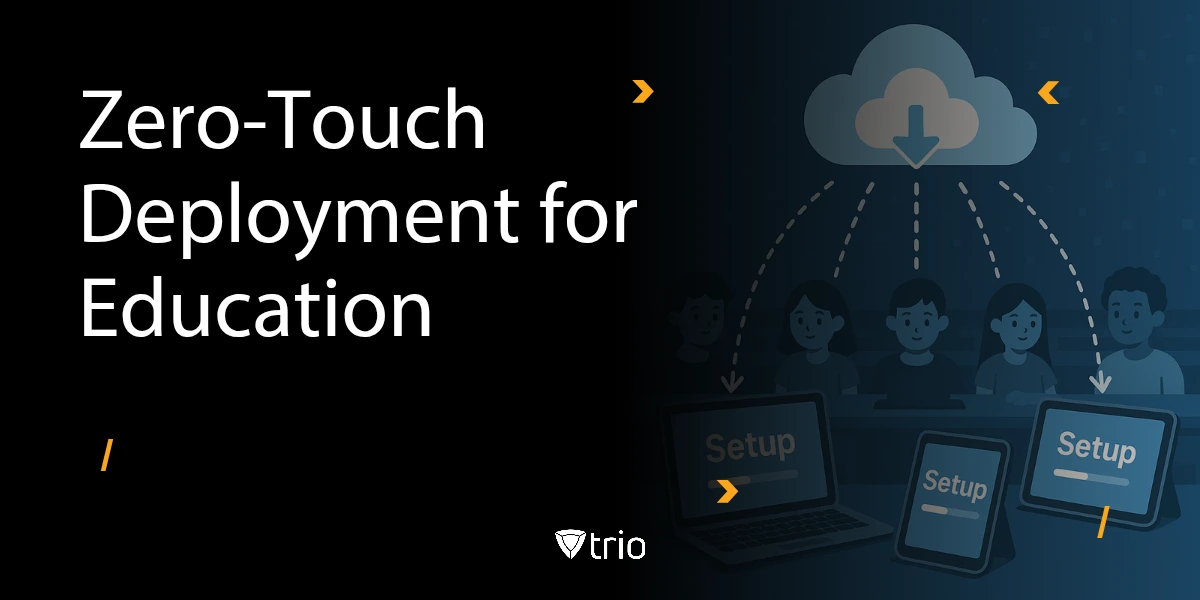
Ditch manual device setup. Learn how zero-touch deployment automates enrollment and security policies for all school-owned and BYOD devices.
Discover how student management software revolutionizes education by streamlining administrative tasks, improving communication, and enhancing learning.
Improve classroom communication with the right apps. Trio MDM helps schools manage devices and ensure secure, effective learning environments.
What a school staff management system should do, the compliance requirements it must meet, and the IT gaps it often leaves open.
Struggling with school network management? Learn how to manage all computers on a school network with automation, security, and performance tips.
We'll discuss remote code execution vulnerability and its risks. Learn how to protect your systems from this critical cybersecurity threat.