




How-Tos
HIPAA Risk Assessment: 8 Steps and a Free Worksheet
How to do a HIPAA risk assessment in 8 steps: scope, inventory, threats, scoring and the risk management plan. Free Excel worksheet with 21 starter risks.
Turn off or suspend BitLocker on Windows 10 and 11, check if it is on, and handle a fleet without losing recovery keys or failing compliance.

Content writer, trio.so
To disable BitLocker, open a Command Prompt run as administrator and run manage-bde -off C:, or run Disable-BitLocker -MountPoint "C:" in PowerShell. Windows then decrypts the drive in the background and removes every key protector when it finishes. If you only need BitLocker out of the way for a BIOS, firmware or TPM update, do not decrypt. Suspend it instead, and it comes back on its own.
This guide covers both, on Windows 10 and Windows 11, plus how to check whether BitLocker is on, what to do when the option is greyed out, and how to handle a fleet without losing recovery keys.
Suspending keeps the data encrypted. Turning BitLocker off decrypts the whole drive. Most admin jobs only need the first.
| Suspend | Turn off (decrypt) | |
|---|---|---|
| What happens to the data | Stays encrypted. The key sits on the disk in the clear until you resume. | Fully decrypted. Key protectors are removed when it finishes. |
| Time it takes | Instant | Depends on drive size and speed; it runs in the background and picks up after a restart |
| Use it for | BIOS or UEFI updates, some TPM firmware updates, boot configuration changes | You no longer want the drive encrypted at all |
| Command | manage-bde -protectors -disable C: -rc 1 | manage-bde -off C: |
| Undo | Resumes after the reboot count, or run Resume-BitLocker | Encrypt again from scratch |
Microsoft's FAQ says you do not need to suspend BitLocker for Windows quality and feature updates. You do need to for non-Microsoft updates that change the UEFI or BIOS configuration, and for some TPM firmware updates. Skip the suspend and the PC asks for the recovery key at the next start.
Run this in a Command Prompt run as administrator:
manage-bde -status C:Look at two lines. Conversion Status says whether the drive is encrypted. Protection Status says whether protection is on or off. A drive can be fully encrypted with protection off. That is the suspended state.
In PowerShell, Get-BitLockerVolume returns the same information for every volume on the PC.
Back up the recovery key first, even if you are about to decrypt. A suspended or half-decrypted drive that hits a problem still asks for it.
manage-bde -protectors -get C:That lists every protector on the drive with its ID. To copy the recovery password into Active Directory, run manage-bde -protectors -adbackup C: -id {protector-ID}. For Microsoft Entra ID use -aadbackup with the same -id.
You need to be in the local Administrators group. Pick one of the four ways below. They all do the same thing.
On a PC that uses device encryption, go to Settings > Privacy & security > Device encryption and switch it off. Microsoft notes that once you turn device encryption off, it does not switch itself back on. You have to enable it manually.
manage-bde -off C:Check progress with manage-bde -status C:. Conversion Status moves from Fully Encrypted through Decryption in Progress to Fully Decrypted.
Disable-BitLocker -MountPoint "C:"This removes all key protectors and starts decrypting. If the OS volume has automatic unlock keys, the cmdlet stops. Run Clear-BitLockerAutoUnlock first, then run it again. To decrypt every volume on the PC:
$BLV = Get-BitLockerVolume
Disable-BitLocker -MountPoint $BLV
If you came here to uninstall BitLocker: you do not. BitLocker is part of Windows, so the way to remove it is to decrypt the drive.
There is no BitLocker switch inside the BIOS. If you want to disable BitLocker in BIOS terms, you suspend it in Windows before you restart into the update.
manage-bde -protectors -disable C: -rc 1. The -rc value is the number of restarts before protection comes back, from 0 to 15. Use 0 to keep it suspended until you resume it by hand.manage-bde -status C:. With a reboot count of 1, protection is back on after that restart.The PowerShell version is Suspend-BitLocker -MountPoint "C:" -RebootCount 1, and Resume-BitLocker -MountPoint "C:" turns protection back on early. If you do not give a reboot count, Windows resumes protection after the next restart.
In Control Panel the same action is Suspend protection, next to Turn off BitLocker.
While BitLocker is suspended it does not check boot integrity, and the key is readable on the disk. Keep the window short, and do not leave a laptop at reboot count 0 for days.
Microsoft also says that on Microsoft Entra joined devices, protection needs a network connection to back up the recovery password before it resumes. If the key cannot be backed up and policy requires it, protection stays off.
PreventDeviceEncryption under HKEY_LOCAL_MACHINE\SYSTEM\CurrentControlSet\Control\BitLocker, to stop the automatic process. A BitLocker policy that requires encryption will also turn it back on.On one PC, turning BitLocker off is a menu choice. On fifty, the order matters.
manage-bde -off C: and Disable-BitLocker both work from a script run through your management tool. manage-bde also takes -computername to act on another computer. Run it on a small test group first and read the status output.manage-bde -status or Get-BitLockerVolume output afterwards. Decryption time depends on drive size and speed, and a PC that is off finishes at its next start.An audit shows the cost. A decrypted laptop fails any disk encryption check, and if the laptop holds company data, that is a finding. If you have to leave a device decrypted, record who approved it, why, and when it will be encrypted again.
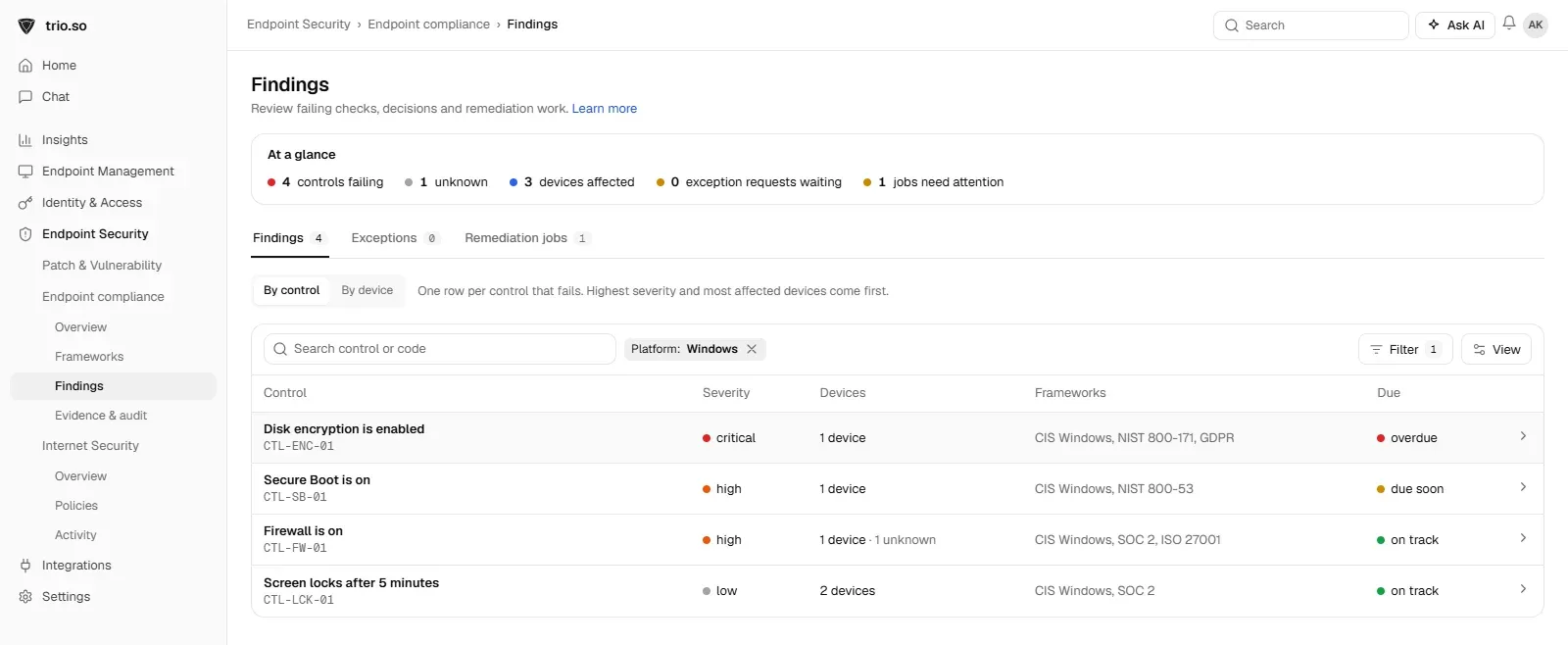
trio.so shows the disk encryption state of your managed Windows devices and flags the devices where encryption is off. It does not turn BitLocker off for you: you still use the commands above. What you get is one list that says which PCs are encrypted before and after you change anything.
If you want to set BitLocker the other way, to encrypt and back up keys by policy, read BitLocker Drive Encryption Group Policy: A Step by Step Guide. For what BitLocker is and how it compares with other options, see BitLocker Drive Encryption, BitLocker vs VeraCrypt and full disk encryption.
trio.so shows the encryption status of enrolled Windows devices.
Every organization today needs a solution to automate time-consuming tasks and strengthen security. Without the right tools, manual processes drain resources and leave gaps in protection. trio.so is designed to solve this problem, automating key tasks, boosting security, and ensuring compliance with ease.
Every organization today needs a solution to automate time-consuming tasks and strengthen security. Without the right tools, manual processes drain resources and leave gaps in protection. trio.so is designed to solve this problem, automating key tasks, boosting security, and ensuring compliance with ease.





Have questions? We've got answers. This section covers some of the most commonly asked questions related to this topic.
manage-bde -off C:, or go to Control Panel, BitLocker Drive Encryption, and choose Turn off BitLocker. On a PC that uses device encryption, turn it off under Settings, Privacy & security, Device encryption.manage-bde -status C: and read Conversion Status and Protection Status, or run Get-BitLockerVolume in PowerShell.manage-bde -protectors -disable C: -rc 1 before you change BIOS or UEFI settings or install firmware, then restart.Related
The related industry news, interviews, technologies, and resources.
How to do a HIPAA risk assessment in 8 steps: scope, inventory, threats, scoring and the risk management plan. Free Excel worksheet with 21 starter risks.

To run powershell script on multiple computers reliably, you need to know which method breaks on offline machines, workgroups, and Mac endpoints.
You can stop employees from installing software on Windows using GPO, AppLocker, or MDM. Here's how each method works and which fits your setup.
If you want to know how to block websites on iPhone, this guide covers Screen Time, DNS filtering, and MDM — including where each method breaks down.

If you're learning how to block an app on iPhone for a managed fleet, start here: supervised enrollment is the gate to real MDM enforcement.
Learn how to choose the right MDM solution with 9 essential criteria. Complete guide for evaluating features, security, and vendor capabilities.

Learn how to execute scripts remotely with security in mind. Methods, best practices, and scaling strategies for IT operations.

Complete guide to pushing Android remote updates with MDM. Learn methods for app, system, and policy updates across managed devices.