



Explained
Managed Apple IDs, Now Managed Apple Accounts: A Guide for IT Admins
What Managed Apple Accounts (formerly Managed Apple IDs) are, how to create them in Apple Business, their limits, and how an MDM uses them.
Does an iPhone have a work profile? Why iOS uses User Enrollment instead, how it separates work and personal data, and how to turn it off.

Content writer, trio.so
An iPhone has no Android-style work profile. The iOS equivalent is User Enrollment, an MDM enrollment type for employee-owned iPhones that keeps work apps and accounts apart from personal data. It uses a Managed Apple Account, and it gives IT a limited set of controls and no view of personal apps or data. This page explains how it works, how it differs from other enrollment types, and how an employee can check or remove it.
Not in the Android sense. Android builds a separate work container on the phone. iOS does not have one, but it separates work and personal data with managed apps and accounts instead. When a personal iPhone is enrolled with User Enrollment, the organization manages only the apps, accounts and settings it installs. Everything else on the phone stays private. Apple's overview is User Enrollment and MDM. For the Android side, see Android MDM vs iOS MDM.
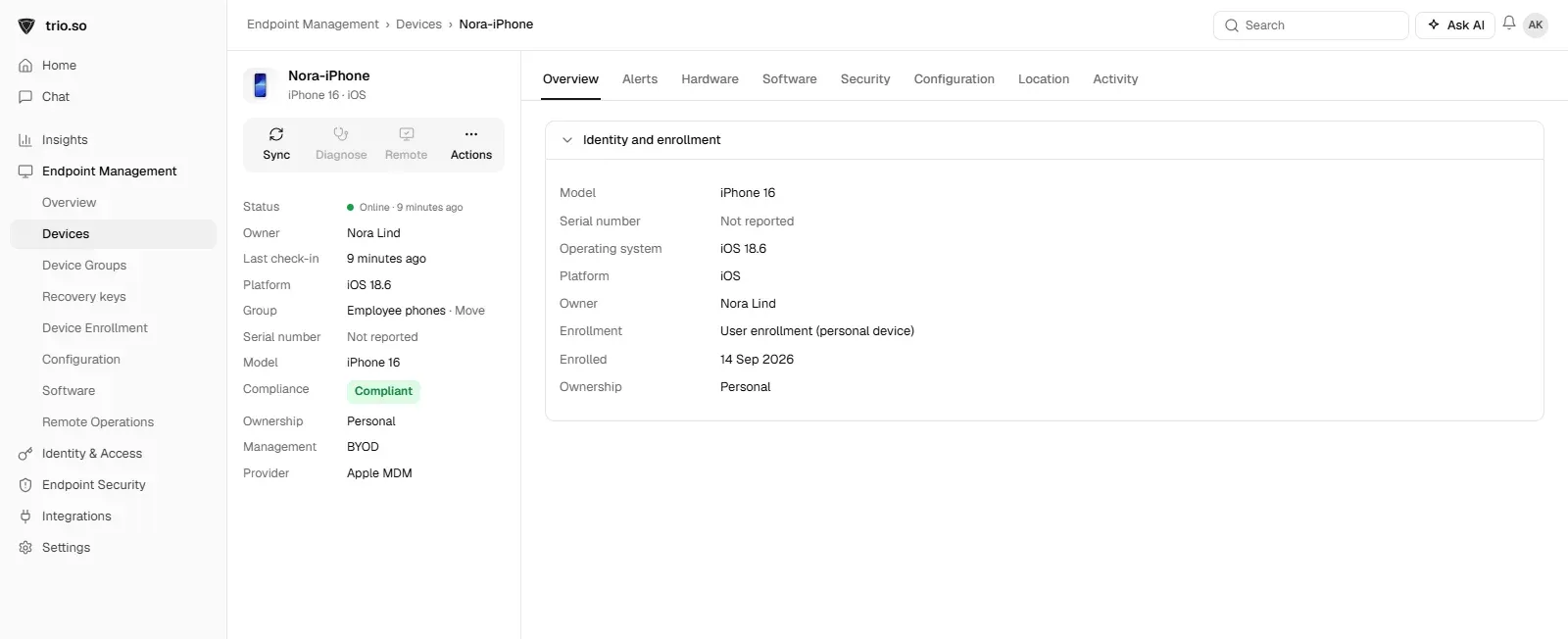
User Enrollment is built for BYOD, where the user, not the organization, owns the device. Employees sign in with a Managed Apple Account, which Apple used to call a Managed Apple ID. It is created in Apple Business or Apple School Manager, or federated from the company's identity provider. On the iPhone, the enrollment manages the work apps and accounts and leaves the rest of the phone alone.
How an employee enrolls with account driven User Enrollment:
See also account driven User Enrollment and Managed Apple IDs.
| User Enrollment | Device enrollment | Supervised | |
|---|---|---|---|
| Phone owner | The employee | Usually the company | The company |
| Control | Limited set of payloads and restrictions | Wide set of configurations | The widest set, including features locked to supervised phones |
| Personal data | Not visible to IT | IT sees the device and its installed apps | IT sees the device and its installed apps |
| Remote lock and wipe | No | Yes | Yes |
| Best for | BYOD | Company phones with some personal use | Company phones, kiosks, schools |
Apple says organizations that need more control should use Device Enrollment, which supports more configurations at the cost of some user flexibility. A User Enrollment phone is not supervised. See Apple supervised mode and iPhone enrollment profiles.
People who ask for an iPhone work profile usually know the Android one. The goal is the same, work and personal data apart on a phone the employee owns, and the mechanics differ.
| Android work profile | iOS User Enrollment | |
|---|---|---|
| How it separates data | A second, isolated profile on the phone, with its own apps and storage | Managed apps, accounts and data kept apart by iOS on the same device |
| What the user sees | Work apps carry a briefcase badge and sit in a Work tab | Work apps are marked as managed; the rest looks unchanged |
| Account used | Managed Google Play account | Managed Apple Account |
| Employee enrolls by | Installing the MDM agent and following the work profile setup | Signing in to a work account in Settings |
| Can IT see personal apps and data? | No | No |
| Can IT lock or erase the whole phone? | No, only the work profile | No, only managed data |
| Can the user pause work apps? | Yes, with the work profile toggle | No equivalent |
| Range of controls | Broad inside the work profile | A limited set of payloads and restrictions |
Both give a clean exit: removing the enrollment takes away work apps and data and leaves the personal side alone.
With User Enrollment IT can:
IT cannot:
The exact payloads available are in Apple's current deployment guide, so check it before you promise a setting to staff. For a plain read on this question from the user's side, see remote control an iPhone.
Open Settings > General > VPN & Device Management, tap the profile or account, and choose Remove Management or sign out of the work account. Enter your passcode if asked. The work apps and data that the profile installed are removed. Personal data stays. If the iPhone is company owned, the profile may not be removable, and you need IT to release the phone. If you leave the company, ask IT to remove it for you so nothing is left behind.
This is where User Enrollment pays off. IT removes the device's enrollment in the MDM, and the work side goes with it: managed apps, work accounts, work email and anything stored in managed apps are removed from the phone. The person keeps their own apps, photos, messages and iCloud. Nobody has to collect a phone or wipe it.
The employee can also remove the enrollment themselves, in Settings > General > VPN & Device Management. The MDM sees the device drop off and can revoke access to work resources from its side. Put the exit steps in your offboarding checklist:
The exact screens depend on your MDM, so follow its guide and Apple's User Enrollment and MDM page. The order is the same everywhere.
Enrollment fails most often because the domain is not verified or the account is not set up for the MDM, so check those first.
trio.so separates work data from personal data on employee-owned iPhones, using Apple's account driven User Enrollment with a Managed Apple Account. See Apple MDM. For the school side of BYOD, read BYOD in schools.
Related reading: BYOD policy.
trio.so separates work data from personal data on employee-owned iPhones. IT manages the work side and users keep their privacy. Start a 14-day free trial.
trio.so brings device management, patching and security policies for Windows, macOS, Linux, iOS/iPadOS and Android into one console. Enroll a device and see it in the console within minutes.
trio.so brings device management, patching and security policies for Windows, macOS, Linux, iOS/iPadOS and Android into one console. Enroll a device and see it in the console within minutes.





Have questions? We've got answers. This section covers some of the most commonly asked questions related to this topic.
Related
The related industry news, interviews, technologies, and resources.
What Managed Apple Accounts (formerly Managed Apple IDs) are, how to create them in Apple Business, their limits, and how an MDM uses them.
What an iPhone MDM enrollment profile is, how it gets onto a device, how to check or remove it, and how to fix enrollment profile errors.
Remote wipe an iPhone with Find My or iCloud, and how IT admins wipe or selectively wipe company iPhones and iPads with MDM. Steps and what happens next.
There is no Device Manager on a Mac. Here is what to use instead: System Information, Activity Monitor and VPN & Device Management, with steps.
What iPad management software does, how iPads enroll through Apple Business or Apple School Manager, supervision, kiosk mode and how to choose a tool.
Is an iPhone encrypted? What the passcode protects, what Advanced Data Protection adds, what "Reset Encrypted Data" means, and how IT enforces passcodes.
What an Apple VPP token is, how to download it from Apple Business, upload it to your MDM and renew it each year, and what breaks when it expires.

The best Apple MDM solutions for business in 2026, compared on Apple features, mixed-fleet support and published pricing, plus what to check first.
14-day free trial. No credit card required.
trio.so for MSPs: one console, separate clients