


Explained
How to Detect Shadow AI in Your Organization
Shadow AI breaches average $4.63M. Here is how to detect shadow AI using DNS logs, OAuth audits, and your endpoint inventory, step by step.
What is Multi App Kiosk Mode? It lets you restrict devices to multiple approved apps, ideal for shared SMB devices needing control and flexibility.
Managing a fleet of shared devices can be a logistical headache, especially for small IT teams dealing with limited budgets and growing device sprawl. A multi-app kiosk mode can help with this. Instead of locking devices to a single app, this kiosk software mode allows users to access a specific group of approved applications. Whether you’re overseeing tablets in a classroom or check-in screens at a hotel, kiosk mode reduces distractions and prevents unauthorized use. Using an MDM solution makes deployment and management scalable, even with minimal resources. From setup to customization, MDM gives you centralized control so you can configure kiosks once and replicate settings across your entire fleet.
Restricts devices to approved apps only
Ideal for: Retail • Healthcare • Education • Hospitality
MDM Advantages:
Security Controls:
Multi-app kiosk mode is a device management configuration that locks a device to an interactive kiosk software comprised of a set of apps, blocking access to everything else, including system settings, notifications, and unauthorized content. Unlike single-app kiosk setups, this mode offers flexibility for workflows that require multiple tools while maintaining tight control over device usage. Think of it as a curated app drawer for end-users, great for environments like check-in kiosks, digital workstations, or shared field tablets. End-users can only interact with the apps you approve, which reduces distractions, enhances productivity, and limits security risks. Many businesses use a kiosk launcher to present the approved apps in a clean, customized interface, further simplifying the user experience.
Choosing between multi-app kiosk mode and single-app mode depends on how the device is used. Single-app mode is ideal for dedicated functions, like self-check-in screens, where only one app is needed. For shared-use scenarios, a multi-app lockdown mode offers more flexibility while still keeping control tight. Here’s a quick comparison:
| Feature | Single-App Mode | Multi-App Lockdown Mode |
|---|---|---|
| App Access | One fixed app only | Multiple approved apps |
| Use Case | Digital signage, check-in | Field tablets, education, retail |
| User Flexibility | Extremely limited | Controlled, app-specific flexibility |
| Ideal For | Dedicated-use devices | Shared-use devices |
Multi-app kiosk mode works across Android, Windows, iOS, and Android TV, allowing companies to enforce consistent controls on mixed-device fleets. With an MDM solution, you can easily configure an Android tablet’s kiosk mode using a managed home screen or kiosk agent, ideal for locking down tablets used in retail, education, or fieldwork. On Windows, one of the most common methods is using assigned access for a Windows multi-app kiosk, which locks users into selected UWP or desktop apps. iOS offers more limited multi-app support but still enables strong restrictions through supervised mode and profiles. Android TV allows basic multi-app usage with the right launchers and tools. Here’s a quick comparison:
| Platform | Configuration Method | Kiosk Capabilities | Ideal Use Cases |
|---|---|---|---|
| Android | Managed Home Screen or kiosk agent via MDM | Full multi-app support; launchers; UI customizations | Field tablets, retail, logistics |
| Windows | Assigned access for a Windows multi-app kiosk | Lock to UWP/desktop apps; Start menu control | Front desks, education, healthcare |
| iOS | Supervised mode + configuration profiles (via MDM) | Limited; no true multi-app mode, but strong app restrictions | Education, customer devices |
| Android TV | Custom launchers + kiosk tools | Limited multi-app; good for signage or simple user flows | Digital signage, hospitality, lobbies |
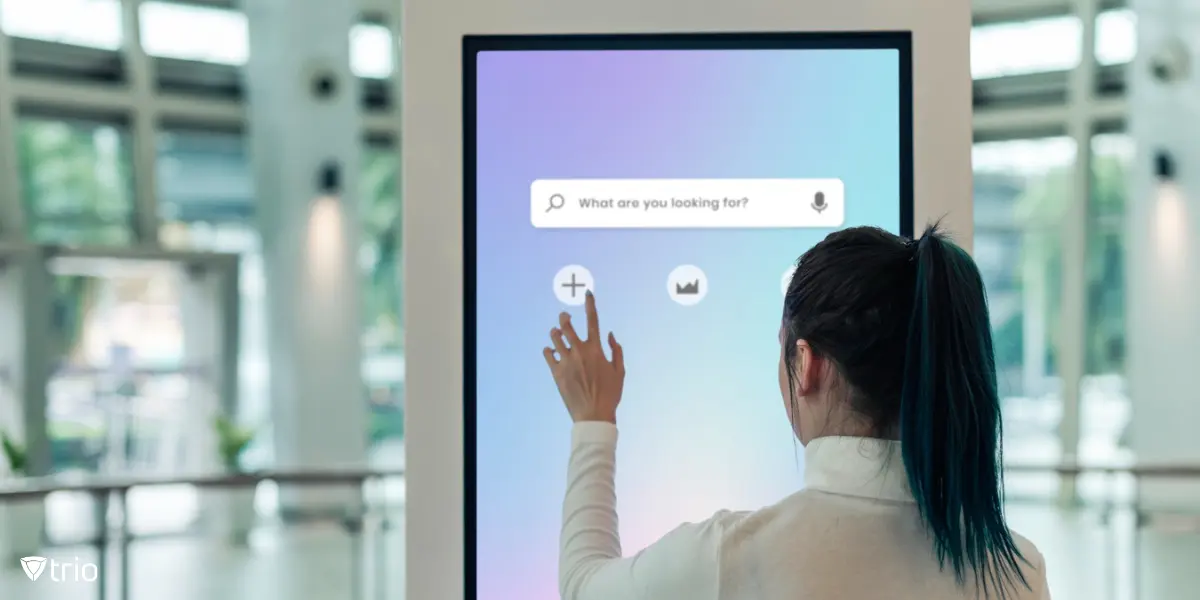
Setting up multi-app kiosk mode varies by platform, but MDM tools streamline the process across Android, Windows, and other systems. Here’s a breakdown of key setup steps: Android multi-app kiosk configuration:
Windows setup (Assigned Access):
To create a multi-app kiosk profile, most MDMs allow reusable templates, ensuring fast deployment across multiple devices.
Once you deploy a multi-app kiosk mode setup, fine-tuning the user experience becomes essential. With most MDM solutions, you can fully customize the layout and behavior of the kiosk interface. Common options include:
Advanced features can also include multi-user switching, auto-launch apps, or secondary displays. These configurations are crucial for SMBs to balance usability and control across various environments.
Multi-app kiosk mode is especially useful for SMBs that rely on shared devices. Whether it's a customer-facing screen or a staff tool in the field, locking down access helps reduce errors and improve efficiency. With the right MDM, deployment and control scale easily, even with limited resources. Here are practical examples by industry:
| Industry | Device Type Example | Example Use Case | Common Apps Allowed |
|---|---|---|---|
| Retail | Tablet kiosk | Self-checkout, inventory lookup | POS app, barcode scanner, shift tracker |
| Healthcare | Android tablet | Nurse station tablets, patient check-in | EMR, secure browser, internal messenger |
| Education | Classroom tablet | Test-taking, digital labs | Assessment tools, calculator, browser |
| Hospitality | In-room display | Guest services, entertainment control | Feedback form, food service, TV controls |
| Field Services | Rugged tablet | On-site inspections, GPS-guided tasks | Maps, forms, internal chat, job scheduler |
Even with a solid multi-app kiosk mode setup, problems can arise, especially when scaling across dozens of devices. Many issues stem from skipped steps or configuration mismatches. Here are common pitfalls and how to avoid them:
Test in small batches before rolling out. A good MDM should alert you if a device hasn’t successfully applied its profile. 
A major benefit of kiosk mode with multiple apps is its ability to lock down device access while still allowing necessary functionality. With MDM support, IT admins can enforce granular security controls without complicating the user experience. Key features include:
This approach is ideal for shared environments where controlled flexibility matters, like in healthcare, education, or retail.
If you're looking to deploy multi-app kiosk mode across Android, Windows, or mixed-device environments, Trio MDM can help you do it faster, cleaner, and with fewer headaches. From creating kiosk profiles to managing app restrictions and user access, Trio offers a user-friendly way to get complete control without bloating your IT workload. Trio’s support for kiosk mode, device provisioning, and compliance automation makes it a smart choice for SMBs and education environments alike, especially when budgets and IT staff are limited. Ready to see how it works? ✅ Start your free trial; no credit card required ✅ Book a free demo with our team to walk through features that matter most to your organization Let Trio handle the device chaos, so your team can stay focused on what really matters.
Multi-app kiosk mode offers the best of both worlds, flexibility for end users and control for IT teams. For SMBs managing shared devices across departments or locations, it solves common problems like app misuse, configuration drift, and time-consuming manual setup. Pairing kiosk mode with an MDM like Trio makes the difference. With Trio, admins can deploy and manage kiosks at scale, enforce security settings, and adjust layouts or permissions with just a few clicks. Whether you're setting up Android tablets in a classroom or Windows stations in a front office, you get a streamlined, scalable solution.
Every organization today needs a solution to automate time-consuming tasks and strengthen security. Without the right tools, manual processes drain resources and leave gaps in protection. Trio MDM is designed to solve this problem, automating key tasks, boosting security, and ensuring compliance with ease.
Every organization today needs a solution to automate time-consuming tasks and strengthen security. Without the right tools, manual processes drain resources and leave gaps in protection. Trio MDM is designed to solve this problem, automating key tasks, boosting security, and ensuring compliance with ease.





Have questions? We've got answers. This section covers some of the most commonly asked questions related to this topic.
Related
The related industry news, interviews, technologies, and resources.
Shadow AI breaches average $4.63M. Here is how to detect shadow AI using DNS logs, OAuth audits, and your endpoint inventory, step by step.
Declarative device management is Apple's answer to MDM polling delays and unreliable compliance data — here's how it works and how to start using it.
An APNS certificate is what lets your MDM platform send commands to iPhones, iPads, and Macs — here's how to create, renew, and protect it.
Device location history works differently on Android, iPhone, and MDM platforms. Here's what each one actually stores and how to access it.
Unlike full-device VPN, per-app VPN tunnels only the apps you choose — and without MDM enforcement, users can bypass it entirely on unmanaged devices.
A remote wipe on a Mac is only possible if the right tools are in place first — here is how MDM, Find My, and native macOS each handle device erasure.
Compare SOC 2 Type 1 and Type 2 audits. Discover key differences, audit scope, duration, and how to choose for compliance needs.
Compare managed and unmanaged devices - definitions, security differences, control levels, and how to choose the right approach for IT.