


Explained
Multi-App Kiosk Mode: Lock Down Devices With Several Apps
How multi-app kiosk mode works on Windows, iPad and Android, what each platform needs, how it differs from single-app mode, and how to set it up.
How to secure public kiosks: lock the device to its app, block USB and unused ports, segment the network, keep it updated and reset each session.

Content writer, trio.so
Kiosk security is the set of physical, device and network controls that keep a public self-service device doing only its job: check-in tablets, ordering screens, information points and self-checkout terminals. The core steps are to lock the device to its kiosk app, block USB storage and cover or disable unused ports, put the kiosk on its own network, keep its operating system and apps updated, and clear every session so the next person sees nothing from the last one. A device management (MDM) tool applies these settings to every kiosk at once and lets IT fix problems remotely.
If you look after kiosks or shared tablets in a public space and want to know where they are weakest and what to set first, this guide covers the common threats, how to secure kiosk ports, the essential settings and an implementation checklist.
A kiosk is a device that anyone can walk up to and touch, usually without signing in. That makes it different from an employee laptop: the attacker may be standing in front of it. Kiosk security therefore covers three layers:
Exposed ports are one of the simplest ways into a public kiosk. A USB stick can carry malware in or data out, a keyboard plugged into a spare port can open a menu the touchscreen hides, and an exposed network socket can give an attacker a foothold on your network.
Malware arriving through USB or a compromised update, attempts to break out of the kiosk app into the operating system, and attacks on the network the kiosk shares with other systems. Kiosks running old, unpatched software are an easy target because nobody uses them as a personal device and they are easy to forget.
Self-service is now common in shops, clinics, hotels and offices, so there are more unattended devices in public. Tampering ranges from plugging in a keyboard or USB stick to fitting skimmers on card readers or removing the device altogether.
Whenever a kiosk keeps something from the last user: a signed-in account, a filled-in form, cookies or a downloaded file. On shared devices every session must end cleanly, with nothing left for the next person.
Managing kiosks one by one does not scale and leaves settings to drift. An MDM sets up each kiosk the same way when it enrolls, locks it to its app, applies security policies such as USB blocking and passcodes, keeps the operating system updated, and lets IT see each kiosk's status and support it remotely. When a kiosk misbehaves, IT can connect from the console instead of sending someone on site.
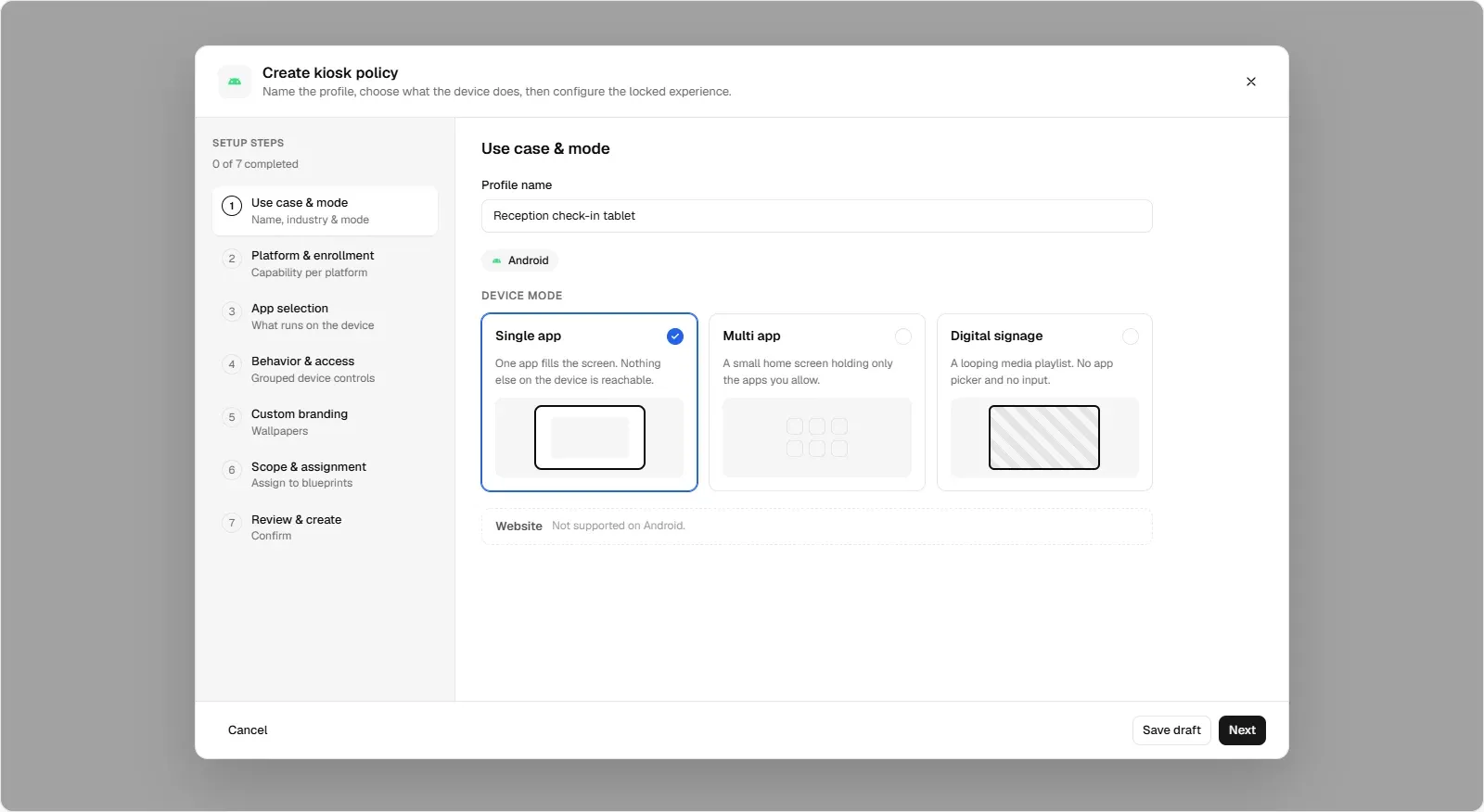
Kiosk mode keeps the device inside the app it is there to run and hides the home screen, settings, notifications and system buttons. It restarts the app if it crashes and returns to it after a reboot. Android, iPhone and iPad, Mac and Windows all support a managed kiosk mode set by an MDM. See kiosk software and Android tablet kiosk mode.
Kiosks get stolen. Full disk encryption, BitLocker on Windows, FileVault on Mac and the built-in encryption on phones and tablets, keeps anything stored on the device unreadable if it walks away.
A locked enclosure that covers buttons and ports, a cable lock or wall mount, tamper-evident seals on card readers, and placement within sight of staff or a camera.
Put kiosks on their own network or VLAN, separate from staff devices and internal servers, and allow only the connections the kiosk app needs, such as its own backend. If a kiosk is compromised, the damage stays on that segment.
Kiosks are unattended, so problems are often noticed late. Watching each kiosk's last check-in, update status and security alerts from a central console shows when one goes offline, falls behind on updates or is tampered with.
Install operating system and app updates automatically during closing hours, review kiosk settings after every major OS release, and test a kiosk after each change by trying to break out of it.
Protect the MDM console with single sign-on and multi-factor authentication, give each admin only the role they need, and keep the kiosk exit method (remote command or admin PIN) known only to IT.
Block USB storage, allow only approved apps, and keep the OS and apps patched.
Use a separate network segment, encrypted connections to the backend, and no open Wi-Fi for kiosks.
Use an enclosure, cover ports, mount the device, and watch for kiosks that go offline unexpectedly.
Reset the kiosk app after each use or a period of inactivity, clearing sign-ins, cookies and form data.
| Threat | MDM countermeasure |
|---|---|
| Escape from the kiosk app | Managed kiosk mode that blocks the home screen, settings and system buttons |
| Malware from USB | Policy that blocks USB storage devices |
| Unpatched software | Automatic OS updates with a schedule outside opening hours |
| Theft of the device | Enforced disk encryption, device location and remote wipe |
| Faults on site | Remote support from the console |
Kiosks that take card payments fall under PCI DSS 4.0.1, which expects device inventory, protection against tampering, malware protection and timely patching. Kiosks in healthcare that show patient data must protect it like any other device. In every case, a written baseline and per-device records of which settings applied make audits easier.
trio.so puts Android devices, iPhones and iPads, Macs and Windows PCs into kiosk mode through policy, blocks USB storage, and keeps the operating system updated through Auto Patch policies. Each kiosk shows whether its policies applied, IT can open a remote desktop session to fix a problem, and Microsoft Defender for Endpoint alerts appear per device. Plans start at $5 per device.
Kiosk security comes down to a few habits applied to every device: lock it to its app, close the ports, separate its network, keep it updated and clear every session. An MDM makes those habits consistent across every kiosk and lets you fix problems without a site visit.
Lock the device to its kiosk app, block USB storage and cover unused ports, put it on a separate network, turn on encryption, keep it updated and reset each session. An MDM applies these settings to every kiosk at once.
Malware through USB, escaping the kiosk app, physical tampering and theft, data left behind from the previous user, and attacks on the network the kiosk shares.
Block USB storage through your MDM or OS policy, cover or remove exposed ports with an enclosure or port blockers, and allow only the peripherals the kiosk needs.
A device setting that keeps the screen inside one purpose, hiding the home screen, settings and system buttons, and returning to the app after a restart.
Use an MDM to install OS and app updates automatically during closing hours, and check each kiosk's update status from the console.
Related reading: kiosk software, Android tablet kiosk mode, single app mode and Android kiosk browser.
trio.so puts Android, Apple and Windows devices into kiosk mode and blocks USB storage. Plans start at $5 per device.
trio.so brings device management, patching and security policies for Windows, macOS, Linux, iOS/iPadOS and Android into one console. Enroll a device and see it in the console within minutes.
trio.so brings device management, patching and security policies for Windows, macOS, Linux, iOS/iPadOS and Android into one console. Enroll a device and see it in the console within minutes.





Have questions? We've got answers. This section covers some of the most commonly asked questions related to this topic.
Related
The related industry news, interviews, technologies, and resources.
How multi-app kiosk mode works on Windows, iPad and Android, what each platform needs, how it differs from single-app mode, and how to set it up.
Learn Windows Digital Signage setup. Transform Windows 10/11 devices into professional displays with kiosk mode, MDM, and cost-effective solutions.
What is a tablet kiosk and how can it boost SMB efficiency? Discover features, use cases, and secure deployment strategies in this practical guide.
Discover how Android tablet kiosk mode locks down devices, and boosts efficiency. Learn setup steps, best practices, and MDM solutions for SMBs.
Device lockdown locks the whole device to approved apps; browser lockdown locks only a browser to approved sites. When to use each, by platform.
How to lock a Fire tablet to one app: what Fire OS can do on its own, when you need a kiosk app or MDM, and how Fire OS differs from Android.
Interactive kiosk software boosts user interaction and operational efficiency, with MDM solutions like trio.so enhancing these advantages further.
Lock an iPad or iPhone to one app with Single App Mode, Guided Access or Autonomous Single App Mode, and set up iPad kiosk mode across a whole fleet.
14-day free trial. No credit card required.
trio.so for MSPs: one console, separate clients