




How-Tos
8 Ways IT Admins Can Block Ads on Windows 10 Managed Devices
Tired of intrusive ads on Windows 10? Discover effective methods for how to block ads on Windows 10 and enhance your browsing experience.
Run a command prompt on a remote computer with PsExec, Enter-PSSession and Invoke-Command. Setup, fixes for access denied, and the security risks to watch.

Content writer, trio.so
To run a command prompt on a remote Windows computer, use PsExec (psexec \\PC01 cmd) or PowerShell remoting (Enter-PSSession -ComputerName PC01). PsExec needs admin rights and access to the remote admin share. PowerShell remoting needs WinRM turned on. Both give you a prompt on the other machine, and both are tools attackers use too, so restrict and log them.
| PsExec | Enter-PSSession | Invoke-Command | |
|---|---|---|---|
| Best for | One command or an interactive cmd prompt | An interactive PowerShell session on one PC | Running one script block on many PCs |
| Needs on the target | Admin rights, access to the ADMIN$ share (SMB, port 445) | WinRM on, admin rights | WinRM on, admin rights |
| Ports | 445 | 5985 (HTTP), 5986 (HTTPS) | 5985, 5986 |
| Authentication | Your Windows account, or -u and -p | Kerberos in a domain, NTLM otherwise | Same as Enter-PSSession |
| Installs anything | A temporary service, PSEXESVC | No | No |
| What gets logged | Service creation (Windows event 7045) and logon events | WinRM and PowerShell logs, logon events | Same as Enter-PSSession |
PsExec is part of Microsoft's Sysinternals PsTools. It runs a process on another computer without you installing client software first. The current page for it is PsExec on Microsoft Learn. It runs on Windows 8.1 and later, and Windows Server 2012 and later.
psexec.exe to a folder on your path.psexec \\PC01 -accepteula cmd. Add -u DOMAIN\admin if your current account is not an admin on PC01. PsExec asks for the password.exit to leave. The temporary service is removed afterwards.Useful switches from the documentation:
-s runs the process as the SYSTEM account.-i runs the process interactively on the session's desktop.-h uses the account's admin token on Vista and later.-c copies a program to the remote PC and runs it there.-d does not wait for the process to finish.@file runs the command on every computer listed in a text file.One command, no shell: psexec \\PC01 ipconfig /all prints the output on your screen.
These assume you run them from an administrator prompt with admin rights on the target. Replace PC01 with your computer name.
psexec \\PC01 -s cmd opens a prompt as the SYSTEM account. Use it for tasks a normal admin token cannot do, such as reading protected registry keys.psexec \\PC01 ipconfig /allpsexec \\PC01 -c C:\Tools\cleanup.bat copies the file to the target and runs it there. Add -f to overwrite a copy that is already there.psexec \\PC01 -s powershell -ExecutionPolicy Bypass -File C:\Scripts\check.ps1. The path is on the remote PC, not yours.psexec \\PC01,PC02,PC03 -s ipconfig /flushdns, or put one name per line in pcs.txt and run psexec @pcs.txt -s ipconfig /flushdns.psexec \\PC01 -d notepad.exe does not wait for the process to finish.Run a small test on one PC before you point a command at a list. PsExec does what you tell it, on every machine you name.
PowerShell remoting uses WinRM, which listens on port 5985 for HTTP and 5986 for HTTPS. On Windows Server it is on by default. On Windows 10 and 11 you turn it on once, on the target.
Enable-PSRemoting -Force. It starts the WinRM service, sets it to start automatically, creates a listener and opens the firewall exception.Enter-PSSession -ComputerName PC01 -Credential DOMAIN\admin.[PC01]: PS>. Type cmd if you want a Command Prompt, or run commands directly. Exit-PSSession ends it.By default only members of the Administrators group can connect. In a domain, connecting by computer name uses Kerberos. Connecting by IP address, or to a PC in a workgroup, falls back to NTLM, which is blocked until you configure HTTPS on the target or add it to the TrustedHosts list on your PC. On a public network profile, Windows 10 and 11 only allow connections from the same subnet, and Enable-PSRemoting refuses to run unless you add -SkipNetworkProfileCheck. Details are in Microsoft's WinRM security guidance.
Outside a domain, WinRM over HTTP on port 5985 has no Kerberos to authenticate the PC. HTTPS on port 5986 fixes that with a certificate. You need a certificate on the target whose name matches the name you connect with.
$cert = New-SelfSignedCertificate -DnsName "pc01.corp.example.com" -CertStoreLocation Cert:\LocalMachine\MyNew-Item -Path WSMan:\localhost\Listener -Transport HTTPS -Address * -CertificateThumbPrint $cert.Thumbprint -ForceNew-NetFirewallRule -DisplayName "WinRM HTTPS" -Direction Inbound -Protocol TCP -LocalPort 5986 -Action Allow. Limit the remote address to your admin subnet.Enter-PSSession -ComputerName pc01.corp.example.com -UseSSL -Credential DOMAIN\adminTest-WSMan pc01.corp.example.com -UseSSL.With a self-signed certificate your PC does not trust the issuer, and the connection fails until you import the certificate into Trusted Root Certification Authorities. The shortcut, -SessionOption (New-PSSessionOption -SkipCACheck -SkipCNCheck), turns off the checks that make HTTPS worth having, so keep it to a lab. Once HTTPS works you can remove the HTTP listener and close port 5985.
Invoke-Command runs a script block on one or many machines at once and returns the results.
Invoke-Command -ComputerName PC01 -ScriptBlock { hostname; ipconfig /all }Invoke-Command -ComputerName PC01,PC02,PC03 -ScriptBlock { Get-Service wuauserv }Invoke-Command -ComputerName PC01,PC02 -FilePath .\check.ps1Remote commands run in the user's context, and by default the remote PC cannot pass your credentials on to a third machine. That is the second hop problem. For more on running one script across many PCs, see how to run a PowerShell script on multiple computers and remote script execution.
| Error or symptom | Likely cause | Fix |
|---|---|---|
| PsExec: "Couldn't install PsExec service" or "Access is denied" | Your account is not a local administrator on the target, or the ADMIN$ share is not reachable | Add -u DOMAIN\admin; check that \\PC01\ADMIN$ opens from your PC and that File and Printer Sharing is allowed in the firewall |
| PsExec: "The network path was not found" | Name does not resolve, PC is off, or port 445 is blocked | Run Test-NetConnection PC01 -Port 445; try the IP address; check the firewall between you and the PC |
| PsExec: "The system cannot find the file specified" | The program path is read on the remote PC, not yours | Use -c to copy the file, or give a path that exists on the target |
| Access denied on a workgroup PC, even with the right password | Remote User Account Control filters local admin accounts over the network | Use a domain account, or set LocalAccountTokenFilterPolicy to 1 on that PC. It lowers security, so limit it to machines that need it |
| PsExec blocked or quarantined | Antivirus or EDR flags it because attackers use it | Ask security to allow it for named admin accounts and machines, not everywhere |
| WinRM: "cannot process the request... TrustedHosts" or "HTTPS transport must be used" | You connected by IP address or to a workgroup PC, so Kerberos is not available | Connect by computer name in a domain, set up HTTPS above, or add the PC to TrustedHosts on your PC |
| WinRM: "Access is denied" or "WinRM cannot process the request" | WinRM is off on the target, port 5985 is blocked, or the account is not an administrator there | Run Test-WSMan PC01; run Enable-PSRemoting -Force on the target; check the account |
Enable-PSRemoting fails with a public network warning | The network profile is Public | Change the profile to Private, or run it with -SkipNetworkProfileCheck and accept the same-subnet limit |
| Command works, then "access denied" reaching a file share | Second hop: the remote session cannot pass your credentials to a third machine | Copy the files to the target first, use resource-based Kerberos delegation, or run the step from the machine that holds the share |
For PowerShell, Test-WSMan PC01 from your PC shows quickly whether the listener answers.
PsExec is a common attacker tool. MITRE lists malware such as LockBit 3.0 ransomware and NotPetya that uses it to run commands and spread across networks, and antivirus products often flag it for that reason. Remote admin tools should be a short, known list.
Enable-PSRemoting on for PCs that never need it.MITRE describes how PsExec is abused and what to detect in Service Execution (T1569.002).
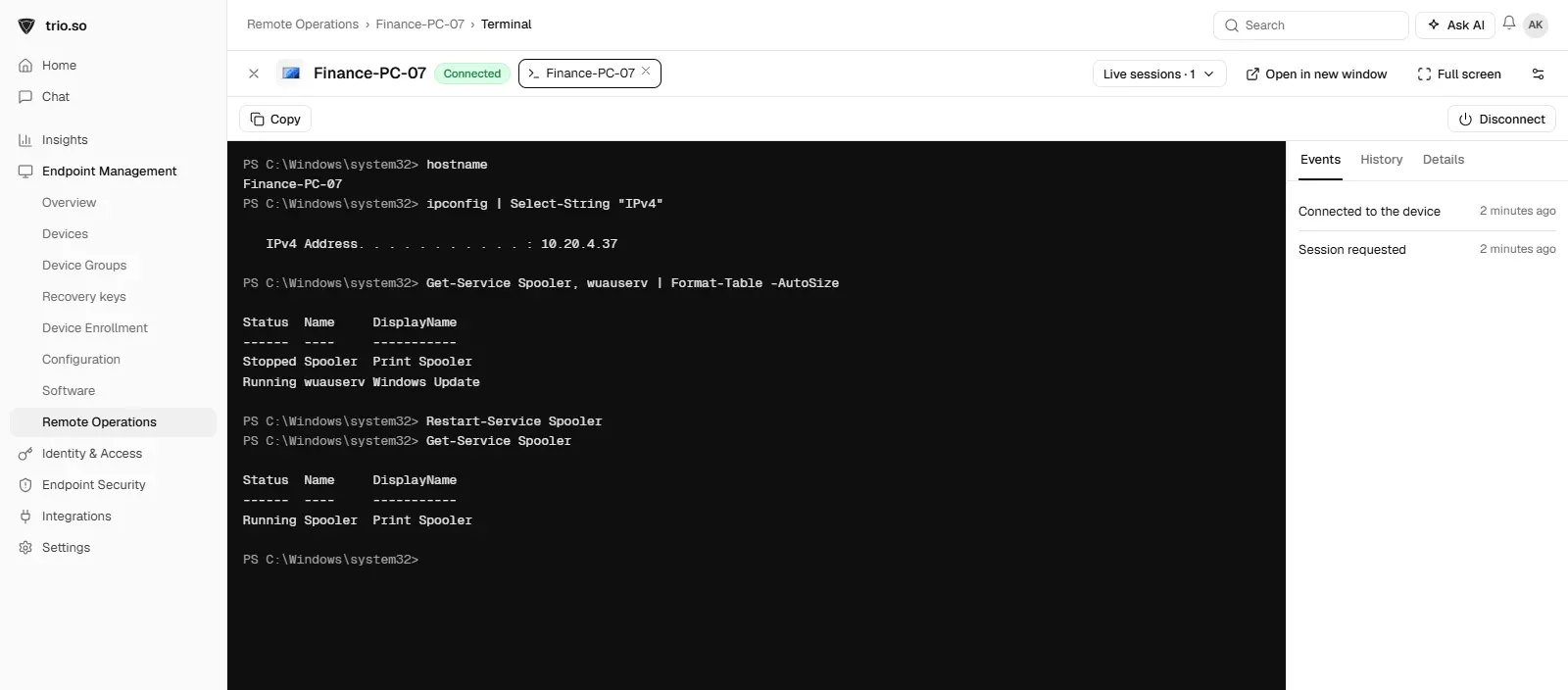
PsExec and PowerShell remoting work well for a handful of PCs on one network. They are harder when devices are remote, off the domain or behind home routers, because each PC needs open ports and an admin account. trio.so runs scripts and gives a remote terminal on enrolled Windows, macOS and Linux devices from the console. See remote terminal.
Related reading: PowerShell execution policies, preventing remote code execution attacks and trio.so remote operations update.
trio.so runs a script and opens a remote terminal on enrolled Windows PCs from the console.
Every organization today needs a solution to automate time-consuming tasks and strengthen security. Without the right tools, manual processes drain resources and leave gaps in protection. trio.so is designed to solve this problem, automating key tasks, boosting security, and ensuring compliance with ease.
Every organization today needs a solution to automate time-consuming tasks and strengthen security. Without the right tools, manual processes drain resources and leave gaps in protection. trio.so is designed to solve this problem, automating key tasks, boosting security, and ensuring compliance with ease.





Have questions? We've got answers. This section covers some of the most commonly asked questions related to this topic.
psexec \\PC01 cmd from an admin prompt to get a command prompt on PC01.Enter-PSSession -ComputerName name -UseSSL using the name on the certificate.Invoke-Command -ComputerName PC01 -ScriptBlock { your command } after WinRM is enabled on the target with Enable-PSRemoting.Related
The related industry news, interviews, technologies, and resources.
Tired of intrusive ads on Windows 10? Discover effective methods for how to block ads on Windows 10 and enhance your browsing experience.
Learn how to remotely uninstall software across multiple devices efficiently. Discover tools and best practices to get the perfect result.
How Windows Update works, when it makes sense to pause or disable updates, and which built-in and third-party tools to use.
Set up a NAS on your network: choose hardware and RAID, give it a fixed IP, set shares and permissions, and back it up.
Turn on two-factor authentication for your Apple Account on a Mac, and add MFA to the Mac login with Platform SSO, smart cards or an identity provider.

Disable Control Panel and Settings with Group Policy: the exact policy, its registry value, how to exempt admins and how to allow only some items.

Disable a GPO safely: disable the link, disable user or computer settings, or unlink it, and why to leave the Default Domain Controllers Policy alone.
Turn on Remote Desktop for Windows machines with Group Policy: the exact policy path, the firewall rule, NLA, and how to check it worked.
14 day free trial. No credit card required.
trio.so for MSPs: one console, separate clients