

How-Tos
How to Run a PowerShell Script on Multiple Computers
To run powershell script on multiple computers reliably, you need to know which method breaks on offline machines, workgroups, and Mac endpoints.
Learn how to change the boot logo in Windows 10, customize the startup icon, and streamline the process with a simplified MDM solution.
When it comes to customizing your Windows 10 experience, altering the boot logo is an often overlooked, yet incredibly impactful change. The boot logo, also known as the splash screen or startup image, is the first thing users see as they boot up their machines. By changing it, you can personalize the user experience or enhance your organization’s branding. In this guide, we’ll walk you through the steps involved in how to change the boot logo in Windows 10, the tools you’ll need, and how to achieve a fully customized startup sequence for your system. Whether you're an IT admin or a tech enthusiast looking to tweak your Windows 10 installation, this blog post will provide detailed instructions on how to boot Windows with a custom logo, along with the necessary considerations for a smooth, secure, and efficient process.
Before diving into the technicalities of how to change boot logo in Windows 10, it’s crucial to understand the role of the boot logo itself. The boot logo is displayed during the startup process of your computer before the operating system loads. It’s part of the boot graphics resource table (BGRt) that holds the necessary images for system startup.
The boot logo is a visual representation of the system’s integrity and brand. For personal computers, it could simply be a logo of the manufacturer or a custom graphic. For enterprise environments, businesses often prefer a custom logo that represents their branding or simply a more professional or themed startup sequence. Customizing the boot logo can be a good way to improve the user experience, create a cohesive look, and impress stakeholders.
There are many reasons you may want to customize the Windows 10 boot logo. For instance, when managing multiple devices across a network, a custom logo can help easily identify machines. Additionally, it adds an element of personalization or professionalism for users, particularly when utilizing devices for corporate environments. 
To customize the Windows 10 boot logo, you'll need specialized tools and software to ensure the changes are made safely and effectively. In this section, we’ll introduce the tools you can use and provide a step-by-step walkthrough of the process to help you successfully customize your Windows 10 boot logo.
HackBGRT is a popular and reliable tool for customizing the boot logo on Windows 10 systems with UEFI firmware. It modifies the Boot Graphics Resource Table (BGRT) to replace the default logo with a custom image.
Some OEMs (e.g., Dell, Lenovo, HP) provide built-in options to change the boot logo via their BIOS or firmware interface. These tools are often found in the BIOS/UEFI settings and let you upload a custom image directly.
Third-party tools like Boot Logo Changer or similar apps offer a more visual way to change the boot logo. These tools often have intuitive interfaces and additional features, such as resolution adjustments or pre-made logo libraries.
For advanced users, manually editing the BGRT is an option. This method involves extracting the UEFI firmware, replacing the logo image, and flashing the modified firmware back onto the system.
Although not a direct boot logo change, you can customize the lock screen image or the background shown during sign-in.
By selecting the method that aligns with your system and technical expertise, you can successfully customize your Windows 10 boot logo and enhance your boot experience. 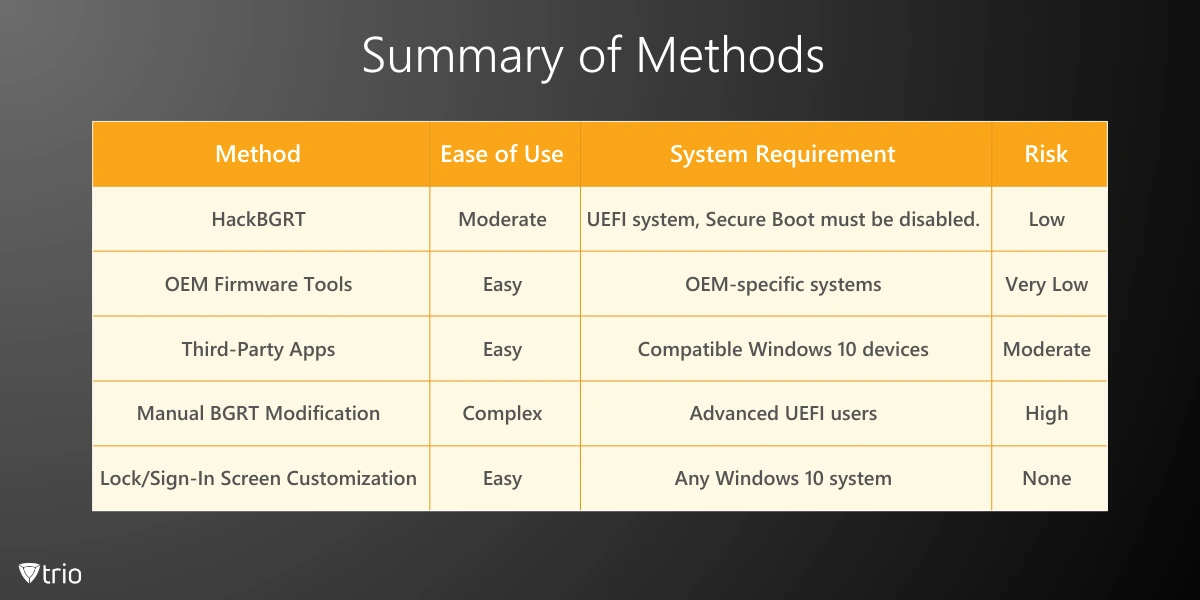
Sometimes, when altering the boot logo or other system components, issues can arise. Here's a look at some common problems you might face and how to resolve them.
If your boot logo doesn't appear or is distorted, it might be due to incorrect image dimensions. Ensure that the image you're using has the correct resolution for your system. Additionally, some systems might not support certain formats or large image sizes. Recheck your logo file’s specifications and try a smaller or different file type.
If you decide you no longer want your custom boot logo, you can always revert to the default Windows 10 logo. HackBGRT makes it easy to restore the default logo by simply selecting the “Restore” option within the tool.
For businesses looking to apply custom boot logos on multiple devices, managing this change through a centralized solution is key. This is where an MDM (Mobile Device Management) solution like Trio becomes very important.
Trio offers a full suite of features to simplify IT management. By integrating Trio MDM into your operations, businesses can maintain consistency in device configurations, security settings, and even user experience across all Windows-based systems. Whether you're applying a custom boot logo or ensuring other system settings are standardized, Trio’s Windows MDM solution can make the process seamless and efficient. If you’re interested in exploring how Trio can help with managing custom boot logos and more, sign up for a free demo today.
Customizing the boot logo in Windows 10 is a great way to personalize your system or reinforce company branding. Whether you’re an IT administrator or a tech enthusiast, changing the boot logo can be done easily with the right tools. By following the step-by-step instructions in this guide, you can change the default boot logo to something more fitting for your needs. Additionally, if you're managing multiple devices, a solution like Trio can streamline this process and ensure consistency across your fleet of systems.
Every organization today needs a solution to automate time-consuming tasks and strengthen security. Without the right tools, manual processes drain resources and leave gaps in protection. Trio MDM is designed to solve this problem, automating key tasks, boosting security, and ensuring compliance with ease.
Every organization today needs a solution to automate time-consuming tasks and strengthen security. Without the right tools, manual processes drain resources and leave gaps in protection. Trio MDM is designed to solve this problem, automating key tasks, boosting security, and ensuring compliance with ease.





Have questions? We've got answers. This section covers some of the most commonly asked questions related to this topic.
Related
The related industry news, interviews, technologies, and resources.
To run powershell script on multiple computers reliably, you need to know which method breaks on offline machines, workgroups, and Mac endpoints.
You can stop employees from installing software on Windows using GPO, AppLocker, or MDM. Here's how each method works and which fits your setup.
If you want to know how to block websites on iPhone, this guide covers Screen Time, DNS filtering, and MDM — including where each method breaks down.
If you're learning how to block an app on iPhone for a managed fleet, start here: supervised enrollment is the gate to real MDM enforcement.
Learn how to choose the right MDM solution with 9 essential criteria. Complete guide for evaluating features, security, and vendor capabilities.
Learn how to execute scripts remotely with security in mind. Methods, best practices, and scaling strategies for IT operations.

Complete guide to pushing Android remote updates with MDM. Learn methods for app, system, and policy updates across managed devices.
Explore all methods to remotely lock Windows PCs - from built-in Windows features to MDM solutions and enterprise management tools.