



Explained
Activation Lock for iPhone and iPad: How It Works and How to Remove It
What Activation Lock is, how to turn it off before you sell or return a device, the legitimate ways to remove it, and how IT avoids locked iPhones.
How Managed Lost Mode works on supervised iPhones and iPads: what the user sees, how IT gets the location, how it differs from Find My, and how to end it.

Content writer, trio.so
Managed Lost Mode is an Apple feature that lets an organization's mobile device management (MDM) service lock a lost or stolen supervised iPhone or iPad, show a message and a phone number on its Lock Screen, play a sound, and ask the device for its location, even if Location Services is turned off. It works only on supervised devices, does not need Find My to be on, and turns on Low Power Mode to save the battery. The user cannot exit it: only the administrator can turn it off, and when they do, the device tells the user that Managed Lost Mode was ended and that its location was collected. It is the organization's version of the Lost Mode an iPhone owner turns on in Find My.
If you look after company iPhones and iPads and want to know what Managed Lost Mode does before a device goes missing, the sections below cover how it works, what it needs and how it compares with Find My; if you are an iPhone owner wondering what Lost Mode does, start with the section for users.
Managed Lost Mode is the MDM version of Lost Mode. Apple describes it as a way for a device management service to remotely place a supervised iPhone or iPad in Lost Mode. It is meant for organization-owned devices: a phone left in a taxi, a tablet that did not come back from a site visit, a device an employee did not return.
The difference from consumer Lost Mode is who controls it. The owner of a personal iPhone turns on Lost Mode in Find My with their Apple Account. Managed Lost Mode is turned on, and off, by the organization's administrator through the MDM, without needing the user's Apple Account or Find My.
When it is on, the current user is locked out of the device. The Lock Screen shows the message the administrator wrote, usually with a phone number to call if the device is found, so whoever picks it up knows where to return it.
The administrator selects the device in the MDM console and sends the command to enable Managed Lost Mode, with the message and phone number to show. The MDM delivers commands through Apple's push notification service, so the device has to be online to receive it. If it is offline, the command runs the next time it connects.
Once the device is in Managed Lost Mode:
The device stays in Managed Lost Mode until the administrator turns it off. That is the only way out. When it ends, the user sees a message on the Lock Screen or an alert on the Home Screen saying that Managed Lost Mode was turned off and that the device's location was collected.
Remote lock. The device is locked out of use as soon as it receives the command. The user cannot unlock it with the passcode while Managed Lost Mode is on.
Lock Screen message and phone number. The administrator writes the message and can add a phone number. Keep it short and practical: "This iPhone belongs to Northwind. Please call +1 555 0100."
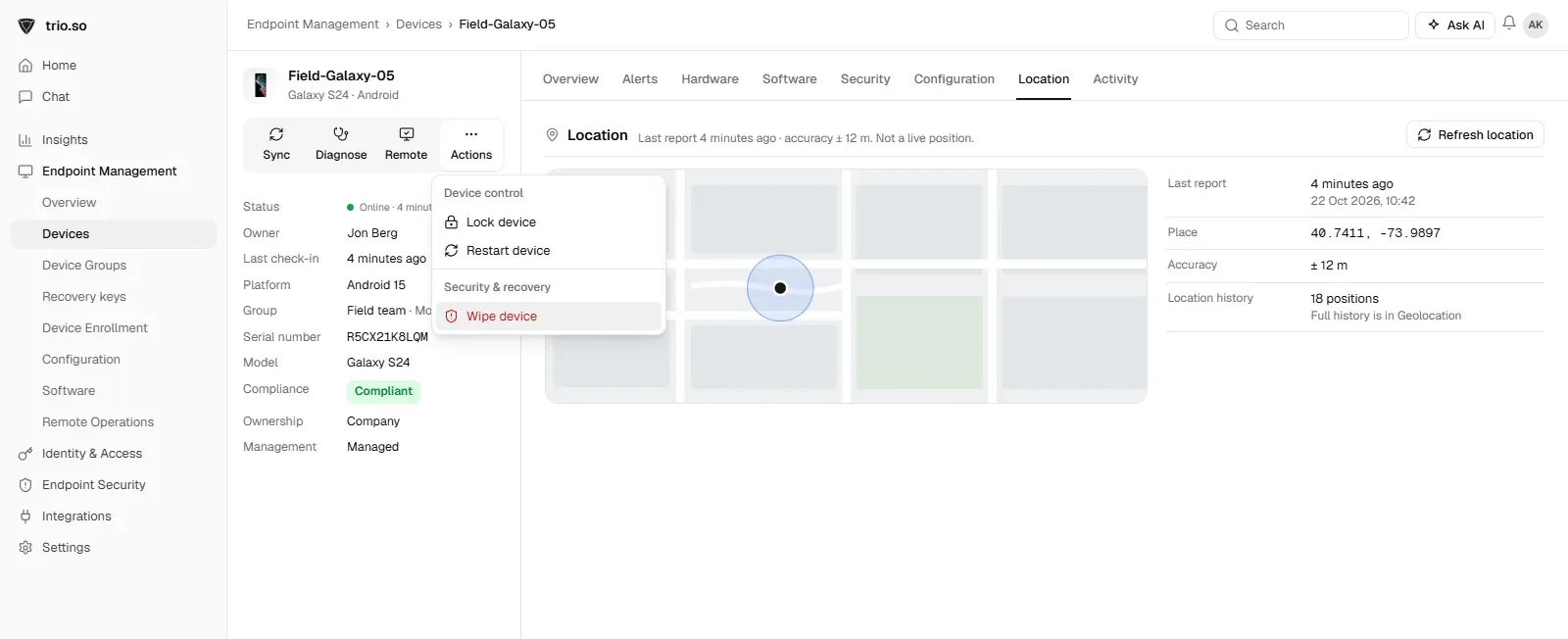
Location on request. While the device is in Managed Lost Mode, the MDM can ask it for its location, even if Location Services is off. Outside Managed Lost Mode, an MDM cannot locate a company iPhone this way.
Sound. The administrator can play a sound to find a device that is nearby, for example somewhere in the office.
A path to wipe. If the device is clearly gone, the administrator can follow up with a remote erase from the same MDM. See how to remote wipe an iPhone.
Supervision. Managed Lost Mode works only on supervised iPhones and iPads. Company devices become supervised when they enroll through Automated Device Enrollment in Apple Business (formerly Apple Business Manager) or Apple School Manager, or when they are prepared with Apple Configurator, which erases them.
MDM enrollment. The device must be enrolled in an MDM that supports the Lost Mode commands. The MDM is where you turn it on, read the location and turn it off.
Apple Business. Not strictly required, but it is the practical way to supervise every company device without touching each one: devices assigned to your MDM in Apple Business enroll and supervise themselves during setup. See iPhone enrollment profiles.
A connection. The device has to be online to receive the command and to report its location.
Personal devices are not covered. A personal iPhone enrolled with User Enrollment is not supervised, so Managed Lost Mode is not available for it; the owner uses Find My instead.
For an iPhone owner, Lost Mode is part of Find My. When you mark your iPhone as lost at icloud.com/find or in the Find My app, it locks with your passcode, shows a message and phone number you choose, suspends Apple Pay cards, and keeps showing its location in Find My. Someone who picks it up cannot use it without your passcode, and Activation Lock stops them from setting it up again without your Apple Account. See Activation Lock for iPhone and iPad.
Lost or stolen devices. Turn it on as soon as a company device is reported missing. It locks the device, puts a return message on the screen and lets you request its location.
Devices that are not returned. When someone leaves and a company iPhone does not come back, Managed Lost Mode locks it and tells whoever holds it to return it, while you decide whether to erase it.
Possible compromise. If a device may be in the wrong hands, locking it while you reset the user's passwords and revoke their sessions limits what can be done with it.
In each case, lock first and erase later. Once a device is erased, you can no longer locate it. See how to remote lock a device.
| Feature | Managed Lost Mode | Lost Mode in Find My |
|---|---|---|
| Who turns it on | The organization's administrator, through the MDM | The device's owner, with their Apple Account |
| Devices | Supervised iPhones and iPads enrolled in an MDM | Any iPhone or iPad with Find My on |
| Needs Find My | No | Yes |
| Location | The MDM can query it, even if Location Services is off | Shown in Find My, which needs Location Services |
| How it ends | Only the administrator can turn it off; the user is told | The owner's passcode, or turning it off in Find My |
| Message on the Lock Screen | Set by the administrator | Set by the owner |
| Erase | A separate MDM command | Erase This Device in Find My |
On a company device, the two can exist side by side: the user may have Find My on, and the organization can still use Managed Lost Mode through the MDM.
Supervise every company device. Assign company iPhones and iPads to your MDM in Apple Business so they are supervised from the first setup. A device that is not supervised when it goes missing cannot be put into Managed Lost Mode.
Write the procedure down. Decide who may turn on Managed Lost Mode, what the Lock Screen message says, how fast it is turned on after a report, and when you move on to an erase.
Tell employees. Explain that company devices can be locked and located when lost, and that the user is notified when Managed Lost Mode ends. People report a lost device faster when they know what happens next.
Secure the account side too. Locking the device does not sign the user out of cloud services. Reset passwords and revoke sessions in your identity provider at the same time.
Plan recovery. When a device comes back, turn Managed Lost Mode off, check the device, and decide whether it needs to be erased before it goes back into use.
Test it. Put a spare supervised device into Managed Lost Mode once, so the first time is not during a real loss.
Managed Lost Mode protects a device that is online and locked. It does not protect data that has already left the device, and it cannot reach a device that never reconnects. Encryption and a strong passcode are what protect the data while the device is offline, and Activation Lock makes a stolen device hard to reuse. Keep company data in managed apps and cloud services, so an erased device loses nothing that matters.
Managed Lost Mode locks the device, but the user's accounts are still valid elsewhere. Pair it with your identity provider: revoke the user's sessions, require a password reset and, if you use conditional access, block the device until it is recovered. For BYOD phones, which cannot use Managed Lost Mode, rely on removing the managed apps and data instead.
When a company iPhone or iPad goes missing, IT needs to act without waiting for anyone. trio.so locks company iPhones and iPads from one console, and wipes company-owned ones that will not come back. See Apple device management.
Apple changes device management with each major iOS release, and more of it now runs through Declarative Device Management. Check Apple's Platform Deployment guide and your MDM vendor's release notes after each update, and test Managed Lost Mode on a current iOS version before you rely on it.
Managed Lost Mode gives an organization control over a lost supervised iPhone or iPad: it locks the device, shows a return message, can play a sound and lets the MDM request the location, and only the administrator can end it. It depends on preparation: supervise company devices through Apple Business, enroll them in an MDM, and write down who acts when a device goes missing. Lock first, and erase only when the device is clearly gone.
Related reading: remote lock on iPhone, how to remote wipe an iPhone, can MDM track location and Android Lost Mode.
trio.so locks company iPhones and iPads and wipes company-owned ones that will not come back.
trio.so brings device management, patching and security policies for Windows, macOS, Linux, iOS/iPadOS and Android into one console. Enroll a device and see it in the console within minutes.
trio.so brings device management, patching and security policies for Windows, macOS, Linux, iOS/iPadOS and Android into one console. Enroll a device and see it in the console within minutes.





Have questions? We've got answers. This section covers some of the most commonly asked questions related to this topic.
Related
The related industry news, interviews, technologies, and resources.
What Activation Lock is, how to turn it off before you sell or return a device, the legitimate ways to remove it, and how IT avoids locked iPhones.
How to disable the App Store on an iPhone with Screen Time, and on managed iPhones, Macs, Windows PCs and Android phones with an MDM restriction.
Learn how to securely distribute, install & manage iOS enterprise apps outside the Apple App Store. Step-by-step for IT admins & business teams for iOS devices.
Does an iPhone have a work profile? Why iOS uses User Enrollment instead, how it separates work and personal data, and how to turn it off.
What Managed Apple Accounts (formerly Managed Apple IDs) are, how to create them in Apple Business, their limits, and how an MDM uses them.
What an iPhone MDM enrollment profile is, how it gets onto a device, how to check or remove it, and how to fix enrollment profile errors.
Remote wipe an iPhone with Find My or iCloud, and how IT admins wipe or selectively wipe company iPhones and iPads with MDM. Steps and what happens next.
There is no Device Manager on a Mac. Here is what to use instead: System Information, Activity Monitor and VPN & Device Management, with steps.
14-day free trial. No credit card required.
trio.so for MSPs: one console, separate clients