



How-Tos
Disable Android Camera: Settings, MDM and Policies
How to disable the camera on Android: the camera access toggle, app permissions, the front camera question, and blocking every camera with an MDM policy.
Block websites on Android with Private DNS, Family Link, Samsung Internet, a router, an app or an MDM, and see which method a user cannot simply turn off.

Content writer, trio.so
To block websites on Android for every app and browser at once, set Private DNS to a filtering DNS service: open Settings, go to Network & internet (Connections > More connection settings on Samsung phones), tap Private DNS, choose Private DNS provider hostname and enter the hostname of a filtering resolver. Chrome on Android has no built-in way to block a site, so for a child's phone use Google Family Link, which can block or allow specific sites in Chrome. Other options are a website blocker app, your router's block list, and SafeSearch for search results. On company phones, an MDM can set the filtering DNS for you and stop users from installing another browser to get around it.
If you want a site blocked on your own or your child's phone, the first methods below are enough; if you manage company Android devices, the MDM section and the comparison table show which method a user cannot simply turn off.
Website restrictions are controls that stop a phone from opening certain sites or kinds of content. Android has no single "block this website" setting. Instead, blocking happens at one of four levels: the DNS lookup (Private DNS or a router), the browser (Family Link in Chrome), an app that filters traffic, or a management policy set by an organization.
The level matters because Android lets people install several browsers. A block set in one browser does nothing in another, while a block at the DNS level covers every browser and app on the phone. For a block that has to hold, the user must also be unable to change the setting or install a way around it, which is where parental controls and device management come in.
Choose the method that fits whose phone it is and how hard the block needs to be to undo. Menu names differ slightly between Android versions and phone makers; if a label looks different, search Settings for it.
Every time a phone opens a website, it first looks up the site's address through DNS. Private DNS, available since Android 9, sends those lookups to a DNS server you choose, encrypted with DNS over TLS. If that server is a filtering resolver, it refuses to answer for blocked domains, so the site does not load in any browser or app.
To set it up:
Several DNS services offer family or adult-content filtering, for example CleanBrowsing and AdGuard DNS. Use the exact hostname from the provider's current instructions, and choose a provider you trust, because it sees every domain the phone looks up.
Limits: anyone who can open Settings can change Private DNS back. DNS blocks whole domains, not single pages. And a site can still load through a VPN app or a browser with its own built-in DNS settings.
Chrome on Android does not support extensions and has no setting to block a specific site. That means the extensions people use on a computer, such as BlockSite for Chrome desktop, do not work on an Android phone. To block sites in Chrome on Android, use one of these instead:
Samsung Internet does not have its own list of blocked sites either. It supports add-ons that block ads and trackers, but those are not a way to block a site you choose. The methods that work with it are the device-wide ones: Private DNS (Settings > Connections > More connection settings > Private DNS) or a website blocker app. On a child's phone, Family Link can block the Samsung Internet app itself, so the child browses in Chrome where Family Link's site filters apply.
Google Family Link is Google's parental control app. On a child's supervised Google Account, a parent can manage how Chrome handles websites from their own phone:
The filters apply in Chrome. If the child can use another browser, the filters do not follow, so use Family Link to block other browser apps as well. Family Link is for families: it does not manage company phones and is not a fit for a business.
Many home and office routers can block domains for every device on their Wi-Fi network, either with a block list in the router's settings or by pointing the network at a filtering DNS service. It needs no change on the phone and covers every browser.
The limit is that it only works on that network. A phone on mobile data or on another Wi-Fi network is not covered, and a phone with Private DNS set to another provider can bypass the router's DNS.
Website blocker apps, such as BlockSite, AppBlock and Freedom, block sites and apps on a schedule or by category, often with a focus mode. They usually work through Android's accessibility permission or a local VPN that filters traffic, so they cover every browser.
They suit self-control and parental use. A determined user who controls the phone can still remove the app or its permissions, although some apps make that harder with a strict mode.
SafeSearch filters explicit results from Google Search. To turn it on, open the Google app, tap your profile picture, go to Settings, then SafeSearch, and choose Filter. It filters search results only: it does not stop someone typing a site's address, and it applies to Google Search, not other search engines. Use it alongside one of the methods above, not instead of them. Some filtering DNS services also enforce SafeSearch for every user of the resolver.
On company phones, a mobile device management (MDM) tool sets the controls from a console, and the user cannot change them. On Android, MDMs block websites in three main ways:
On a personal phone with an Android work profile, these controls apply to the work profile only; the employee's personal browsing is not touched. For app control on its own, see how to block an app on Android, and for distributing apps, managed Google Play.
| Method | Covers | Can the user undo it? | Best for | Cost |
|---|---|---|---|---|
| Private DNS | All browsers and apps on the phone | Yes, in Settings | Your own phone, quick setup | Free to low cost |
| Google Family Link | Chrome on a supervised account | No, the parent controls it | Children's phones | Free |
| Router block list or filtering DNS | Every device on that Wi-Fi | Not on the network; yes on mobile data | Home and small office networks | Free |
| Website blocker app | All browsers, by schedule or category | Yes, by removing the app | Self-control, focus | Free to a few dollars a month |
| SafeSearch | Google Search results only | Yes | An extra layer | Free |
| MDM: filtering DNS | All browsers and apps on a managed phone | No | Company-owned phones | MDM subscription |
| MDM: app install block | Stops other browsers and VPN apps being added | No | Company-owned phones | MDM subscription |
For the sites schools commonly filter, see websites blocked by schools, and for how DNS resolvers can leak what they look up, DNS cache snooping.
Setting Private DNS by hand on every company phone does not hold, because anyone can change it back. trio.so sets Encrypted DNS on managed devices, including Android's Private DNS mode on fully managed Android phones, so every company phone uses the filtering DNS resolver you choose. On fully managed Android devices it can also block app installs, so users cannot add another browser to get around it. See Android device management.
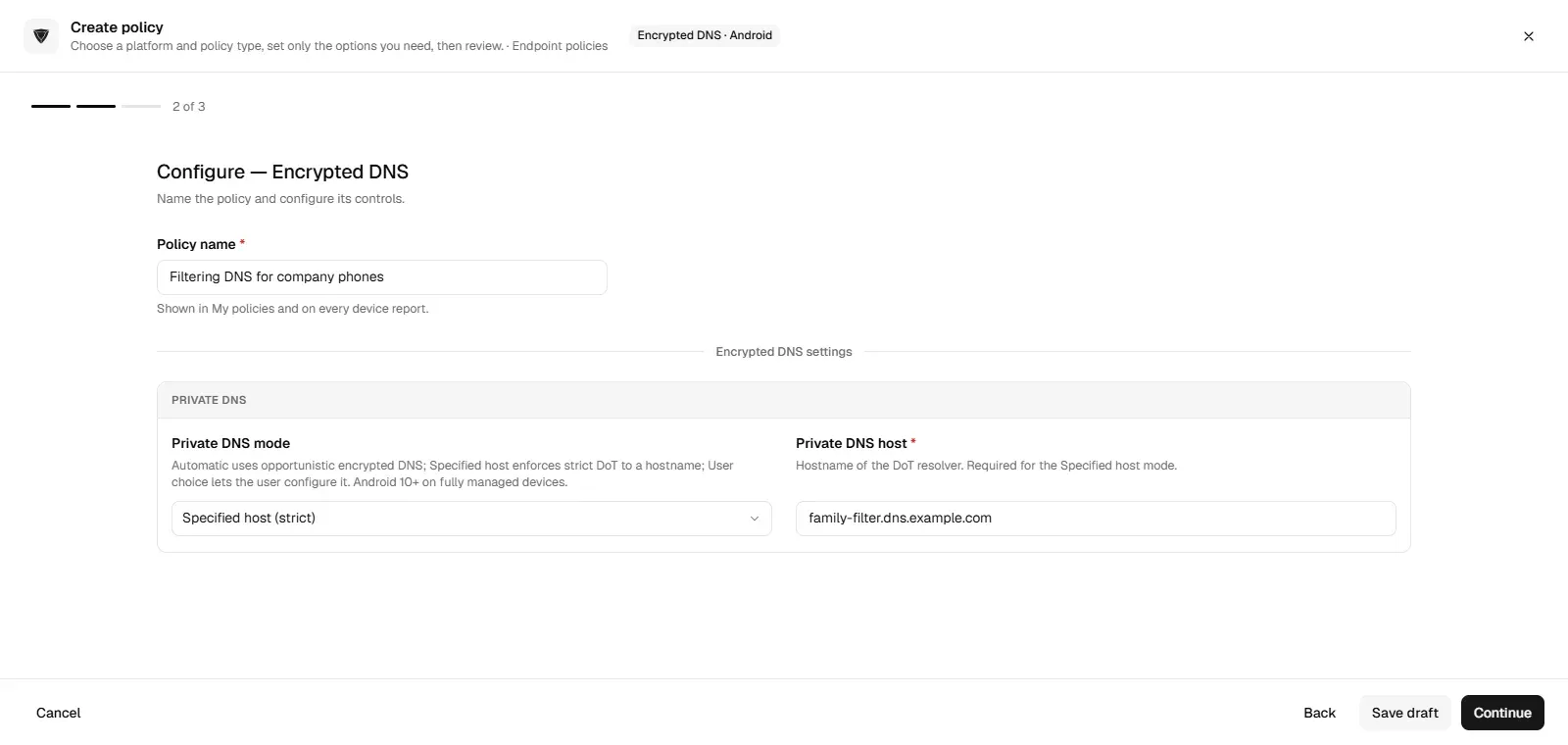
trio.so sets Private DNS on managed Android devices from one console, so unwanted sites stay blocked on every phone.
trio.so brings device management, patching and security policies for Windows, macOS, Linux, iOS/iPadOS and Android into one console. Enroll a device and see it in the console within minutes.
trio.so brings device management, patching and security policies for Windows, macOS, Linux, iOS/iPadOS and Android into one console. Enroll a device and see it in the console within minutes.





Related
The related industry news, interviews, technologies, and resources.
How to disable the camera on Android: the camera access toggle, app permissions, the front camera question, and blocking every camera with an MDM policy.
Android MDM setting restrictions vary widely across platforms. Discover how Miradore, Hexnode, Kandji, and Scalefusion limitations compare—and how trio.so solves them.
Enroll Android devices with a QR code: what the IT admin QR code screen means, the six-tap setup, prerequisites, and fixes for common enrollment errors.
Install apps on an Android phone remotely: from the Play Store on the web, with Family Link on a child phone, or with an MDM for company devices.
How to add apps to an Android work profile: the work Play Store, why an app is missing, Samsung steps, moving apps, and how IT uses managed Google Play.

Android MDM vs iOS MDM differs in deployment, security architecture, and management approach. Both platforms offer robust features with distinct enterprise advantages.
Android MDM provides centralized control over Android devices in your organization, enabling security enforcement, app management, and compliance through remote administration capabilities.

What is Android OS fragmentation, and why does it matter to enterprises? It leads to security risks, patch delays, and device management headaches.
14-day free trial. No credit card required.
trio.so for MSPs: one console, separate clients