

Explained
Managed Google Play: Complete Android Enterprise Guide
What managed Google Play is, how it binds to an MDM, how apps are chosen, pushed and published privately, and how it differs from the Play Store.
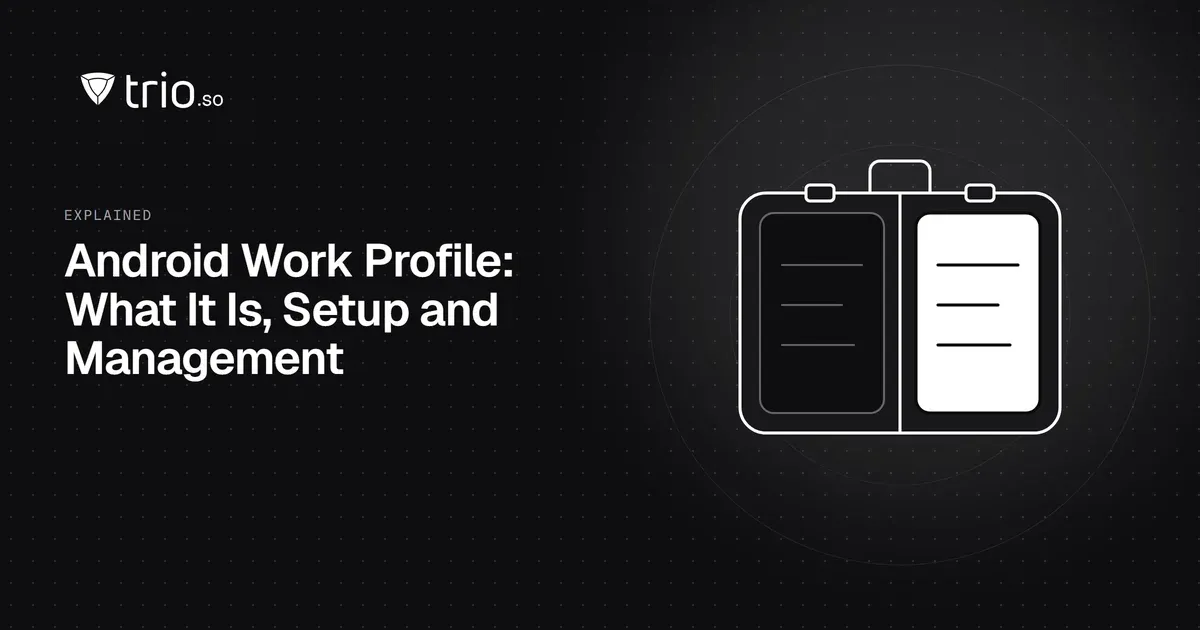
What an Android work profile is, what IT can and cannot see, how to set one up step by step, and how it compares with a fully managed company phone.

Content writer, trio.so
An Android work profile is a separate, company-managed space on an Android phone or tablet for work apps and data. Work apps carry a small briefcase badge and sit in their own Work tab, the company manages only what is inside that space, and you can pause all work apps with one button when you are off the clock. Your personal apps, photos, messages and browsing stay outside it, out of the company's reach. You set one up from a link, code or QR code your IT team sends you, and it takes a few minutes.
If your employer just asked you to set one up, start with "How to set up a work profile on Android"; if you are planning BYOD for a company, read on for what IT can see, how it compares with a fully managed phone and how to run it for a whole company.
A work profile is a separate profile on the device, built into Android since Android 5.0 Lollipop. It has its own apps, its own app data and its own accounts, and it is managed by the company's device management tool through Android Enterprise. The personal side of the phone stays under the owner's control.
On the device it looks like this:
The separation is enforced by Android, not by an app. Work data is stored separately from personal data, and by default apps on one side cannot read data on the other. IT can choose whether copy and paste or sharing between the two sides is allowed.
This is the question most employees ask first.
| IT can see or do | IT cannot see or do |
|---|---|
| The list of work apps and their versions | Your personal apps, or what you do in them |
| Work accounts, work email and work files inside the profile | Personal photos, messages, call history, contacts or browsing history |
| Basic device details such as model and Android version | Hardware identifiers such as the IMEI or serial number on Android 12 and later, for personally owned devices |
| Whether the work profile follows the company's rules, such as a screen lock | Your location, unless a work app you use asks for it and you allow it |
| Remove the work profile and everything in it | Wipe your whole phone |
The exact list depends on the company's management tool and settings, so ask your IT team for their privacy notice. For iPhone, the closest equivalent is described in iOS work profile.
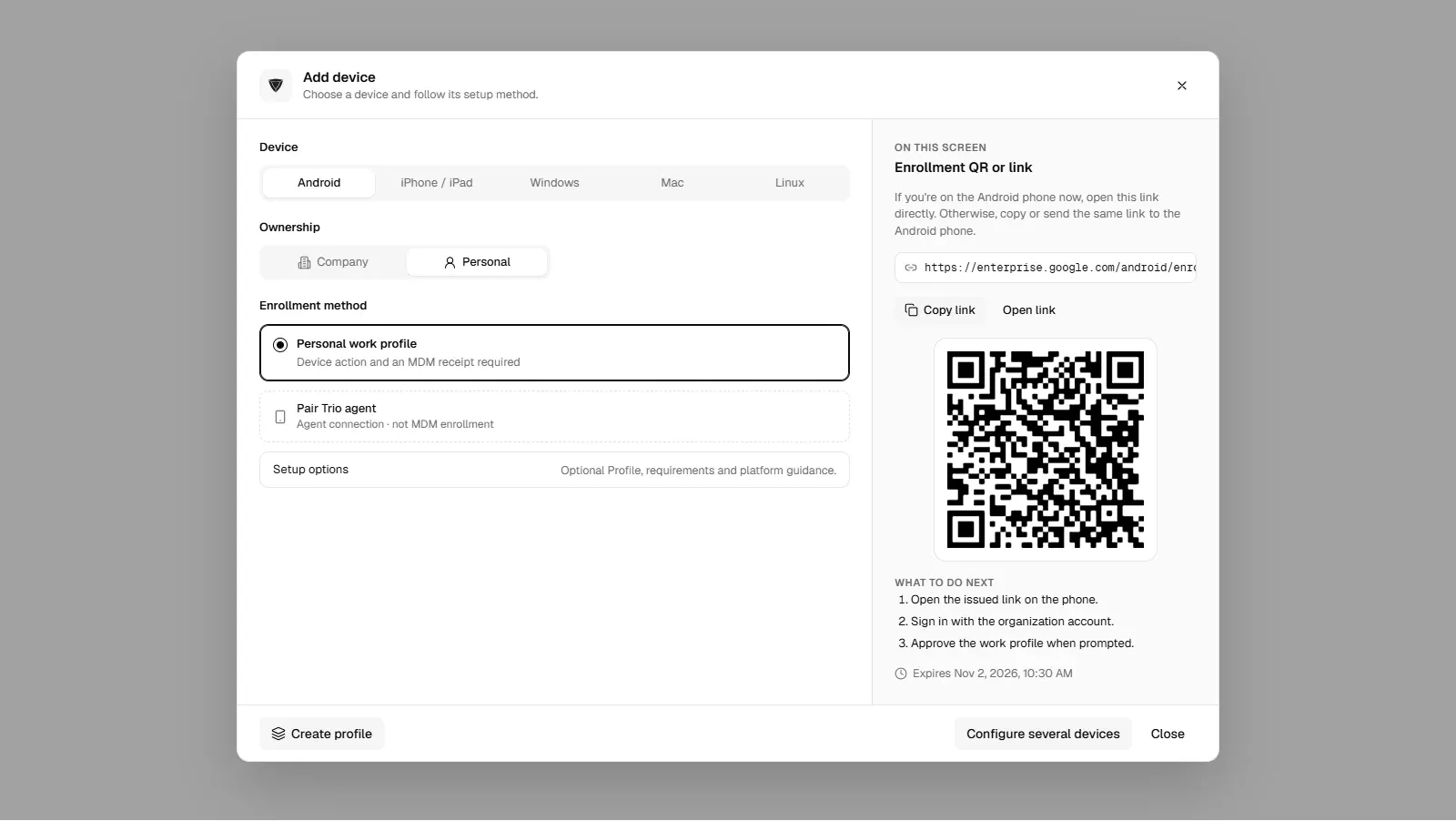
Most companies start it from an invitation. The exact screens depend on the management tool and your Android version, but the flow is the same:
The device needs a screen lock. If you don't have one, Android asks you to set it during setup. If setup fails, check that the phone is up to date, that Google Play services is updated and that you have enough free storage, then start again from the link.
Open the app drawer, go to the Work tab and tap the pause button (on many phones it reads "Pause work apps" or shows a pause icon). Work apps stop and their notifications are hidden until you turn them on again. On some phones and older Android versions the switch is in Quick Settings, labeled Work profile or Work apps.
Removing it deletes all work apps and data on the phone and leaves personal data alone. The steps are in our guide on how to remove a work profile on Android. If the phone still belongs to your employer's program, talk to IT first.
Android Enterprise offers three main setups. Which one fits depends on who owns the device.
| Work profile (personal device) | Fully managed (company device) | Company-owned with a work profile | |
|---|---|---|---|
| Who owns the device | The employee | The company | The company |
| What IT manages | The work profile only | The whole device | The work profile, plus some device-wide settings |
| Personal use | Yes, on the personal side | No, or very limited | Yes, on the personal side |
| How it is set up | Link, code or QR from IT, on a phone already in use | During first setup: QR code, zero-touch or a token | During first setup, like fully managed |
| What a wipe removes | Work profile only | The whole device | Work profile, or the whole device |
| Typical use | BYOD | Company phones and tablets for work only | Company phones people may also use privately |
A fully managed device gives IT the most control and makes the device easy to reclaim. A work profile on a personal phone gives employees the most privacy. Company-owned with a work profile sits in between, and since Android 11 it gives IT less visibility into the personal side than the older model did.
Work profiles are part of Android itself, but your management tool and Google Play set the practical minimum.
IT approves apps in managed Google Play, installs required apps automatically into the work profile and can block others. Because work apps run separately, their data stays inside the work profile.
When someone leaves or loses a phone, IT removes the work profile. All work apps and data on the phone are deleted, and personal data is not touched.
A work profile adds a second set of apps, so two copies of heavy apps can use more battery. Pause work apps outside working hours, and remove work apps you don't need if your company allows it.
Setting up one work profile is a few taps; for a whole company it comes down to how simple the invitation is and how clearly each phone is labeled. trio.so enrolls personal Android phones with a work profile and company phones as fully managed, and the console shows how each phone was enrolled. See Android device management.
Related reading: what is Android Enterprise, Android QR code enrollment, iOS work profile and managed Google Play.
trio.so enrolls personal Android phones with a work profile, so work apps and data stay separate.
trio.so brings device management, patching and security policies for Windows, macOS, Linux, iOS/iPadOS and Android into one console. Enroll a device and see it in the console within minutes.
trio.so brings device management, patching and security policies for Windows, macOS, Linux, iOS/iPadOS and Android into one console. Enroll a device and see it in the console within minutes.





Have questions? We've got answers. This section covers some of the most commonly asked questions related to this topic.
Related
The related industry news, interviews, technologies, and resources.
What managed Google Play is, how it binds to an MDM, how apps are chosen, pushed and published privately, and how it differs from the Play Store.
Whitelist an app on Android: stop battery optimisation from closing it, and allowlist apps on company phones with Android Enterprise or kiosk mode.
Block apps on Android with Digital Wellbeing, Family Link or an app blocker, and block apps on company phones with an Android Enterprise block list.
What device admin apps and "IT admin" mean on Android, how to deactivate one or fix "cannot uninstall", and what replaces the deprecated API for IT.
Writing custom profiles to OEMConfig apps is a strategic process where thoughtful execution pays rich dividends
The best Android MDM solutions for 2026, compared on Android Enterprise support, enrollment, work profile, kiosk mode and published pricing.
What fastboot mode is, how to enter and exit it, the commands IT admins use, and how to fix an Android stuck in fastboot.
Clear cache and app data on Android by hand, step by step, and how IT admins do it across many devices. Steps for Android 14 and later.
14-day free trial. No credit card required.
trio.so for MSPs: one console, separate clients