

How-Tos
How to Whitelist an App on Android (On Your Phone and Across Company Devices)
Whitelist an app on Android: stop battery optimisation from closing it, and allowlist apps on company phones with Android Enterprise or kiosk mode.
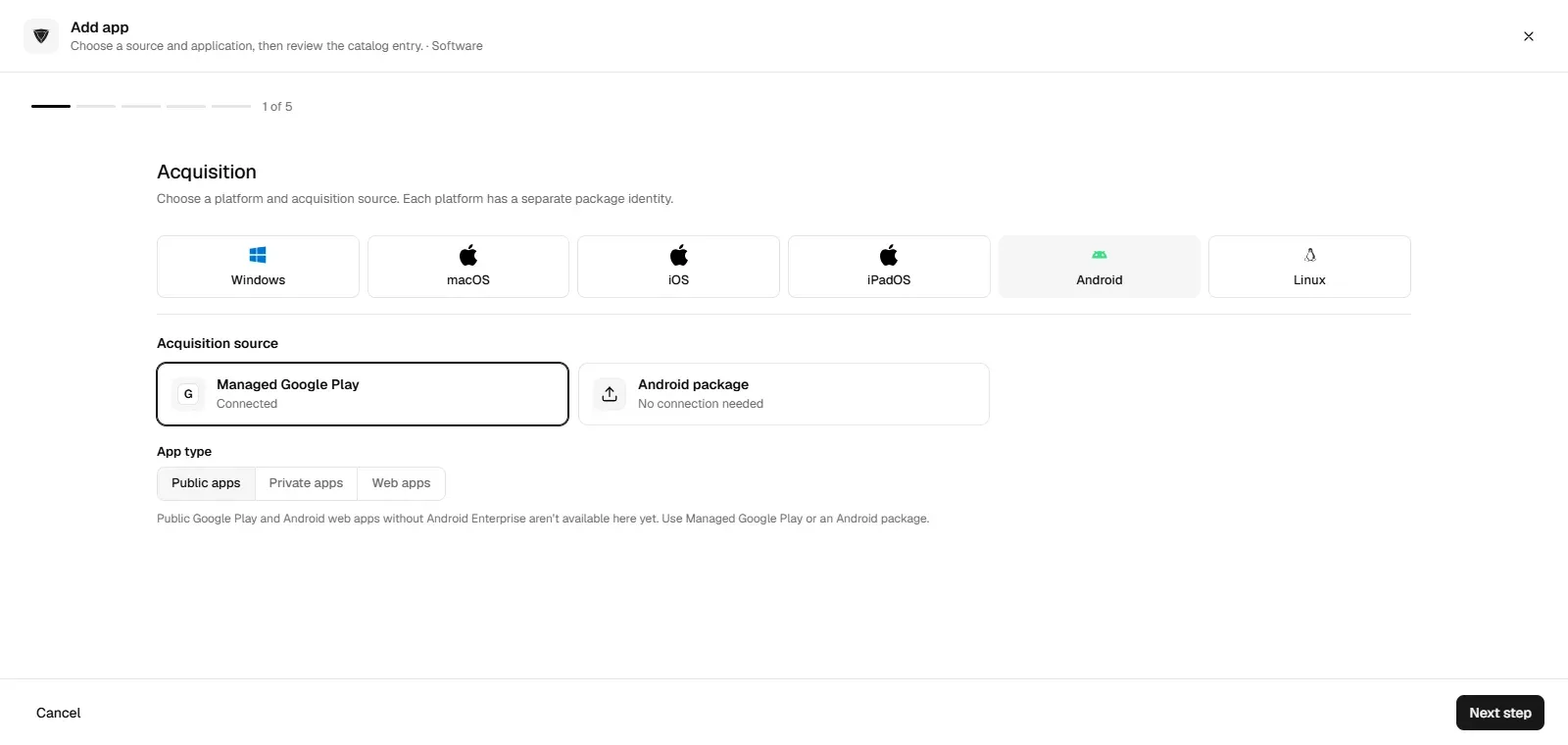
What managed Google Play is, how it binds to an MDM, how apps are chosen, pushed and published privately, and how it differs from the Play Store.

Content writer, trio.so
Managed Google Play is Google's app store for organizations that manage Android devices with Android Enterprise. IT chooses apps from it in their mobile device management (MDM) console, and those apps are installed silently on company devices or shown in a work version of the Play Store, where employees see only the apps IT made available. It also lets organizations publish private apps that only their own users can see, set app configurations in advance and add web apps as icons. Managed Google Play is free and works only through an MDM; organizations that set it up since 2024 are given a managed Google domain for their accounts by default.
If you are setting up Android Enterprise and want to know how managed Google Play fits in, the sections below cover what it does, how accounts and enrollment work, and how it differs from the regular Play Store.
Managed Google Play is the enterprise version of Google Play. The regular Play Store is open to anyone with a Google account and lets them install whatever they like. Managed Google Play is tied to an organization: IT decides which apps are available, which are installed automatically and how they are configured, and employees can only install from that list. Everything is controlled from the organization's MDM, which embeds a managed Google Play page in its console for finding apps and sends the app list to devices in its policies.
The same mechanism handles public apps from Google Play, private apps the organization builds for itself, and web apps that open a website like an app. For how apps reach employees' work profiles in practice, see how to add apps to an Android work profile.
IT adds apps from Google Play to the organization's list in the MDM console and assigns them to devices or groups. Each app can be set as required, so it installs automatically, or available, so it appears in the work Play Store for employees to install when they need it. The MDM can also block or remove apps, control how apps update (for example, keeping updates to Wi-Fi or a maintenance window) and report which version is installed where.
Google has moved away from a separate approval step. Under the older Play EMM API, IT first approved apps in managed Google Play; Google deprecated that approval in 2021 and turned it off in 2025. Today the MDM simply includes the chosen apps in each device's policy.
Organizations can publish their own line-of-business apps to managed Google Play as private apps. A private app is visible only to the organizations it is published to and does not appear in the public store. Apps can be uploaded through the MDM's managed Google Play page or published from the Google Play Console to the organization's ID, and updates are distributed through Google Play like any other app. For more on running an internal catalog, see a private app store for Android.
Apps that support managed configurations expose settings IT can set in advance, such as a server URL, a tenant name or which features are on. The MDM sends those values with the app, so it starts already configured. Combined with silent installation, this means a new device can be enrolled and ready with its work apps without the employee setting anything up. Which settings are available depends on the app developer.
Every organization using managed Google Play has an enterprise that links it to its MDM, and every work device or work profile has an account that connects it to that enterprise. The account type decides what else the account can do.
There are two kinds of enterprise:
If your MDM still uses a managed Google Play Accounts enterprise, check whether it supports the upgrade before you plan new features around Google accounts.
Organizations that already use Google Workspace or Cloud Identity can use their existing domain and user accounts, so employees sign in to work devices with their normal work account. Organizations that do not use Google services can still use a managed Google domain without moving email or files to Google. The enterprise binding, the link between the managed Google Play enterprise and the MDM, is created once during setup; it decides which MDM manages the organization's Android devices, so plan it before enrolling many devices.
Setup starts in the MDM: an admin opens its Android Enterprise settings, signs up or signs in with a Google account, and the MDM creates the enterprise and binds it. After that, devices can be enrolled. Company devices are usually enrolled as fully managed with a setup QR code or zero-touch enrollment (see Android QR code enrollment); personal phones get a work profile.
The flow has three parts. IT picks apps and settings in the MDM console. The MDM includes them in each device's policy, through Google's management APIs. On the device, Google's management app (Android Device Policy, or the MDM's own agent on older setups) applies the policy and the work Play Store installs, updates or removes apps to match. Changes reach a device the next time it checks in, so offline devices catch up when they reconnect.
Managed Google Play is always used through an MDM; there is no separate admin console for it. Most MDMs that support Android Enterprise integrate it, and the features you get, such as collections, update controls and per-device install reports, depend on how your MDM exposes them. For a comparison of options, see the best Android MDM solutions.
| Deployment | Who owns the device | How managed Google Play is used |
|---|---|---|
| Fully managed | The company | The work Play Store is the only store; IT installs required apps and offers optional ones |
| Work profile on a personal phone | The employee | Serves the work profile only; the personal Play Store and apps stay private |
| Work profile on a company phone | The company | Serves the work profile; personal use is allowed on the personal side |
| Dedicated device (kiosk) | The company | Installs the one app or few apps the kiosk runs, with no store for users |
On company-owned, business-only devices, IT controls the whole device and the work Play Store is the only source of apps. This suits company phones and tablets for field service, delivery, retail and healthcare, where every device needs the same apps and settings. A company-owned device can also have a work profile when the company allows personal use.
On a personal phone, the employee enrolls a work profile, a separate area for work apps and data. Managed Google Play serves only that profile: IT can install, configure and remove work apps, and removing the work profile removes them all, while the employee's own apps, photos and Play Store stay private. See Android work profile.
Dedicated devices, such as check-in tablets and handheld scanners, run one app or a short list of apps in kiosk mode. Managed Google Play installs and updates those apps without anyone touching the device. Shared devices used by several employees can run the same set of apps for everyone, with sign-in handled by the apps themselves.
Google publishes independent security certifications and audit reports for its enterprise services; check Google's compliance pages for which services each one covers. These are Google's certifications, not your organization's: using managed Google Play does not make your organization compliant with any framework. Apps in Google Play are scanned by Google Play Protect, and in managed Google Play your own review adds a second check, because employees can only install the apps you chose. You can also block specific apps; see how to block an app on Android.
Employees' work accounts can only reach the apps and services the organization allows. On the admin side, give MDM and Google admin roles only to the people who need them, use separate admin accounts, and remove access when people change roles. Managed Google domains support role-based admin access; managed Google Play Accounts enterprises have only Admin and Owner roles.
Through the MDM, IT can set how apps' runtime permissions are handled on managed devices: prompt the user, grant automatically or deny, either as a default or per app. Apps in managed Google Play must still follow Google Play's developer policies, which is one reason some specialist apps are distributed as private apps instead.
Managed Google Play needs Google Play services on the device and a connection to Google. Devices without Google services, such as Amazon Fire tablets or devices sold in some regions, cannot use it. Not every app supports work profiles or managed configurations, and some apps are not available in every country, so test the apps you need on the devices you plan to buy.
Managed Google Play no longer sells app licences. Google ended purchases of new licences, including the Bulk Purchase Program that was available in some countries; organizations can still manage licences they already bought, but in practice managed Google Play now distributes free apps. For a paid business app, check how the developer licenses it: many use their own sign-in or a licence key that can be set through managed configurations.
Devices need to reach Google's servers for enrollment, policy updates and app downloads. Organizations with strict firewalls or proxies must allow the hosts and ports Google lists in its Android Enterprise network requirements. Large app downloads can strain a site's connection, so schedule big rollouts or updates outside busy hours.
Offer the apps people need and little else. Set clear criteria for adding an app (what it is for, what data it reaches, who supports it), review the list every few months, and remove apps nobody uses.
Make essential apps required, so they install on every device in a group, and make role-specific apps available, so people install them when they need them. Roll out new apps and major updates to a pilot group first.
Group available apps into collections, such as Sales or Field service, so the work Play Store is easy to browse. Use your MDM's install reports to find devices where an app failed to install or is out of date, and follow those up.
| Feature | Managed Google Play | Regular Google Play Store |
|---|---|---|
| Who decides what is installed | IT, through the MDM | The user |
| Private apps | Yes, visible only to the organization | No |
| Silent installation | Yes, on managed devices and work profiles | No |
| App configuration | Set in advance by IT | Set by the user |
| Accounts | Managed Google accounts or managed Google Play accounts | Personal Google accounts |
| Install status | Reported per device through the MDM | Not reported to anyone |
| Paid apps | New licences no longer sold | Bought by the user |
| Cost | Free; you pay for the MDM | Free to use |
For a single personal phone, the regular Play Store is all you need. For company devices and work profiles, managed Google Play is what lets IT control and support the apps.
Choosing apps is the easy part; getting them onto every device and keeping them updated is the work. trio.so pushes apps from managed Google Play to fully managed Android devices and work profiles from one console, alongside Windows, Apple and Linux devices. See Android device management and how to deploy an application.
Managed Google Play is how organizations control apps on Android Enterprise devices: IT chooses the apps, the MDM installs and configures them, and employees see only what is approved for work. Set up the enterprise with a managed Google domain, keep the app list short, use required and available apps deliberately, and check install reports so every device has what it needs.
Related reading: Android work profile, add apps to an Android work profile, private app store for Android and best Android MDM.
trio.so pushes apps from managed Google Play to company phones and work profiles from one console.
trio.so brings device management, patching and security policies for Windows, macOS, Linux, iOS/iPadOS and Android into one console. Enroll a device and see it in the console within minutes.
trio.so brings device management, patching and security policies for Windows, macOS, Linux, iOS/iPadOS and Android into one console. Enroll a device and see it in the console within minutes.





Have questions? We've got answers. This section covers some of the most commonly asked questions related to this topic.
Related
The related industry news, interviews, technologies, and resources.
Whitelist an app on Android: stop battery optimisation from closing it, and allowlist apps on company phones with Android Enterprise or kiosk mode.
Block apps on Android with Digital Wellbeing, Family Link or an app blocker, and block apps on company phones with an Android Enterprise block list.
What device admin apps and "IT admin" mean on Android, how to deactivate one or fix "cannot uninstall", and what replaces the deprecated API for IT.
Writing custom profiles to OEMConfig apps is a strategic process where thoughtful execution pays rich dividends
The best Android MDM solutions for 2026, compared on Android Enterprise support, enrollment, work profile, kiosk mode and published pricing.
What fastboot mode is, how to enter and exit it, the commands IT admins use, and how to fix an Android stuck in fastboot.
Clear cache and app data on Android by hand, step by step, and how IT admins do it across many devices. Steps for Android 14 and later.
Android Enterprise enrollment explained: work profile, fully managed and dedicated devices, QR code and zero-touch setup, and which method to use when.
14-day free trial. No credit card required.
trio.so for MSPs: one console, separate clients