



Explained
How to Deploy an Application to Many Devices: 4 Methods
How to deploy an application to many devices: manual installs, imaging, scripts and Group Policy, or MDM, and what each platform needs to roll out.
Software upgrade best practices for IT teams: update vs upgrade, a pre-upgrade checklist, staged rollouts, backups and rollback, and OS feature upgrades.

Content writer, trio.so
Software upgrades go smoothly when you treat each one as a small project: know what you run and whether it is compatible, plan the change and how to undo it, back up first, roll out to a pilot group before everyone, watch for problems, document what changed, and review the result. An upgrade is a move to a new major version, such as a Windows 11 feature update, a new macOS release or a new major version of an app, so it changes more than an update, which is a patch or fix to the version you already run. The seven practices below apply to both, but upgrades need more planning because more can break.
If you are planning the next operating system or app upgrade across your company's devices, the checklist and the operating system section give you the order to work in; the seven practices explain each step.
| Update | Upgrade | |
|---|---|---|
| What changes | Fixes and security patches to the current version | A new major version, often with new features and changed requirements |
| Examples | Monthly Windows security updates, a macOS point release, an app bug-fix release | A Windows 11 feature update, a new major macOS release, a new major version of an app |
| How often | Weekly or monthly | Once or twice a year for operating systems; varies for apps |
| Risk | Lower, but still worth testing | Higher: compatibility, hardware requirements and changed settings |
| Planning | A routine patch cycle | A change plan with a pilot, a schedule and a way back |
For the routine side, see patch management and the patch management policy template.
Updates and upgrades keep devices secure, supported and useful. Security fixes close vulnerabilities that attackers already know about. Vendors also stop supporting old versions: Windows 10 reached end of support on 14 October 2025, and each macOS release receives security updates for only a limited time, so staying on an old version eventually means running without fixes. Upgrades also bring features and performance improvements, and newer apps often require a recent operating system.
Putting off upgrades makes the eventual work bigger. Unpatched software is one of the most common ways attackers get in: exploited vulnerabilities were the way in for 20% of breaches in Verizon's 2025 Data Breach Investigations Report, and CISA keeps a public catalog of vulnerabilities known to be exploited. Old versions also block new apps, fall out of vendor support, and pile up changes so that the eventual upgrade jumps several versions at once, with more that can go wrong.
Start with an inventory: which devices and users run the software, which version, and what depends on it. Check the new version's requirements against your hardware (for example, Windows 11 needs TPM 2.0 and a supported processor), and check that the apps, drivers, plugins and integrations people rely on support the new version. Read the vendor's release notes for removed features and known issues. Your IT asset inventory is the starting point.
Write a short change plan: what is being upgraded, why, when, who does it, who approves it, how users are told, and how you will undo it if it goes wrong. For an operating system upgrade, the way back may be a restore from backup or a reinstall, so be clear about what is and is not reversible. Choose a maintenance window that avoids busy periods.
Back up before you upgrade: user data on laptops (or confirm it syncs to cloud storage), server data and configuration, and the application's own settings and database. Test that you can restore, not only that the backup ran. For servers and critical systems, keep the old version available, for example as a snapshot, until the new one has proven itself.
Upgrade in stages. Test in a lab or on IT's own devices first, then a pilot group of real users from different departments, then everyone else in waves. Pause between stages long enough to see problems, and stop if they appear. That way a problem shows up first on a few devices you are watching.
During and after the rollout, watch install success per device, crash and error reports, help desk tickets and performance on key systems. A pattern by device model, OS version or department usually points to the cause. Follow up every device where the upgrade failed.
Record what changed, on which devices and when, and any settings you adjusted. Tell users what will change for them before the upgrade, not after, and give them short guides for new features or moved settings. That cuts the tickets in the first week.
After each upgrade, review what went well and what did not: how many devices failed, what caused it, how long it took, and what users reported. Feed that into the next plan, and keep upgrades on a regular schedule so each one stays small. An IT maintenance schedule helps.
Operating system upgrades are the largest upgrades most teams run, and both Microsoft and Apple give you controls for timing them.
For app upgrades on many devices, see how to deploy an application.
Staged upgrades only work if you can see where each device stands. trio.so handles OS updates through Auto Patch policies and third-party fixes through remediation plans, and shows the result for each device, so failures are visible straight away.
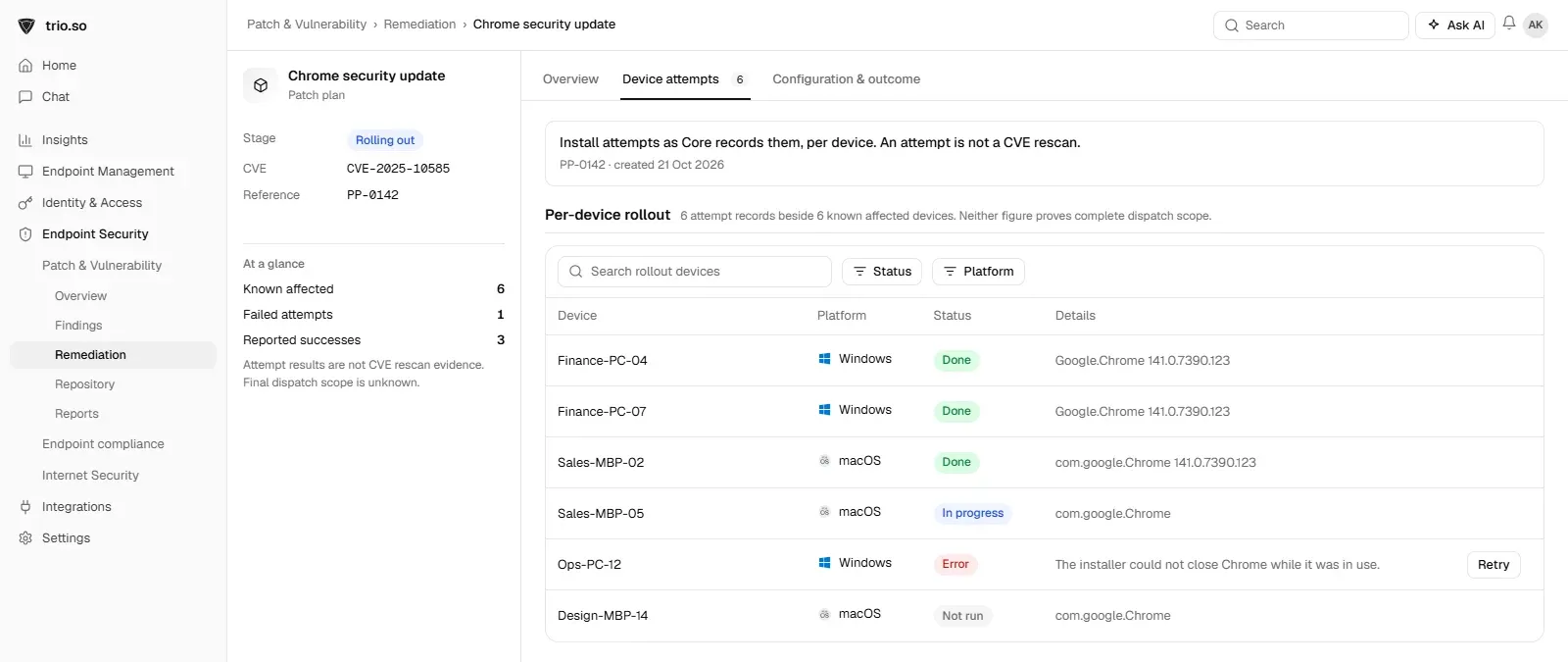
Plan each upgrade: assess first, plan the change and the way back, back up, roll out in stages, watch the results, document and review. Keep updates routine and upgrades regular, and each one stays small enough to manage.
trio.so handles OS updates through Auto Patch policies and third-party fixes through remediation plans, and shows the result for each device.
trio.so brings device management, patching and security policies for Windows, macOS, Linux, iOS/iPadOS and Android into one console. Enroll a device and see it in the console within minutes.
trio.so brings device management, patching and security policies for Windows, macOS, Linux, iOS/iPadOS and Android into one console. Enroll a device and see it in the console within minutes.





Have questions? We've got answers. This section covers some of the most commonly asked questions related to this topic.
Related
The related industry news, interviews, technologies, and resources.
How to deploy an application to many devices: manual installs, imaging, scripts and Group Policy, or MDM, and what each platform needs to roll out.
What enterprise software is, examples, and how IT manages it across company devices: inventory, deployment, updates, install control and licenses.
What is mobile application management? MAM controls company apps and data without managing the whole device. See how it works, and how it differs from MDM.
This guide delves into the importance of Over-The-Air update solutions for IT administrators, their components, and their implementation process.
What an application catalog is, what belongs in one, how it delivers apps to Windows, Mac, iPhone, iPad, Android and Linux, and how self-service works.
14-day free trial. No credit card required.
trio.so for MSPs: one console, separate clients