



Explained
A Guide on Enterprise iOS Application Management
Learn how to securely distribute, install & manage iOS enterprise apps outside the Apple App Store. Step-by-step for IT admins & business teams for iOS devices.
How to disable the App Store on an iPhone with Screen Time, and on managed iPhones, Macs, Windows PCs and Android phones with an MDM restriction.


Content writer, trio.so
To disable the App Store on one iPhone or iPad, open Settings, go to Screen Time, then Content & Privacy Restrictions, turn the restrictions on, tap iTunes & App Store Purchases and set Installing Apps to Don't Allow. The App Store icon disappears from the Home Screen until you change the setting back. On company devices, use an MDM restriction instead: it removes the App Store on supervised iPhones and iPads, blocks the Mac App Store, turns off the Microsoft Store on Windows Enterprise and Education, and blocks app installs from Google Play on fully managed Android phones, while IT still installs the apps people need.
If you are locking down one child's or one employee's iPhone, the Screen Time steps below are all you need; if you manage a fleet of company devices, the methods section covers each platform.
The steps are the same on an iPad. Apple has changed the wording of these menus between iOS versions, so if a label looks slightly different on your device, look for the same settings under Content & Privacy Restrictions. To bring the App Store back, set Installing Apps to Allow.
For a child's device, setting this up through Family Sharing lets you manage it from your own iPhone, and Ask to Buy lets the child request apps for you to approve.
The App Store is full of useful software and just as full of apps a work or school device does not need. Left open, it lets people install games, apps that use a lot of bandwidth and storage, and apps that collect more data than they should. On a company device, an unapproved app can also bypass the security policies the company relies on, which is a problem in regulated industries.
Here is what unrestricted App Store access can cause, and how disabling it helps:
| Issue | Impact | Benefit of disabling the App Store |
|---|---|---|
| Productivity loss | Users download distracting apps | Keeps the device focused on work or lessons |
| Security risks | Insecure or malicious apps get installed | Reduces the attack surface |
| Compliance problems | Unapproved software handles company data | Supports your app policy |
| Support overhead | Devices fill up with random apps | Simplifies troubleshooting |
Disabling the App Store is not right for every device. These are the situations where it usually makes sense.
When students share iPads, an open App Store leads to distractions, cluttered Home Screens and apps nobody approved. Locking it down keeps lessons running and saves IT from cleaning up devices between classes.
Work phones hold email, files and customer data. If users install unvetted apps, those apps can leak data or open security holes. Blocking the App Store keeps the phone limited to the apps IT has approved.
Healthcare, finance and government organizations have to show which software handles sensitive data. One unapproved app can turn into an audit finding. Blocking the store, and delivering approved apps centrally, gives you a clear answer to "which apps are on these devices?"
The right method depends on how many devices you manage, who owns them, and how hard the restriction needs to be to undo.
Use the Screen Time steps above on each iPhone or iPad. It needs no extra tools, but it has to be done device by device, and anyone with the Screen Time passcode can reverse it.
Best for: a few devices, or a child's iPhone.
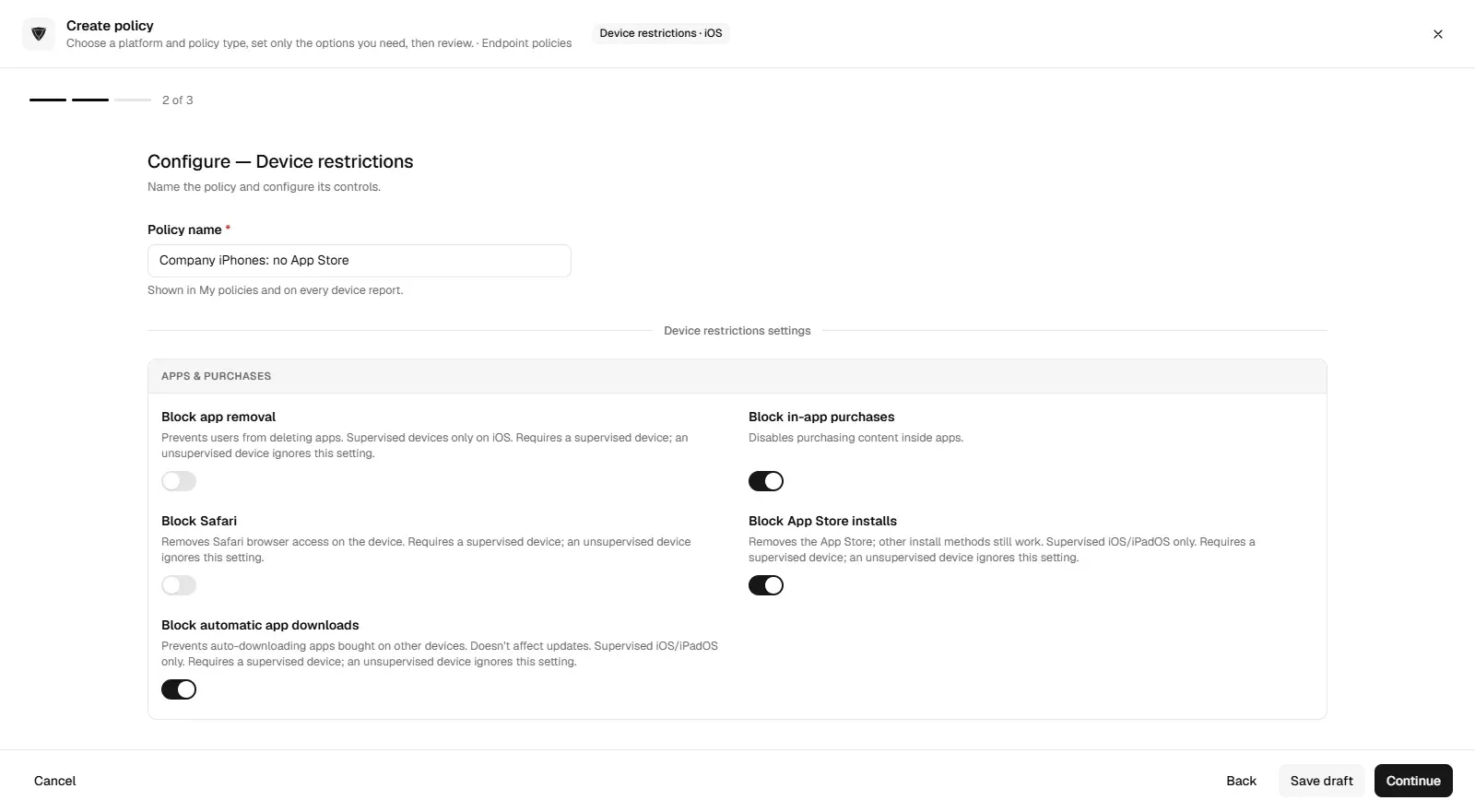
On iPhone and iPad, Apple only applies the App Store restriction to supervised devices. An unsupervised device accepts the profile but ignores that setting, so check your devices' supervision status before relying on it.
Best for: organizations that already use an MDM.
Best for: company-owned fleets that need restrictions users cannot undo.
On a Mac, the dependable way to block the App Store is an MDM restriction that prevents the App Store app from opening on managed Macs. Screen Time on a Mac can limit which apps are allowed by age rating, but it is not a reliable way to stop installs on a work Mac. Apps you still want people to have can be deployed through the MDM, and making everyday users standard users rather than administrators stops installs from outside the store; see Mac administrator accounts.
On Windows Enterprise and Education, the Group Policy setting Turn off the Store application (Computer Configuration > Administrative Templates > Windows Components > Store) turns off the Microsoft Store, and an MDM can apply the same setting. Windows Pro does not honor it, so on Pro use AppLocker or app control rules to block the Store app instead. Turning the Store off can also affect apps that are installed or updated through the Store, so test it on a few PCs before rolling it out.
On a personal Android phone, Google Play is a system app and cannot be fully removed; parents can use Family Link to require approval for downloads. On company phones enrolled as fully managed devices, an MDM can block app installs, so users cannot install apps from Google Play on their own, while IT still pushes approved apps through managed Google Play. On personal phones with a work profile, the restrictions apply only to the work profile. See also how to block an app on Android and a private app store for Android.
| Method | Pros | Cons |
|---|---|---|
| Device-level settings (Screen Time) | No extra tools, quick to set | Manual, device by device, easy to reverse with the passcode |
| Configuration profiles | Central control, faster than manual | Needs an MDM; on iPhone and iPad the App Store restriction needs supervision |
| Apple Supervised Mode with MDM | Enforceable, scales, users cannot undo it | Needs Apple Business Manager or Apple Configurator setup |
| Mac, Windows and Android restrictions | One policy per platform from the same MDM | Microsoft Store block needs Windows Enterprise or Education |
Yes, if IT delivers them. On supervised iPhones and iPads, removing the App Store does not stop the MDM from installing apps: Apple's restriction removes the store, and other install methods still work. Companies buy App Store apps in volume through Apple Business Manager and assign them from the MDM, so people get the apps they need without browsing the store. Some MDMs also offer a self-service catalog where users pick from approved apps. Sideloaded apps are a separate question; see app sideloading.
A few habits make the restriction stick without getting in people's way:
Switching off the App Store one device at a time does not hold up once you manage a fleet. A trio.so restrictions policy removes the App Store on supervised iPhones and iPads, blocks the Mac App Store, turns off the Microsoft Store on Windows Enterprise and Education, and blocks app installs on fully managed Android devices. On iPhones and iPads, trio.so still installs the apps you approve. See Apple device management and policy management.
Restricting the App Store improves security, cuts distractions and keeps devices aligned with what they are for. On a single iPhone, Screen Time does the job. On company devices, an MDM restriction is the method that holds: supervise your iPhones and iPads, block the store on each platform, and deliver the apps people need from a catalog you control. Clear communication, regular reviews and a simple exception process keep the restriction from getting in people's way.
Related reading: single app mode, how to block an app on Android and app sideloading.
trio.so removes the App Store on supervised iPhones and iPads, blocks the Mac App Store and the Microsoft Store, and still installs the apps you approve on iPhones and iPads.
trio.so brings device management, patching and security policies for Windows, macOS, Linux, iOS/iPadOS and Android into one console. Enroll a device and see it in the console within minutes.
trio.so brings device management, patching and security policies for Windows, macOS, Linux, iOS/iPadOS and Android into one console. Enroll a device and see it in the console within minutes.





Have questions? We've got answers. This section covers some of the most commonly asked questions related to this topic.
Related
The related industry news, interviews, technologies, and resources.
Learn how to securely distribute, install & manage iOS enterprise apps outside the Apple App Store. Step-by-step for IT admins & business teams for iOS devices.
Does an iPhone have a work profile? Why iOS uses User Enrollment instead, how it separates work and personal data, and how to turn it off.
What Managed Apple Accounts (formerly Managed Apple IDs) are, how to create them in Apple Business, their limits, and how an MDM uses them.
What an iPhone MDM enrollment profile is, how it gets onto a device, how to check or remove it, and how to fix enrollment profile errors.
Remote wipe an iPhone with Find My or iCloud, and how IT admins wipe or selectively wipe company iPhones and iPads with MDM. Steps and what happens next.
There is no Device Manager on a Mac. Here is what to use instead: System Information, Activity Monitor and VPN & Device Management, with steps.
What iPad management software does, how iPads enroll through Apple Business or Apple School Manager, supervision, kiosk mode and how to choose a tool.
Is an iPhone encrypted? What the passcode protects, what Advanced Data Protection adds, what "Reset Encrypted Data" means, and how IT enforces passcodes.
14-day free trial. No credit card required.
trio.so for MSPs: one console, separate clients