


Explained
Android Kiosk Software: Features & Best Solutions
Android kiosk software locks devices to specific apps for security and operational control. Learn setup methods, free vs paid options, and deployment strategies.
What an Android kiosk browser is, how to lock a tablet to one website, which settings matter (start URL, allowlist, idle reset) and the main app options.

Content writer, trio.so
An Android kiosk browser is a browser that locks an Android tablet or phone to one website, or a short list of allowed sites, in full screen, with the address bar, notifications, settings and other apps out of reach. It turns an ordinary tablet into a check-in screen, an ordering station or an information point that customers cannot wander away from. There are two ways to set one up: install a dedicated kiosk browser app, or use the kiosk mode in a device management (MDM) tool to pin a browser app to the screen.
If you are setting up Android tablets that must show one web page all day, this guide explains how kiosk browser lockdown works, which settings matter, how the two approaches compare and how to set one up.
A kiosk browser is a browser built or configured for unattended, single-purpose devices. Compared with an everyday browser, it:
Common uses are visitor sign-in at reception, self-service ordering in restaurants, product lookup in shops, booking screens outside meeting rooms and information displays in museums or clinics. Where the tablet only shows content and nobody touches it, a digital signage setup is often the better fit.
A reliable kiosk needs two layers working together: the device has to stay in the browser, and the browser has to stay on the right pages.
Android supports a locked "lock task" mode for apps that the device's owner allows. For that, the tablet is usually set up as a fully managed, company-owned device, either by a kiosk app that becomes the device owner or by an MDM. In lock task mode the status bar, notifications and system buttons are blocked, the app restarts if it crashes and the device returns to it after a reboot. Simple screen pinning, which any user can turn on in Settings, is not enough for a public kiosk, because anyone who knows the button combination can leave it.
Inside the locked device, the browser enforces the web side: the start URL, the allow list of domains, hidden navigation, no downloads, and an idle timer that returns to the start page and clears the session. Dedicated kiosk browsers expose these as settings. With Chrome or another managed browser, the same controls are set through managed configuration from your MDM.
Admins need a way out for maintenance. Kiosk browser apps typically use a PIN or a hidden gesture; MDM kiosks are usually exited remotely from the console, so no code can be shoulder-surfed at the device.
| Dedicated kiosk browser app | MDM kiosk mode with a browser app | |
|---|---|---|
| How it works | Install the app on each tablet and configure it there or in the vendor's cloud | Enroll the tablet in an MDM, then assign a kiosk policy that pins an approved browser |
| Web controls | Usually rich: allow lists, JavaScript options, motion wake, URL rotation | Depend on the browser and its managed settings |
| Fleet management | Per app, sometimes with the vendor's own cloud console | Same console as your other devices, with updates, inventory and remote actions |
| Best for | A few tablets with advanced browser needs | Many tablets, or kiosks next to other managed devices |
The two can be combined: an MDM enrolls the tablet and pins a dedicated kiosk browser app as the single app.
A few well-known options, described from their own websites:
Whatever you choose, test it on your exact tablet model and Android version before rolling it out, because device makers change how buttons and gestures behave.
For tablets that need two or three apps, such as a browser plus a payment app, see multi-app kiosk mode. For the wider Android setup, see Android tablet kiosk mode.
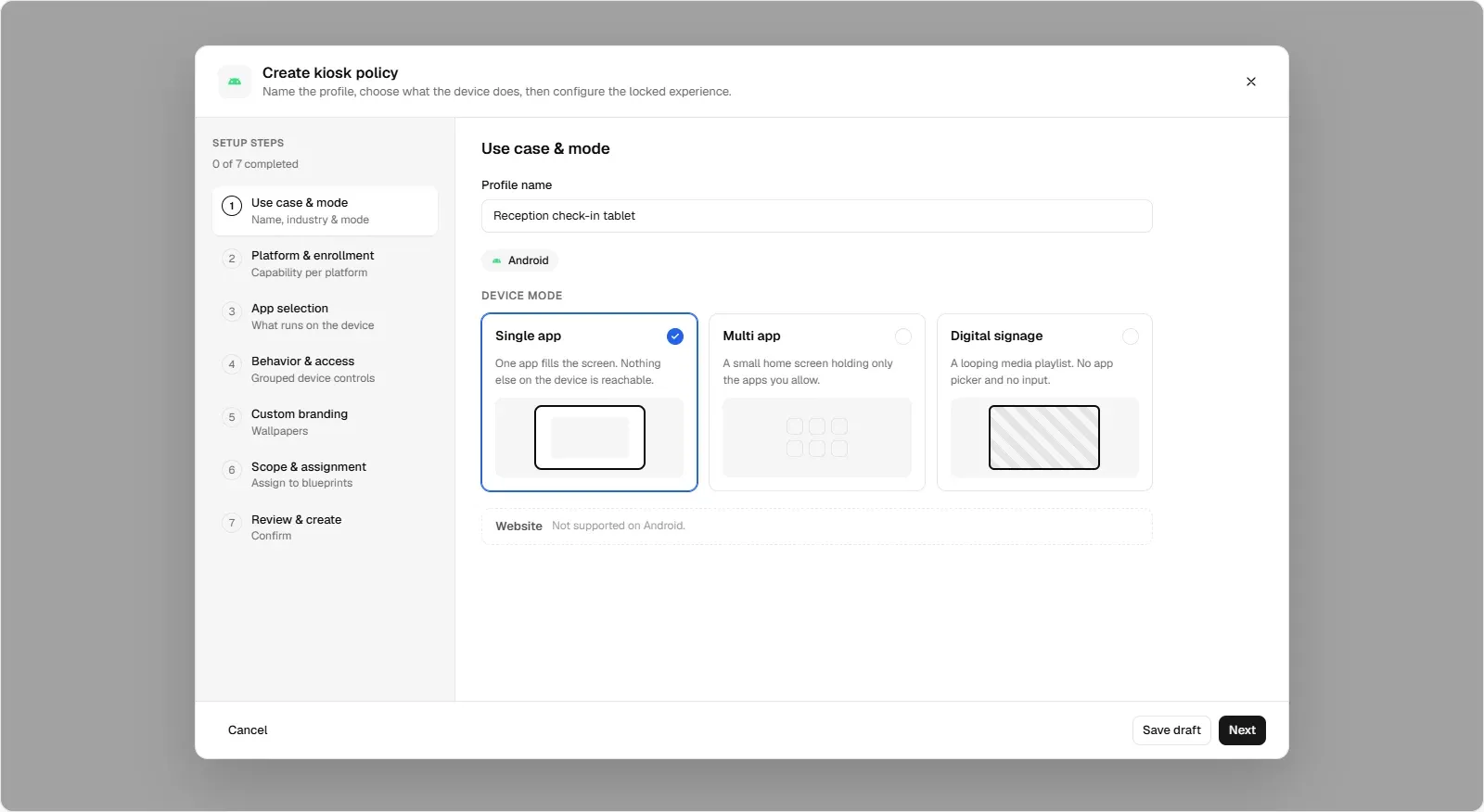
trio.so kiosk mode locks an Android device to an approved browser from managed Google Play and keeps it there after a restart. On Windows, trio.so can also lock a PC to one website in a managed kiosk browser with URL allow and block lists. Plans start at $5 per device. See kiosk software.
A browser that locks an Android device to one website or a short allow list, in full screen, with system buttons, settings and other apps blocked, for use as a public kiosk.
Set the tablet up as a fully managed device, then either install a kiosk browser app as device owner, or use an MDM's kiosk mode to pin a browser app and set its start page and allowed sites.
Yes. FreeKiosk is free and open source, and several commercial kiosk browsers let you test all features before buying a license.
Kiosk mode locks the device to one app or a few apps. A kiosk browser controls what happens inside the browser, such as the start page and allowed sites. A public web kiosk usually needs both.
With a kiosk browser app, use the admin PIN or exit gesture set in the app. With an MDM kiosk, remove or change the kiosk policy from the console; the device leaves kiosk mode on its next check-in.
Related reading: Android tablet kiosk mode, single app mode, multi-app kiosk mode and kiosk software.
trio.so kiosk mode keeps an Android tablet in one app, such as your approved browser, even after a restart.
trio.so brings device management, patching and security policies for Windows, macOS, Linux, iOS/iPadOS and Android into one console. Enroll a device and see it in the console within minutes.
trio.so brings device management, patching and security policies for Windows, macOS, Linux, iOS/iPadOS and Android into one console. Enroll a device and see it in the console within minutes.





Related
The related industry news, interviews, technologies, and resources.
Android kiosk software locks devices to specific apps for security and operational control. Learn setup methods, free vs paid options, and deployment strategies.

Discover the essentials of single-purpose devices, their benefits, and effective management strategies to enhance efficiency and security.
Explore iPad Kiosk Mode and how small business IT admins manage kiosk settings, restrict access, and secure iPads in retail, education, and POS.
How to secure public kiosks: lock the device to its app, block USB and unused ports, segment the network, keep it updated and reset each session.
How multi-app kiosk mode works on Windows, iPad and Android, what each platform needs, how it differs from single-app mode, and how to set it up.
Learn Windows Digital Signage setup. Transform Windows 10/11 devices into professional displays with kiosk mode, MDM, and cost-effective solutions.
What is a tablet kiosk and how can it boost SMB efficiency? Discover features, use cases, and secure deployment strategies in this practical guide.
Discover how Android tablet kiosk mode locks down devices, and boosts efficiency. Learn setup steps, best practices, and MDM solutions for SMBs.
14-day free trial. No credit card required.
trio.so for MSPs: one console, separate clients