

Explained
How to Detect Shadow AI in Your Organization
Shadow AI breaches average $4.63M. Here is how to detect shadow AI using DNS logs, OAuth audits, and your endpoint inventory, step by step.
Explore iPad Kiosk Mode and how small business IT admins manage kiosk settings, restrict access, and secure iPads in retail, education, and POS.
CISOs (Chief Information Security Officers) at small businesses often face the challenge of balancing usability with control. Whether it's securing customer-facing devices, ensuring compliance for field teams, or deploying a dedicated app for operations, unmanaged iPads present risks and inefficiencies. Without the right configuration, these devices can be misused, tampered with, or rendered ineffective for their intended purpose.
This is where an MDM like Trio helps. With built-in support for iPad Kiosk Mode and related lockdown configurations, Trio enables teams to provision iPads securely, remotely, and at scale. In this guide, we’ll explore what kiosk mode is, how to configure it effectively, and why IT admins should rely on Trio to manage these deployments.
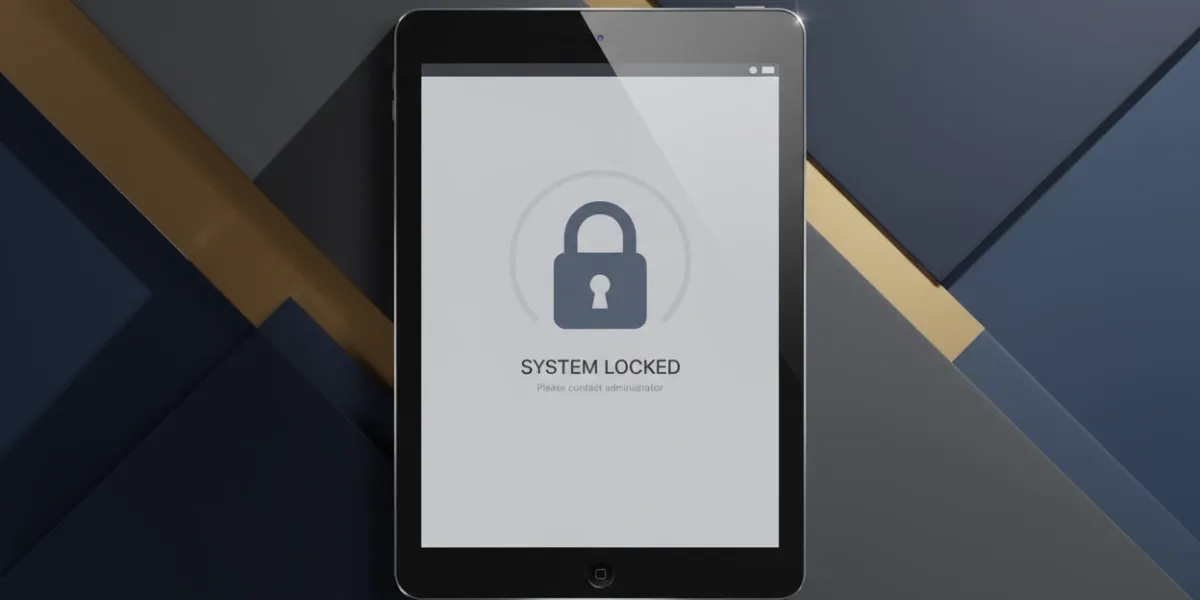
iPad Kiosk Mode is a configuration state that restricts a device to a specific app or set of apps, preventing user access to system settings or unintended usage. It's commonly used in scenarios like customer check-in, digital signage, POS systems, or education assessments.
There are several kiosk types available on iOS, each with different levels of control and supervision. Understanding the right one to use is essential for a secure, functional deployment.
Each iPad kiosk mode offers a different level of control, scalability, and supervision. Choosing the right one depends on your deployment size, use case, and security requirements.
This is a built-in iOS feature that restricts the iPad to a single app session. It’s ideal for temporary, manually configured use cases but not scalable for larger deployments. It requires physical access to the device and is disabled with a triple-click passcode.
Single App Mode locks a supervised iPad to one app indefinitely. Unlike Guided Access, it can be enforced remotely using MDM and is ideal for unattended setups such as kiosks, POS, or digital signage on iPad kiosks. It is the most scalable option for a supervised iPad kiosk setup, allowing admins to enforce restrictions consistently across multiple devices.
This allows access to a curated set of apps. It’s ideal for frontline workers or student kiosks where more than one app is needed but full access isn’t desirable.
Some setups rely on a web browser restricted to specific URLs. While less secure than native apps, it's useful for dynamic content and survey-based use cases.
Kiosk mode can be set up in various ways.
Limitations: Not scalable, requires physical access, cannot be scheduled or updated remotely.
Trio allows you to configure kiosk settings remotely by assigning MDM kiosk mode policy iOS profiles. You can:
This method is best for enterprise iPad kiosk deployment and ensures unattended iPad kiosks stay secure and functional.
To enable full kiosk mode options, the device must be in a supervised state.
Only supervised devices support Single App Mode, remote command execution, and automated restrictions.
Once supervised, Trio’s kiosk launcher can apply advanced kiosk mode provisioning options over the air.
Trio supports detailed customization and security restrictions for kiosk deployments:
These restrictions ensure that interactive kiosks software setups remain secure and consistent.
With Trio, you can manage and monitor all kiosks from a single dashboard:
This is critical for CISOs who need visibility and quick response across multiple kiosk endpoints.
Kiosk devices must balance restriction with user accessibility. Trio helps address both:
Small IT teams often lack the resources for complex deployment pipelines or constant supervision. Trio simplifies kiosk setup with:
With support for both kiosk lockdown software and broader device management needs, Trio is a unified tool for iPad deployments.
You can also explore compatible options such as kiosk software, interactive kiosks software, or tablet kiosk solutions within the same management layer.
Evaluating iPad Kiosk Mode for your business? Trio offers configuration flexibility, control, and reporting that fit the needs of lean IT teams. To explore deployment options and see the full workflow in action, you can schedule a free demo with our team.
For Android-based deployments, refer to our Android tablet kiosk mode and kiosk launcher resources as well.
Every organization today needs a solution to automate time-consuming tasks and strengthen security. Without the right tools, manual processes drain resources and leave gaps in protection. Trio MDM is designed to solve this problem, automating key tasks, boosting security, and ensuring compliance with ease.
Every organization today needs a solution to automate time-consuming tasks and strengthen security. Without the right tools, manual processes drain resources and leave gaps in protection. Trio MDM is designed to solve this problem, automating key tasks, boosting security, and ensuring compliance with ease.





Related
The related industry news, interviews, technologies, and resources.
Shadow AI breaches average $4.63M. Here is how to detect shadow AI using DNS logs, OAuth audits, and your endpoint inventory, step by step.
Declarative device management is Apple's answer to MDM polling delays and unreliable compliance data — here's how it works and how to start using it.
An APNS certificate is what lets your MDM platform send commands to iPhones, iPads, and Macs — here's how to create, renew, and protect it.
Device location history works differently on Android, iPhone, and MDM platforms. Here's what each one actually stores and how to access it.
Unlike full-device VPN, per-app VPN tunnels only the apps you choose — and without MDM enforcement, users can bypass it entirely on unmanaged devices.
A remote wipe on a Mac is only possible if the right tools are in place first — here is how MDM, Find My, and native macOS each handle device erasure.
Compare SOC 2 Type 1 and Type 2 audits. Discover key differences, audit scope, duration, and how to choose for compliance needs.
Compare managed and unmanaged devices - definitions, security differences, control levels, and how to choose the right approach for IT.