



MSP
NIS2 for MSPs and IT Service Providers: What Applies
NIS2 covers managed service providers across the EU. See when it applies to your MSP, what Germany's law says, and what clients will ask you to show.
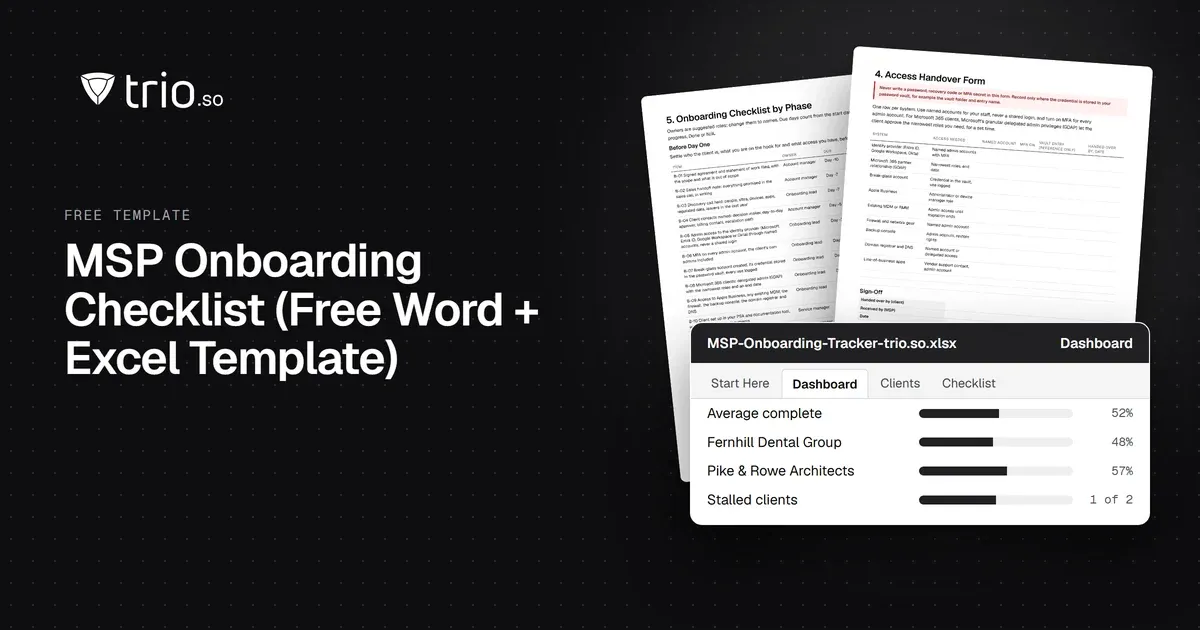
Free MSP onboarding checklist in Word, Excel and PDF: access handover, inventory, enrollment, baseline policies, a security check and offboarding.

Content writer, trio.so
A good MSP onboarding checklist has six phases: access and discovery, inventory, enrollment, baseline policies, a security check, and handover with the first QBR. Most onboarding problems come from skipping the inventory and the baseline, so you end up managing devices you cannot name under rules nobody wrote down.
This post is for MSP owners and the lead tech who runs the project. The checklist is in order. The download has it as a Word checklist with forms and a filled-in example, an Excel tracker for every client you are onboarding, and a PDF.
Settle three things before you touch a device: who the client is, what you are on the hook for, and what access you have.
Hand this over from sales to the technician in writing. Anything promised in the sales call and missing from the handoff becomes a problem in month two.
Build one list before you change anything.
Expect surprises. The first count rarely matches the client's own number. Tell them early, because it affects the quote.
Enroll by platform, using the method that needs the least touch on the device.
Most MSP onboarding checklists assume Windows. Many clients have a few Macs and a pile of phones, and those are the devices that get forgotten. Put them on the list from day one.
In trio.so's console for MSPs, each client's devices, users and policies are kept separate, so you enroll a client without mixing their fleet with another's. Directory sync from Entra ID, Google Workspace or Okta brings their users in, so you do not retype them.
A baseline is the minimum every device at the client must have. Write it once, apply it to everyone, and treat exceptions as exceptions.
Keep a baseline per client rather than one for your whole book. A dental office and a design studio do not need the same rules, and clients ask why when you treat them alike.
Before you call onboarding done, check what state the fleet is really in.
Record this as the starting point. When you show improvement at the first QBR, it is measured against something.
Close the project with a short document the client can read in five minutes: what you manage, how many devices and users, the baseline, how to reach you, and what you found. Book the first QBR before you leave the room, and bring the before and after numbers from the security check.
Update your internal documentation the same day, including credentials in your password manager and the client's entry in your PSA. Your PSA is a separate tool, and this checklist does not replace it.
Offboarding is the part checklists skip, and it is where data leaks.
When a client leaves: agree a date in writing, export their inventory and documentation, remove your admin accounts and delegated access, unenroll managed devices cleanly, and confirm in writing that you hold no more of their data.
When a client's employee leaves: disable the account, recover or remotely wipe the device, and revoke app access. The full employee list is in our IT offboarding checklist, and the hardware side of a new hire is in the IT onboarding checklist.
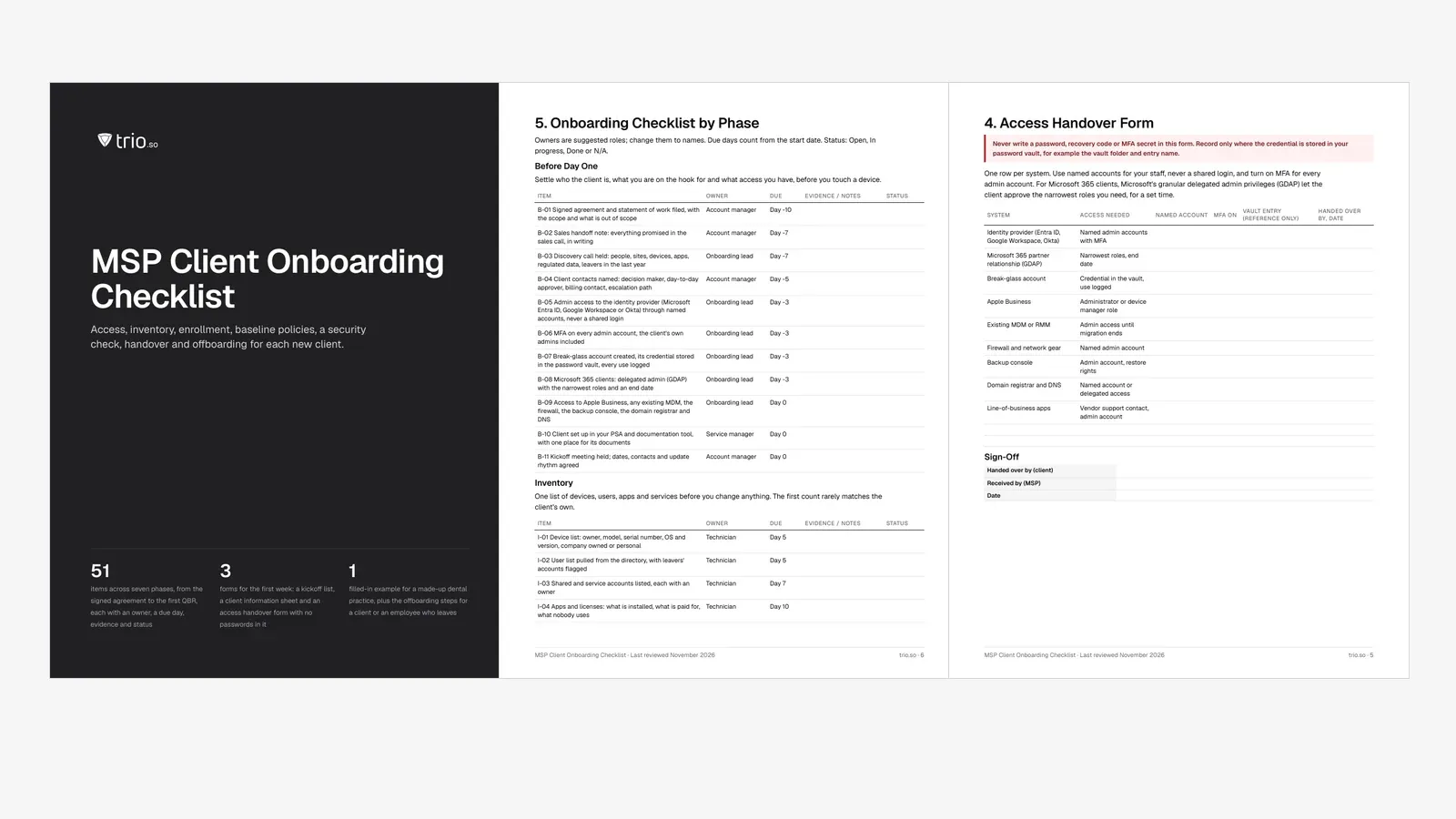
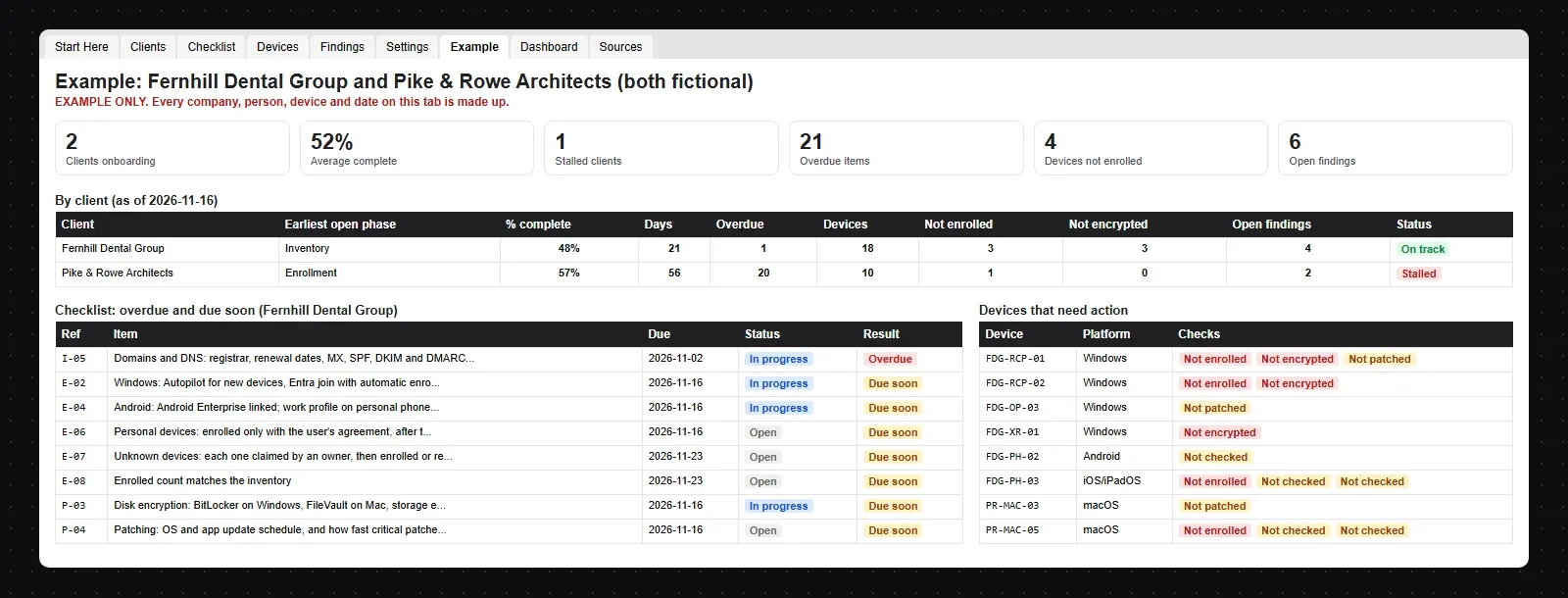
The download turns this post into files you can use with each new client. The Word checklist has the 51 items in phase order with an owner, a due day, evidence and status, plus a kickoff list, a client information sheet, an access handover form with no passwords in it, and a filled-in example for a made-up dental practice. The Excel tracker holds every client you are onboarding at once.
For the wider picture of running the practice, see what an MSP is and does, the MSP software stack and managed IT services. If your clients run several directories, multi tenant Active Directory explains how to keep them apart.
trio.so handles the device side of this list for MSPs: one console with each client's devices, users and policies kept separate, zero-touch enrollment with Windows Autopilot, Apple Business and Android Enterprise, Ubuntu and Debian enrollment, and the policy status of every device. Plans start at $5 per device. See how trio.so works for MSPs.
14-day free trial. No credit card required.
trio.so keeps each client's devices, users and policies separate in one MSP console. Enroll with Windows Autopilot, Apple Business or Android Enterprise, set the baseline and check each device's policy status.
Every organization today needs a solution to automate time-consuming tasks and strengthen security. Without the right tools, manual processes drain resources and leave gaps in protection. trio.so is designed to solve this problem, automating key tasks, boosting security, and ensuring compliance with ease.
Every organization today needs a solution to automate time-consuming tasks and strengthen security. Without the right tools, manual processes drain resources and leave gaps in protection. trio.so is designed to solve this problem, automating key tasks, boosting security, and ensuring compliance with ease.





Related
The related industry news, interviews, technologies, and resources.
NIS2 covers managed service providers across the EU. See when it applies to your MSP, what Germany's law says, and what clients will ask you to show.

The MSP security stack in 2026: the layers to cover, the tool category in each, and what clients now expect you to show. Start with endpoints and identity.
Best RMM software for MSPs in 2026, compared on multi-tenancy, Mac and Linux coverage, patching, remote access and pricing.
MSP vs MSSP in plain terms: what each delivers, where patching and endpoint security overlap, and when an MSP should partner for MDR or build.
Co-managed IT explained: who does what, how to split roles between internal IT and an MSP, and how to give both access to one device console.
The MSP software stack by job in 2026: RMM, PSA, MDM, patching, backup, security. What each covers, where RMM stops, and how to evaluate.
What is an MSP? A managed service provider runs a business's IT for a monthly fee. Here is what MSPs do, how they charge and how to choose one.
14-day free trial. No credit card required.
trio.so for MSPs: one console, separate clients