

School
School IT Support With a Team of One to Three: What to Automate First
School IT support for a team of one to three: where the hours go, what to automate first, a weekly and termly routine, and when to bring in outside help.
CIPA compliance for schools explained: the internet safety policy, filter, monitoring, education and public meeting rules, plus an audit checklist.

Content writer, trio.so
CIPA compliance means a school that takes E-Rate discounts for internet access or internal connections has an internet safety policy, runs a filter that blocks obscene images, child sexual abuse material and images harmful to minors, monitors minors online, teaches students safe online behavior, and has held a public meeting on the policy. The school certifies all of this every funding year, on FCC Form 486 today and on the FCC Form 471 application from funding year 2028, and keeps the records for 10 years. This guide lists each requirement, the evidence an auditor asks for, and a checklist you can work through.
The Children's Internet Protection Act (CIPA) is a federal law passed by Congress in 2000. The Federal Communications Commission (FCC) wrote the rules in 2001 and updated them in 2011, after the Protecting Children in the 21st Century Act added the online behavior education requirement (FCC, CIPA consumer guide, updated 3 Sep 2026).
CIPA applies to K-12 schools and public libraries that receive E-Rate discounts for Category One internet access or any Category Two service: internal connections, managed internal broadband services and basic maintenance of internal connections. A school that takes discounts for telecommunications services only does not have to comply (USAC, CIPA page, read 10 Nov 2026).
The certification is made by the school's Administrative Authority. That can be the school, the school board, the district or another body that runs the school. If the Administrative Authority is also the Billed Entity, it certifies on FCC Form 486. If not, it completes FCC Form 479 and gives it to the Billed Entity, which then certifies on Form 486 that it has collected the 479s. From funding year 2028 the FCC moves the CIPA certification to Form 471, the funding application, and consortia collect the 479s before filing it (FCC order, Federal Register 91 FR 29051, 19 May 2026).
Losing the certification means losing the E-Rate discount on internet access and internal connections.
USAC groups CIPA into three requirements. Schools carry two extra duties inside the first one.
| Requirement | What it means | Applies to |
|---|---|---|
| Internet safety policy | A written policy covering five topics (listed below), adopted and enforced | Schools and libraries |
| Monitoring minors | The policy provides for monitoring the online activities of minors | Schools |
| Educating minors | Students are taught appropriate online behavior, including social networking, chat rooms and cyberbullying awareness and response | Schools (certified since 1 Jul 2012) |
| Technology protection measure | A filter that blocks or filters visual depictions that are obscene, child sexual abuse material, or harmful to minors when minors use the computer | Schools and libraries |
| Public notice and meeting | Reasonable public notice and at least one public hearing or meeting on the proposed policy and filter | Schools and libraries (private schools notify their own constituent group) |
Source: USAC, CIPA page; FCC, CIPA consumer guide. A "minor" under CIPA is anyone under 17.
The written policy has to address all five of these topics.
The law leaves the definition of "inappropriate" to the local community. The school board or local education agency decides what goes on the blocked list beyond the three categories CIPA names. Some districts fold the internet safety policy into their acceptable use policy, so students and parents sign one document.
CIPA calls the filter a technology protection measure. It must block or filter pictures that are obscene, child sexual abuse material (the statute's term is child pornography), or harmful to minors when a minor is using the computer. CIPA does not name a product. USAC describes it as a specific technology that blocks or filters internet access, so the choice of tool is yours. Our guide to choosing a web filter for schools compares the options.
The school must enforce the filter on its computers with internet access. An authorized administrator may switch it off for an adult doing bona fide research or another lawful purpose.
Two things CIPA does not ask for are worth knowing. It does not require you to track or keep browsing history for minors or adults (FCC). And its blocking duty covers pictures only. Anything your district blocks beyond that, such as gaming, proxies or VPN services, comes from your own policy, not from CIPA. If you need a starting list, our list of websites blocked by schools comes with a free download of over 11,000 domains in three strictness levels.
For schools, the policy must provide for monitoring the online activities of minors. CIPA does not define how. A teacher watching screens in a lab, classroom management tools and filter reports are possible ways to meet it. Write down which ones you use.
The education duty is a curriculum item, not a technology one. Students must be taught how to behave online, including on social networking sites and in chat rooms, and how to recognize and respond to cyberbullying. Digital citizenship lessons are one way to cover it. Keep the lesson plans as evidence. Our guides to cyberbullying in schools and social media etiquette for students can feed those lessons.
USAC lists the records it asks for in an audit. Keep them for each funding year that needed a CIPA certification, for at least 10 years after the later of the last day of that funding year or the service delivery deadline.
The filter record is easy to overlook. A filter that was set up in August and silently stopped working on half the student iPads by spring is hard to defend. Keep a dated record of where the filter was applied, every term, not only at setup.
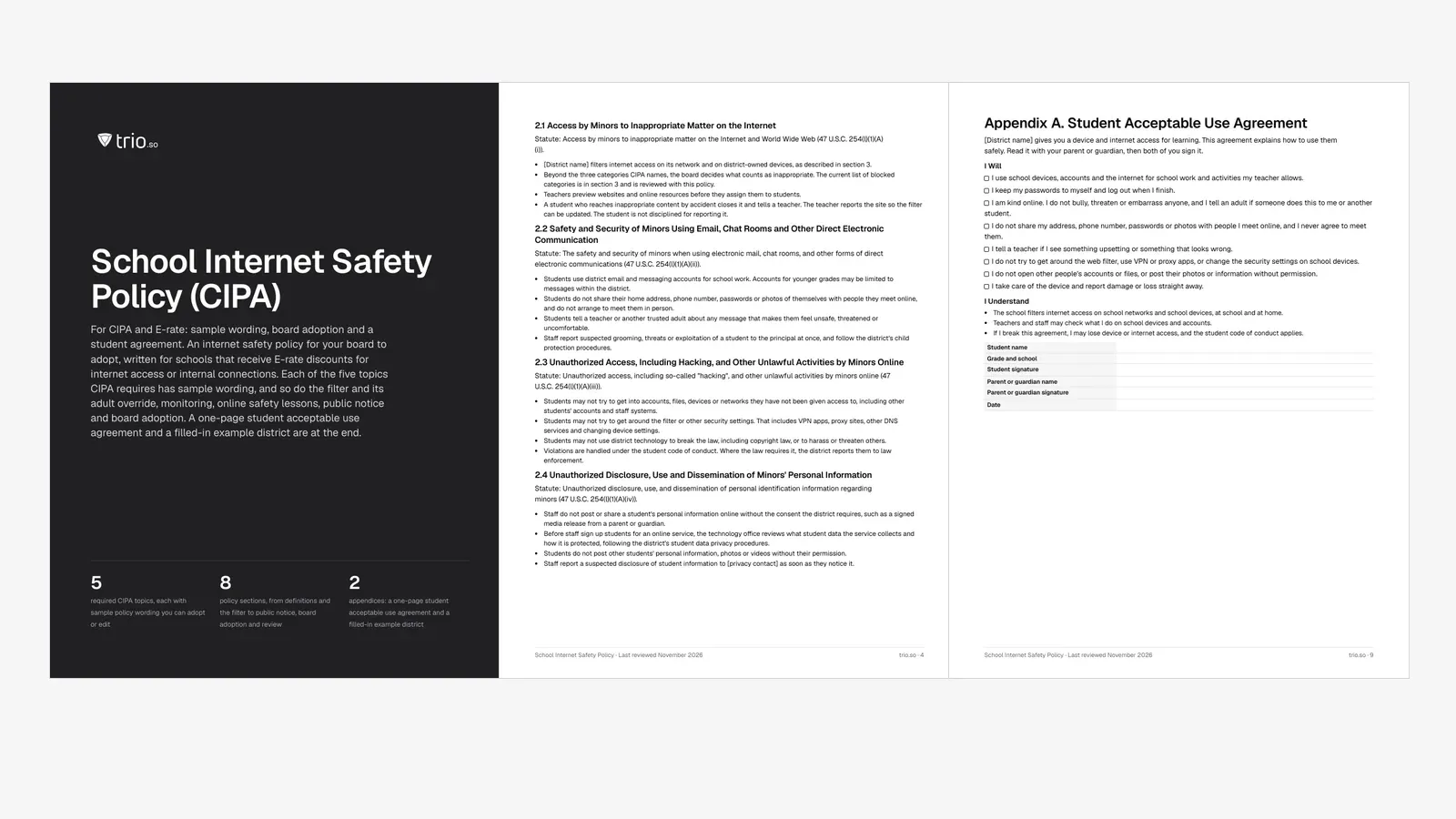
Free template: school internet safety policy for CIPA
Sample policy wording for the five required topics, the filter and its adult override, monitoring, online safety lessons, public notice and board adoption. A one-page student acceptable use agreement comes with it as an appendix.
A network filter covers devices on the school network. A filter set on the device itself keeps working when a school iPad leaves the building. trio.so manages school devices on Windows, macOS, Linux, iOS/iPadOS and Android from one console. On supervised iPads and iPhones it applies a web content filter policy using Apple's built-in allow and deny lists, and on Apple and Android devices it can set encrypted DNS settings that point the device at your district's DNS filter, if that filter offers an encrypted DNS address. On Macs, it connects a third-party filter plugin. Cover Windows laptops with your network or DNS filter.
For the audit, trio.so shows for each device whether a policy is applied, failed or pending, and keeps an audit trail of who changed which policy, exportable as CSV or JSON. That gives you a dated record of where the filter policy was applied. Schools that use Apple School Manager can connect it so new iPads arrive supervised with the filter already on. ChromeOS support is coming soon. Plans start at $5 per device.
Start free trial or Book a demo.
14-day free trial. No credit card required.
Set one web content filter policy for your supervised iPads and iPhones in trio.so, then check device by device where it applied and where it failed. Your district still owns the policy and the CIPA paperwork.
trio.so brings device management, patching and security policies for Windows, macOS, Linux, iOS/iPadOS and Android into one console. Enroll a device and see it in the console within minutes.
trio.so brings device management, patching and security policies for Windows, macOS, Linux, iOS/iPadOS and Android into one console. Enroll a device and see it in the console within minutes.





Related
The related industry news, interviews, technologies, and resources.
School IT support for a team of one to three: where the hours go, what to automate first, a weekly and termly routine, and when to bring in outside help.
Managed IT services for schools: what to outsource, what to keep in house, how providers price it and what to ask before you sign.
How a web filter for schools works: network, DNS and device layers, what CIPA requires, how students bypass filters, and what to check before you buy.
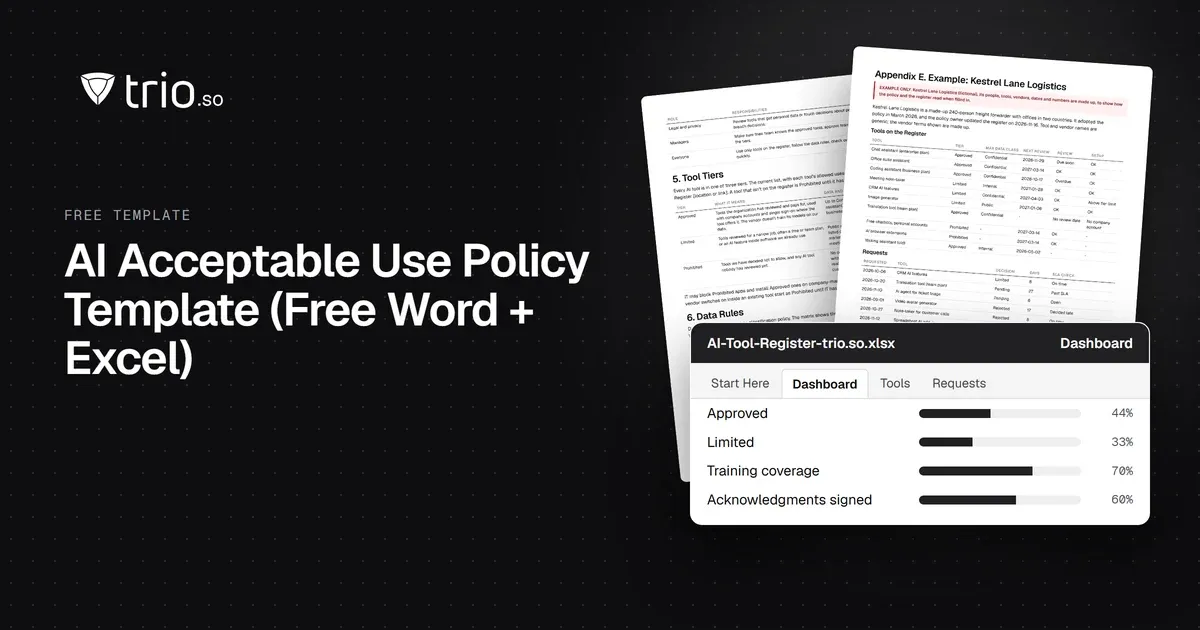
Free AI policy template in Word and PDF: tool tiers, a data matrix, allowed uses by role, AI agents, new-tool reviews and an Excel AI tool register.
How MSPs launch and price a compliance as a service offer: frameworks clients face, packaging, pricing models, evidence and what not to promise.
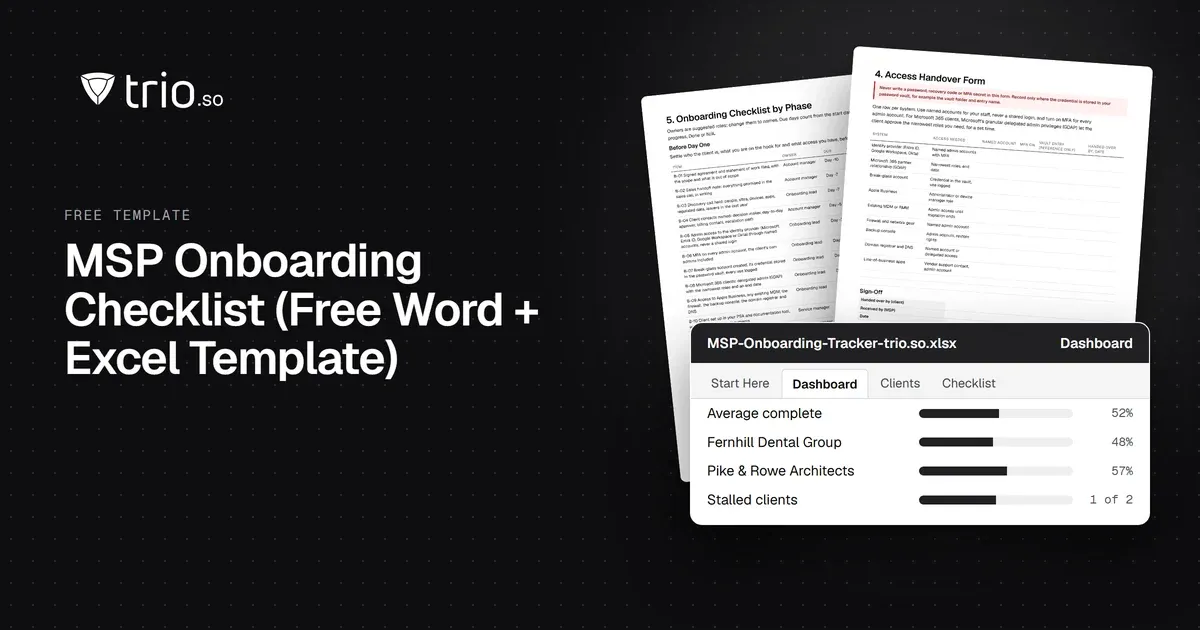
Free MSP onboarding checklist in Word, Excel and PDF: access handover, inventory, enrollment, baseline policies, a security check and offboarding.

How SP-initiated and IdP-initiated SAML SSO work step by step, the replay and CSRF risks, when each fits, common SAML errors and how OIDC compares.
NIS2 covers managed service providers across the EU. See when it applies to your MSP, what Germany's law says, and what clients will ask you to show.
14-day free trial. No credit card required.
trio.so for MSPs: one console, separate clients