


School
CIPA Compliance for Schools: Requirements and Checklist
CIPA compliance for schools explained: the internet safety policy, filter, monitoring, education and public meeting rules, plus an audit checklist.
How a web filter for schools works: network, DNS and device layers, what CIPA requires, how students bypass filters, and what to check before you buy.

Content writer, trio.so
A web filter for schools blocks harmful and distracting websites on the devices students use, at school and, for take-home devices, at home. Covering every device can take more than one layer: a network or DNS filter for everything on the school network, and a filter on the device itself for iPads, laptops and Chromebooks that leave the building. This guide explains the layers, what the Children's Internet Protection Act (CIPA) asks of a filter, how students get around filters, and what to check before you buy.
US schools that take E-Rate discounts for internet access or internal connections must run a filter that blocks pictures that are obscene, child pornography, or (for minors) harmful to minors. That is a condition of CIPA, and the school certifies compliance each funding year, on FCC Form 486 or 479 today and on Form 471 from funding year 2028 (USAC, CIPA page, read 10 Nov 2026). Our guide to CIPA compliance covers the full list of requirements.
CIPA sets the floor, not the ceiling. The school or local community decides what else counts as inappropriate, so a school may also block categories such as gaming, social media during class time, proxies and VPN services. Our post on why schools restrict websites explains the reasons from the student side.
Filters work at different points between the student and the website. Each layer covers something the others miss.
| Layer | How it works | Covers devices off campus | Main gap |
|---|---|---|---|
| Network or firewall filter | Inspects traffic on the school network, often with category lists and HTTPS inspection | No | Stops working when the device leaves the network |
| DNS filter | Refuses to resolve blocked domains for devices that use the school's DNS servers | Only if the device is set to use that DNS everywhere | Sees domains, not full pages; bypassed if the device uses another DNS service |
| Device-level filter | A policy or agent on the device applies the rules wherever it connects | Yes | Needs managed devices and support for each operating system |
| Browser extension | Filters inside one browser, common on Chromebooks | Yes, in that browser | Other browsers and apps are not covered |
One workable setup is a network or DNS filter as the base for everything on campus, plus a device-level filter for every school-owned device that goes home.
A filter that lives on the school firewall protects students only while they are on the school network. Once a school iPad or laptop joins a home Wi-Fi network or a phone hotspot, that filter no longer sees its traffic. In 1:1 programs, those devices spend evenings and weekends off the school network.
Closing the gap means putting the rules on the device. That takes managed devices: school-owned iPads enrolled and supervised, laptops enrolled in device management, and a filter that each platform supports. If you are starting a program, our guide to starting a 1:1 device program covers enrollment.
No filter is perfect. Knowing the common workarounds helps you choose settings that close them.
If you need a starting list of sites, our list of websites blocked by schools comes with a free download of over 11,000 domains in three strictness levels, ready to import.
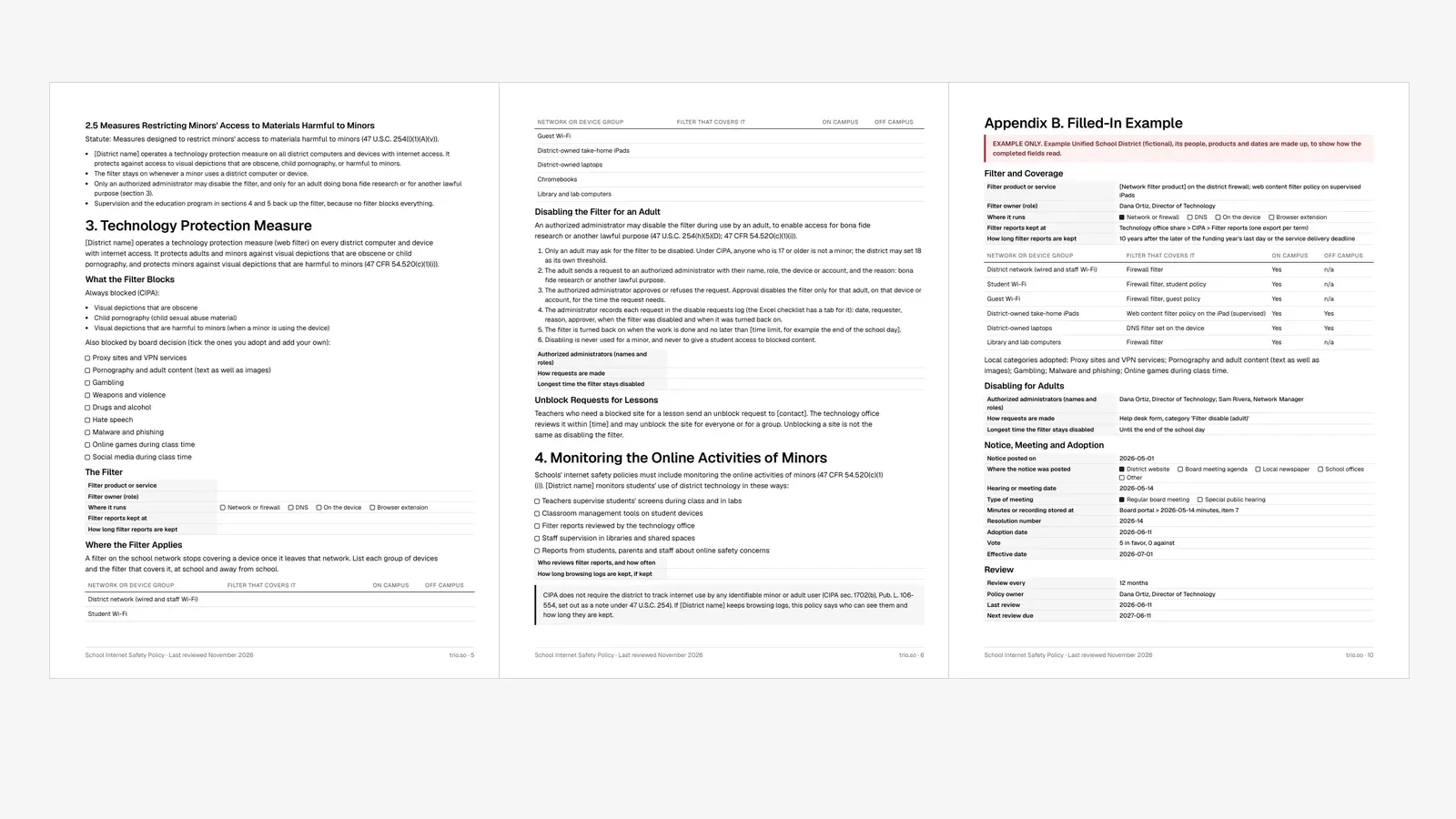
Free template: write the filter into your internet safety policy
CIPA expects the filter to be part of an internet safety policy that went through public notice and a hearing or meeting. Our template has sample wording for what the filter blocks, which devices it covers at school and at home, and how an adult gets it switched off for research.
trio.so manages school devices on Windows, macOS, Linux, iOS/iPadOS and Android from one console, and it covers the device-level layer on iPads and iPhones. On supervised iPads and iPhones it applies a web content filter policy using Apple's built-in allow and deny lists, so the rules go with the device to school, home or a hotspot. On Macs it can connect a third-party filter plugin. On Apple and Android devices it can also set encrypted DNS settings that point the device at your district's DNS filter, if that filter offers an encrypted DNS address. That is a DNS setting, not a filter of its own. Cover Windows and Linux laptops with a separate filter. ChromeOS support is coming soon.
For records, trio.so shows for each device whether a policy is applied, failed or pending, and keeps an audit trail of policy changes, exportable as CSV or JSON. New iPads from Apple School Manager can arrive supervised with the filter policy already on. Plans start at $5 per device.
Start free trial or Book a demo.
14-day free trial. No credit card required.
trio.so applies a web content filter to supervised iPads and iPhones, with the allow and deny lists you choose, so students carry the same rules home. Cover laptops and Chromebooks with a network or DNS filter.
trio.so brings device management, patching and security policies for Windows, macOS, Linux, iOS/iPadOS and Android into one console. Enroll a device and see it in the console within minutes.
trio.so brings device management, patching and security policies for Windows, macOS, Linux, iOS/iPadOS and Android into one console. Enroll a device and see it in the console within minutes.





Related
The related industry news, interviews, technologies, and resources.
CIPA compliance for schools explained: the internet safety policy, filter, monitoring, education and public meeting rules, plus an audit checklist.
School IT support for a team of one to three: where the hours go, what to automate first, a weekly and termly routine, and when to bring in outside help.
Managed IT services for schools: what to outsource, what to keep in house, how providers price it and what to ask before you sign.
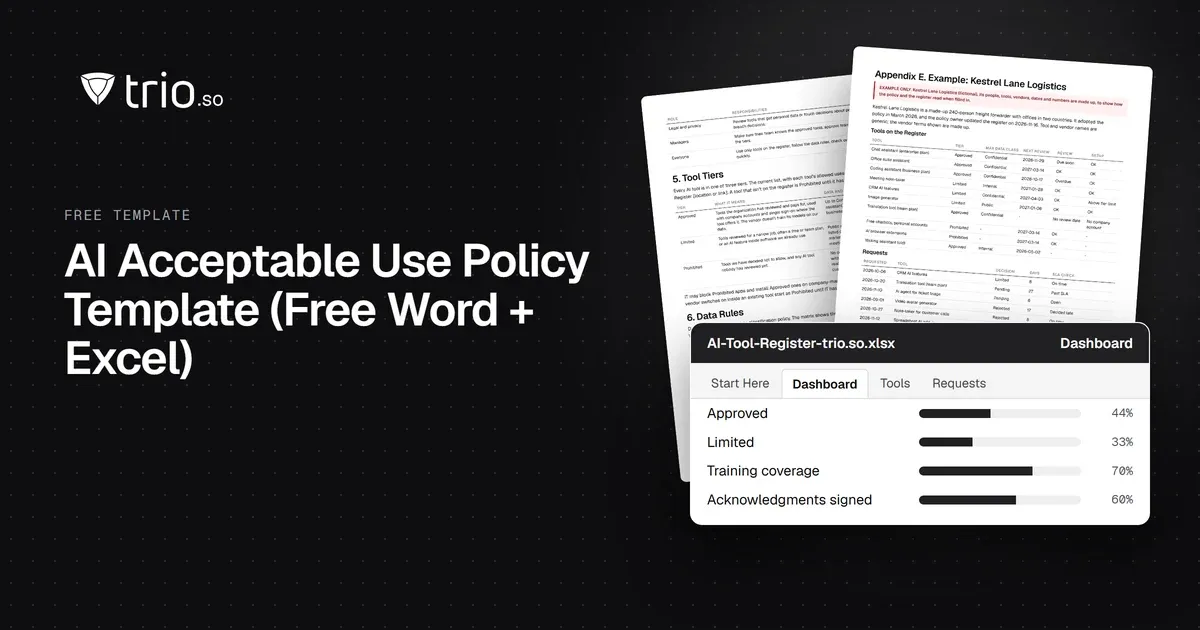
Free AI policy template in Word and PDF: tool tiers, a data matrix, allowed uses by role, AI agents, new-tool reviews and an Excel AI tool register.
How MSPs launch and price a compliance as a service offer: frameworks clients face, packaging, pricing models, evidence and what not to promise.
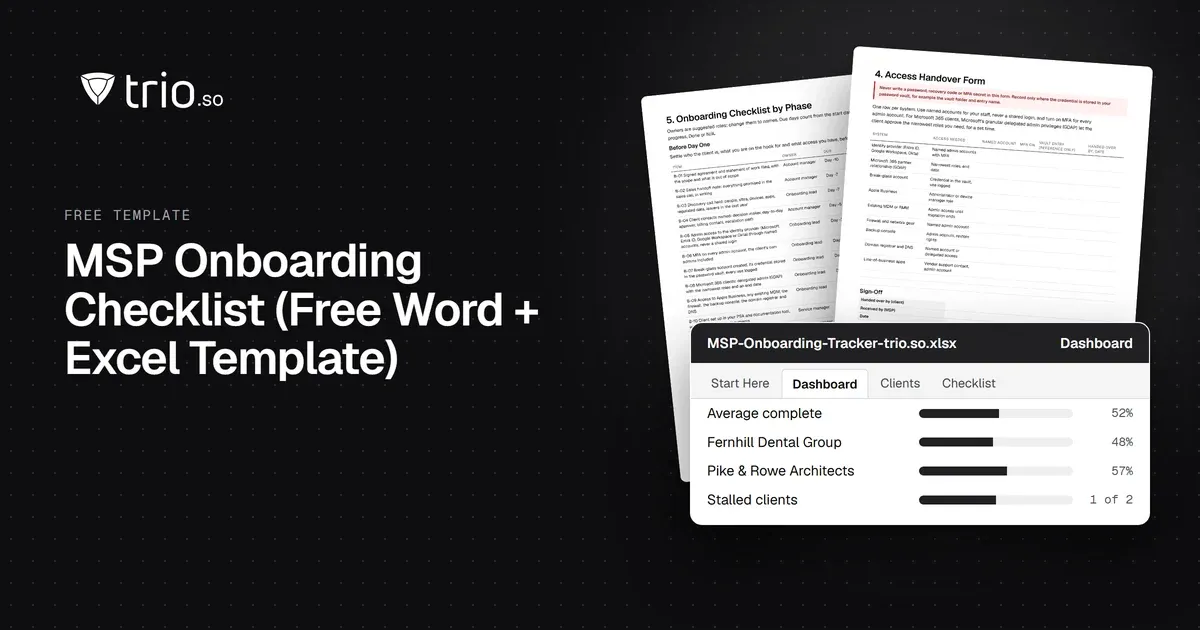
Free MSP onboarding checklist in Word, Excel and PDF: access handover, inventory, enrollment, baseline policies, a security check and offboarding.

How SP-initiated and IdP-initiated SAML SSO work step by step, the replay and CSRF risks, when each fits, common SAML errors and how OIDC compares.
NIS2 covers managed service providers across the EU. See when it applies to your MSP, what Germany's law says, and what clients will ask you to show.
14-day free trial. No credit card required.
trio.so for MSPs: one console, separate clients